Best Screen Studio Alternatives for Mac: Pick by Workflow (2026)
Compare Screen Studio alternatives by the job you need done: auto-zoom demos, local files, cloud sharing, streaming, GIFs, or full editing.
The best Screen Studio alternative depends on what you are replacing:
- Choose Rekort for a native Mac workflow with auto-zoom, webcam, audio, backgrounds, timeline corrections, local MP4/GIF export, and a $79 lifetime option.
- Choose FocuSee for cross-platform auto-zoom plus AI subtitles, cleanup, avatars, and mobile-device capture.
- Choose Cap for an open-source Loom-style workflow with local editing, share links, and self-hosting options.
- Choose Loom for hosted async video, comments, analytics, integrations, and team libraries.
- Choose OBS Studio for free multi-source scenes, audio routing, recording, and streaming.
- Choose Kap for a small free Mac utility focused on short GIF/video captures.
- Stay with Screen Studio when cursor smoothing, webcam background removal, local transcripts, iOS capture, and its deeper presentation polish justify the subscription.
Screen Studio's official pricing page showed $29 monthly or $9 per month billed yearly ($108 per year) when checked July 23, 2026. It did not show a lifetime option.
Disclosure: We built Rekort. Product facts and prices below come from current official product pages; workflow recommendations are our judgment. Try the finalists with the same short recording because zoom behavior and cursor feel are hard to reduce to a table.
Evidence note: DataForSEO reported 260 US monthly searches for “screen studio alternative” on July 23, 2026, with keyword difficulty 22 and $6.68 CPC. Rekort's page had 797 Google Search Console impressions, no clicks, and average position 10.4 in the final 28-day window ending July 20. The live page-one SERP mixed Reddit discussions, alternative lists, product pages, and launch-community threads. This refresh leads with a job-based decision instead of another generic list.
Why people look for Screen Studio alternatives#
It helps to be specific about what's driving the search, because different problems have different solutions.
You prefer a lifetime purchase. Screen Studio's current official pricing is subscription-based at $29/month or $108/year. Rekort is $79 lifetime; FocuSee offers a $199.99 one-time license for version 2.x. Those licenses have different feature scope and update terms, so compare more than the first payment.
You only need the core workflow. Screen Studio bundles a lot: auto-zoom, webcam overlay with background removal, custom backgrounds, padding, rounded corners, cursor spotlight rings, click animations, and export to MP4/GIF/WebM. If you only need auto-zoom and clean video export, you're paying for capabilities you'll never open.
You need something Screen Studio doesn't have. Screen Studio saves recordings locally and exports files. It has no async sharing links, no viewer comments, no cloud storage, and no viewing analytics. If you're coming from Loom or you need to send a URL rather than attach a file, Screen Studio doesn't cover that use case.
You're not on macOS. Screen Studio is macOS-only. If some of your team is on Windows or Linux, Screen Studio isn't an option for them.
You want something simpler. Screen Studio has a rich settings panel with enough options to slow down a quick recording workflow. Some users want fewer decisions between "record" and "export."
Screen Studio alternatives at a glance#
| Tool | Price | Auto-zoom | Webcam | GIF export | Best for |
|---|---|---|---|---|---|
| Rekort | $9/mo, $49/yr, or $79 lifetime | Yes | Yes | Yes | Native Mac demos and local files |
| FocuSee | $49.99–$79.99/yr; $199.99 v2.x lifetime | Yes | Yes | No | Cross-platform AI-assisted demos |
| Cap | Free personal; $29/yr Desktop | Zoom controls; test the behavior | Yes | Yes | Open-source recording and sharing |
| Loom | Free; $18–$24/user/mo | No auto-zoom | Yes | Thumbnail only | Async video messaging |
| OBS Studio | Free | No | Yes | No | Streaming, multi-source |
| Kap | Free | No | No | Yes | GIF capture |
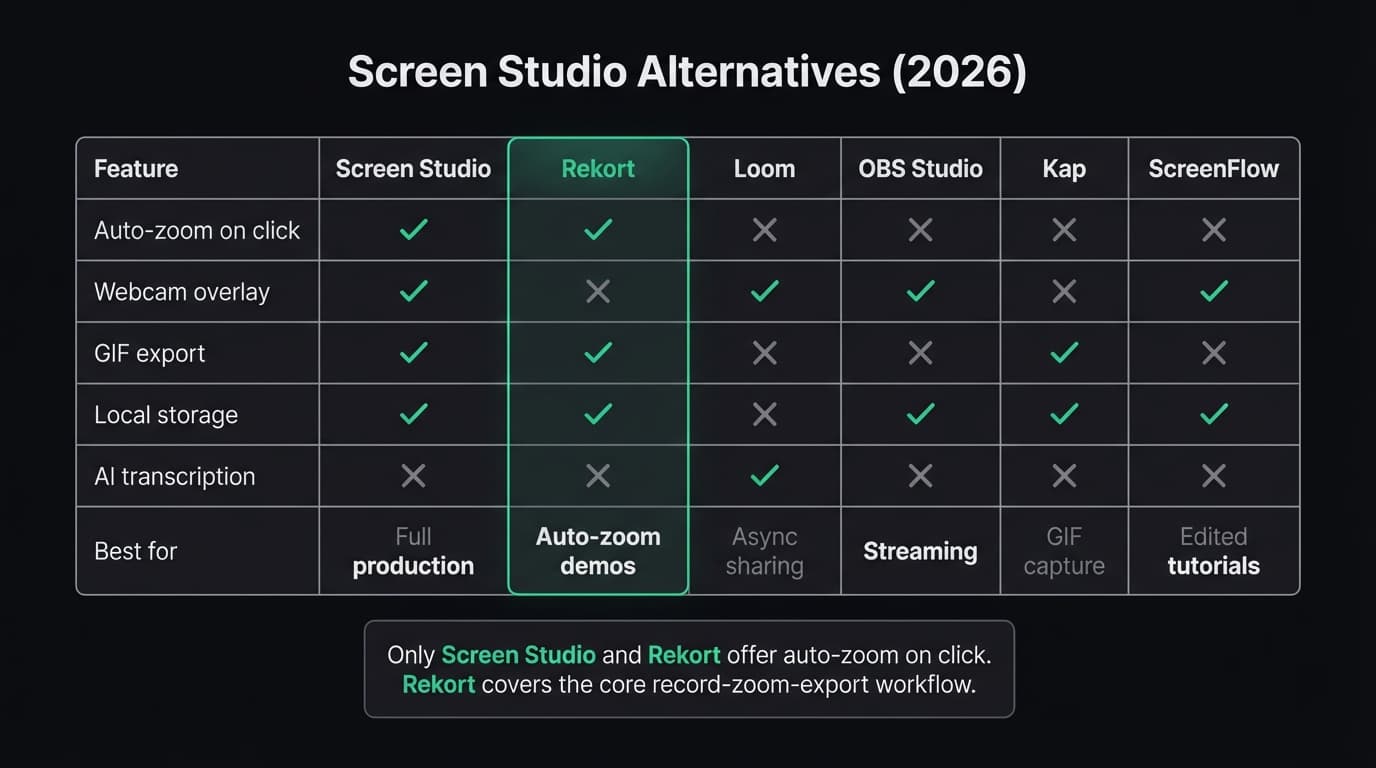
The table is a first filter, not a winner. “Auto-zoom” can mean clicks automatically create editable events, the app applies a zoom effect after recording, or the editor merely lets you add zooms. Use the same 30-second app path in each trial before deciding.
Continue reading
A Simpler Alternative
Auto-zoom on click, focused timeline editing, MP4 & GIF export. $9/month, $49/year, or $79 lifetime.
Rekort#
Price: $9/month, $49/year, or $79 lifetime
Full disclosure: this is our app.
Rekort is a native Mac screen recorder with automatic zoom on click. Capture a full screen, window, or selected area with optional webcam, system audio, and microphone. After recording, adjust zoom events; trim, split, ripple-delete, or change segment speed; frame the capture with a color or image background; then export MP4 or GIF.
The workflow overlaps substantially with Screen Studio. The remaining differences are specialized: Rekort does not include Screen Studio's cursor smoothing, local transcripts, iOS capture, or webcam background removal.
What it does well:
- Auto-zoom on click. This is the single feature that separates polished demo recordings from raw screen captures. Rekort applies it automatically, the same way Screen Studio does.
- System audio and microphone capture without extra configuration.
- MP4 and GIF export. GIFs export with zoom already applied, making them useful for GitHub READMEs, PR comments, and Slack.
- Adjustable zoom level, duration, and easing curves. You can preview the full recording with zoom and tweak timing before exporting.
- Native Swift/SwiftUI app — not Electron or a web wrapper.
- Local storage only. Recordings never leave your machine unless you export and share them yourself.
- Webcam overlay with position and size controls.
- Color or image backgrounds, padding, rounded corners, shadow, and common aspect ratios.
- Focused timeline with split, ripple delete, trim, segment speed, and zoom-event control.
- Simple pricing: $9/month, $49/year, or $79 lifetime, with no feature gates.
Where it falls short:
- No webcam background removal.
- No cursor smoothing, spotlight ring, or keystroke overlay.
- No local transcript or caption workflow.
- No iPhone or iPad capture.
- macOS 14 (Sonoma) or later required. No support for macOS 13 or earlier.
- Newer app — fewer templates, presets, and community resources than Screen Studio's established ecosystem.
Who should use it: Developers, product marketers, and DevRel engineers who record demos, bug reproductions, and tutorial walkthroughs and want auto-zoom, webcam, backgrounds, focused corrections, and local exports with a lifetime option.
Who shouldn't: Anyone who needs webcam background removal, cursor smoothing, local transcripts, iOS capture, or a hosted review workspace in the same product. Screen Studio, FocuSee, or Loom may fit those requirements better.
Loom#
Price: Free (25 recordings, 5-minute cap); Starter $12.50/user/month; Business $20/user/month (as of March 2026, via Atlassian's pricing page)
Loom is a cloud-based screen recorder designed for async team communication. Every recording automatically uploads to Loom's servers and generates a share link. Viewers watch in the browser without downloading a file, leave timestamp comments, and react with emoji.
It's a fundamentally different product from Screen Studio — Loom is about sharing video in a workflow context, Screen Studio is about producing polished recordings locally. But if what you're missing is the webcam overlay or you need something with a shareable URL, Loom is worth considering.
What it does well:
- Webcam bubble overlay, well-implemented and refined across years of iteration.
- Share links work like email attachments that play in the browser — no downloads, no accounts required for viewers.
- Viewer engagement features on Business plan: timestamp comments, emoji reactions, viewing analytics (who watched, when, where they dropped off).
- AI features on Business: transcription, filler-word removal, auto-generated titles and summaries.
- The free tier is genuinely usable for low-volume recording at 25 videos and a 5-minute cap per recording.
- Available on Mac and Windows, with a browser extension for Chrome.
Where it falls short:
- No auto-zoom on click. Loom records your screen as-is. On a 1440p or Retina display, buttons and text stay small.
- No GIF export. Loom outputs MP4 and shared links only.
- Cloud-only storage. Every recording goes to Loom's servers by default. There is no local-only mode — relevant for recordings that contain confidential product details or customer data.
- Per-seat subscription. For a 10-person team on Business, that's $200/month. Screen Studio at $108/year per person is cheaper for individuals; Loom gets expensive at team scale.
- Atlassian acquired Loom in 2023 and has been migrating billing and admin to Atlassian's infrastructure, which some teams prefer to avoid.
Who should use it: Teams who need async video messaging with webcam overlay, viewer comments, and share links. Loom's use case — send someone a video and get their timestamped feedback — is genuinely well-served and not replicated by Screen Studio or Rekort.
Who shouldn't: Anyone switching specifically because they want local files with auto-zoom. Loom doesn't have either. For a full comparison, see our Loom alternative for Mac guide.
OBS Studio#
Price: Free and open-source
OBS Studio is the standard tool for live streaming. It records locally, captures system audio on macOS 13 and later, and supports multi-source scene layouts with webcam, screen, browser sources, and image overlays all composited together in real time.
It's a powerful tool, but it's designed for a different use case than Screen Studio.
What it does well:
- Free and open-source with no feature restrictions.
- Records at any resolution and frame rate without limits.
- Multi-source compositing. You can build scene layouts with screen + webcam + custom overlays + text, all in one recording.
- System audio capture natively on macOS 13+ (added in OBS 30, which also fixed a number of macOS-specific performance issues).
- Virtual camera output for using OBS as a webcam source in Zoom, Meet, or Teams.
- Extremely customizable with plugins, scripts, and community-built scene packs.
- Active development and a large community.
Where it falls short:
- No auto-zoom on click.
- Steep learning curve. OBS is organized around scenes, sources, transitions, and audio mixers — all concepts from live production that don't map to "record my screen and share it." First-time setup on Mac takes meaningful time.
- No built-in editor. You record a file, then you need a separate app to trim, cut, or add effects.
- No GIF export.
- The macOS version has historically lagged Windows in stability, though OBS 30+ improved this significantly.
Who should use it: Streamers, educators running live sessions, or anyone who needs precise multi-source recording with webcam compositing and real-time scene switching. OBS is a specialized tool for specialized needs.
Who shouldn't: Anyone who wants to record a quick product demo and export it in five minutes. OBS is a semi truck when you need a bicycle. See our OBS alternative for Mac comparison if you're considering OBS for screen demos.
Kap#
Price: Free and open-source
Kap is a lightweight menu-bar recorder focused on GIF export. It sits in your Mac's menu bar, records screen areas, and exports them as GIF, MP4, WebM, or APNG. It doesn't try to be more than that.
What it does well:
- Free with no restrictions — no watermarks, no recording limits, no account required.
- GIF export with size optimization. Kap produces some of the best-quality free GIFs on Mac.
- Clean, minimal menu-bar interface that stays out of the way. Recording is two clicks.
- Plugin system for direct upload to Giphy, Imgur, and other destinations.
- Exports to multiple formats from the same recording.
- Fast startup — Kap is always one click away from the menu bar.
Where it falls short:
- No auto-zoom on click.
- No system audio capture.
- No webcam overlay.
- Best for short clips — GIF file sizes grow quickly past 30 seconds.
- The Kap GitHub repository has seen less frequent updates than a few years ago, though the app remains functional.
Who should use it: Developers capturing short GIFs for GitHub issues, pull requests, Jira tickets, or README files. If your use case is "record 10-15 seconds and share it as a GIF," Kap is the fastest free path on Mac.
Who shouldn't: Anyone replacing Screen Studio for product demos or tutorials. Kap records what your screen looks like, with no zoom. See our Kap alternative comparison and GIF screen recorder for Mac guide for more.
ScreenFlow#
Price: $169 one-time (as of March 2026)
ScreenFlow is a Mac screen recorder that grew into a full video editor, or a video editor that happens to record screens, depending on how you look at it. It's been on Mac since 2006 and has the deepest built-in editing capabilities of any tool on this list.
What it does well:
- Full multi-track video editor with timeline, layers, transitions, callouts, and text animations built in.
- Records screen, webcam, and iOS devices simultaneously. You can capture an iPhone screen alongside your Mac recording without extra setup.
- System audio capture works natively.
- Webcam overlay with configurable position and size.
- One-time pricing at $169, compared with Screen Studio's current $108/year subscription.
- Good for longer edited tutorial content: 10-minute videos with cuts, annotations, zooms, and chapter markers.
Where it falls short:
- No auto-zoom on click. Zoom is a manual operation: you add a zoom action to the timeline, set keyframes, and adjust the zoom level and timing yourself. On a recording with 20+ click events, this is genuinely tedious.
- The interface looks dated compared to newer tools. It works, but the UI hasn't been redesigned in years.
- $169 is still a meaningful investment.
- The multi-track editor is powerful but has a real learning curve if you're not used to timeline-based video editing.
- Heavier on system resources than single-purpose recorders.
Who should use it: People who need a combined screen recorder and video editor for producing longer tutorial content. ScreenFlow covers everything in one app if your workflow involves recording, editing, adding callouts, and publishing — and if manual zoom keyframing doesn't slow you down.
Who shouldn't: Anyone who wants quick polished recordings. The $169 and learning curve aren't justified for 30-second demos, and without auto-zoom, every recording still requires manual timeline work to look polished. For more, see our ScreenFlow alternative comparison.
What Screen Studio does better#
Any honest comparison needs to acknowledge what the tool being replaced actually does well. Screen Studio has genuine strengths that none of the five alternatives fully replicate.
Auto-zoom quality. Screen Studio's camera motion uses smooth, cinematic ease-in-out curves that mimic a professional camera pan. Rekort's zoom is automatic and fast, but Screen Studio's transitions are more polished. If the aesthetic quality of the zoom movement matters for your use case, Screen Studio sets the bar.
Webcam overlay with background removal. Screen Studio's webcam bubble uses real-time background removal without requiring a green screen. It looks good without setup. No other tool on this list combines auto-zoom + background-removed webcam in a single app.
Presentation controls. Screen Studio's backgrounds, rounded corners, shadows, spacing, inset controls, and layout polish are deeper than a basic capture frame. Rekort and FocuSee also provide background and presentation controls, but the exact presets and interaction model differ.
Cursor effects. Screen Studio's cursor smoothing, spotlight, click treatment, and size controls are a real strength. Rekort uses clicks to drive zoom but does not currently smooth the cursor or show a keystroke overlay.
Export polish. Screen Studio exports to MP4, GIF, and WebM with fine-grained quality controls, resolution settings, and frame rate options. The level of output control is higher than most alternatives.
If you produce customer-facing product videos daily and the time saved on editing justifies $108/year, Screen Studio is worth it. The alternatives make sense when the price is the issue, when you need a specific capability Screen Studio lacks, or when you're recording informally and don't need the production quality.
How to pick#
"I want auto-zoom, webcam, backgrounds, and local export without Screen Studio's subscription." Rekort. The $79 lifetime plan includes the full current feature set. For a detailed head-to-head, see the canonical Screen Studio vs Rekort comparison.
"I need async video with webcam and viewer comments." Loom. The share-link-and-comment model is what Loom is built for. Neither Screen Studio nor Rekort has it.
"I need GIFs for GitHub and docs." Kap. Free, focused, exports great GIFs directly from the menu bar. For GIFs with auto-zoom already applied, Rekort exports GIFs with zoom baked in.
"I stream or need multi-source recording with real-time compositing." OBS Studio. Nothing else on this list handles that.
"I make long tutorial videos and need a built-in editor for cuts and callouts." ScreenFlow. Real multi-track editing, iOS capture, webcam overlay — all in one app at a one-time price.
"I record customer-facing demos daily and need the most cursor and presentation polish." Screen Studio. Rekort and FocuSee now overlap on webcam, auto-zoom, and backgrounds; Screen Studio remains stronger when cursor smoothing, webcam background removal, transcripts, and iOS capture are central.
For a broader comparison of Mac screen recorders including pricing, audio support, and GIF capabilities, see our best screen recorder for Mac guide.
Ready to record?
Rekort auto-zooms every click so your screen recordings look professional. No video editing required.
Download for MacmacOS 14+ · $9/month, $49/year, or $79 lifetime
Related Articles
OBS Alternative for Mac: Screen Recording Without the Complexity
10 min read
Cap Alternative for Mac: Auto-Zoom Without the Cloud
8 min read
Cursorful Alternative: Native Mac Auto-Zoom Screen Recording
7 min read
Descript Alternative for Mac: Screen Recording Without the Learning Curve
8 min read
FocuSee Alternative for Mac: Lighter Auto-Zoom Screen Recording
8 min read