AI Screen Recorder: Which Features Actually Matter (2026)
AI screen recorders add auto-zoom, noise suppression, background removal, and auto-editing. Here's which tools have which features — and which ones you actually need.
"AI screen recorder" means something different depending on which product page you're reading. For some tools it means auto-zoom on click. For others it means removing filler words from your audio. For a third group it means background removal or AI-generated captions.
None of those definitions is wrong. But they solve different problems. This guide breaks down what each AI feature actually does, which tools have it, and what you need for your use case.
What counts as an AI screen recording feature#
There are five categories of AI features you'll see in screen recorders:
Auto-zoom on click. The recording automatically zooms into your cursor when you click. Viewers can see exactly which button you pressed without squinting at a full-screen capture. This is the most useful AI feature for product demos and tutorials.
Background removal and replacement. AI removes or replaces your webcam background without a green screen. Common in tools like Loom and FocuSee. Less relevant if you're recording a window without a webcam overlay.
Filler word and pause removal. After recording, AI identifies and removes "um," "uh," and long silences. Descript is the most capable tool here — it lets you edit video by editing the transcript.
Noise suppression. AI reduces background noise and room echo in your audio track. Descript and FocuSee both offer this in post. For most short recordings it's not necessary if you're in a quiet room.
Transcription and captions. Automatic speech-to-text that generates subtitles. Loom and Descript both do this. Useful for accessibility and repurposing content, not essential for a 60-second product demo.
Continue reading
The Screen Recorder That Zooms for You
Record your screen on Mac — every click auto-zooms to what matters. No manual keyframing.
Tools compared#
| Tool | Auto-zoom | Background removal | AI editing | Transcription | Mac-native |
|---|---|---|---|---|---|
| Rekort | Yes | No | No | No | Yes |
| Screen Studio | Yes | Yes (camera) | No | No | Yes |
| FocuSee | Yes | Yes | Noise only | No | No |
| Cursorful | Yes | No | No | No | No |
| Loom | No | Yes | Trim, filler | Yes | No |
| Descript | No | No | Full AI edit | Yes | No |
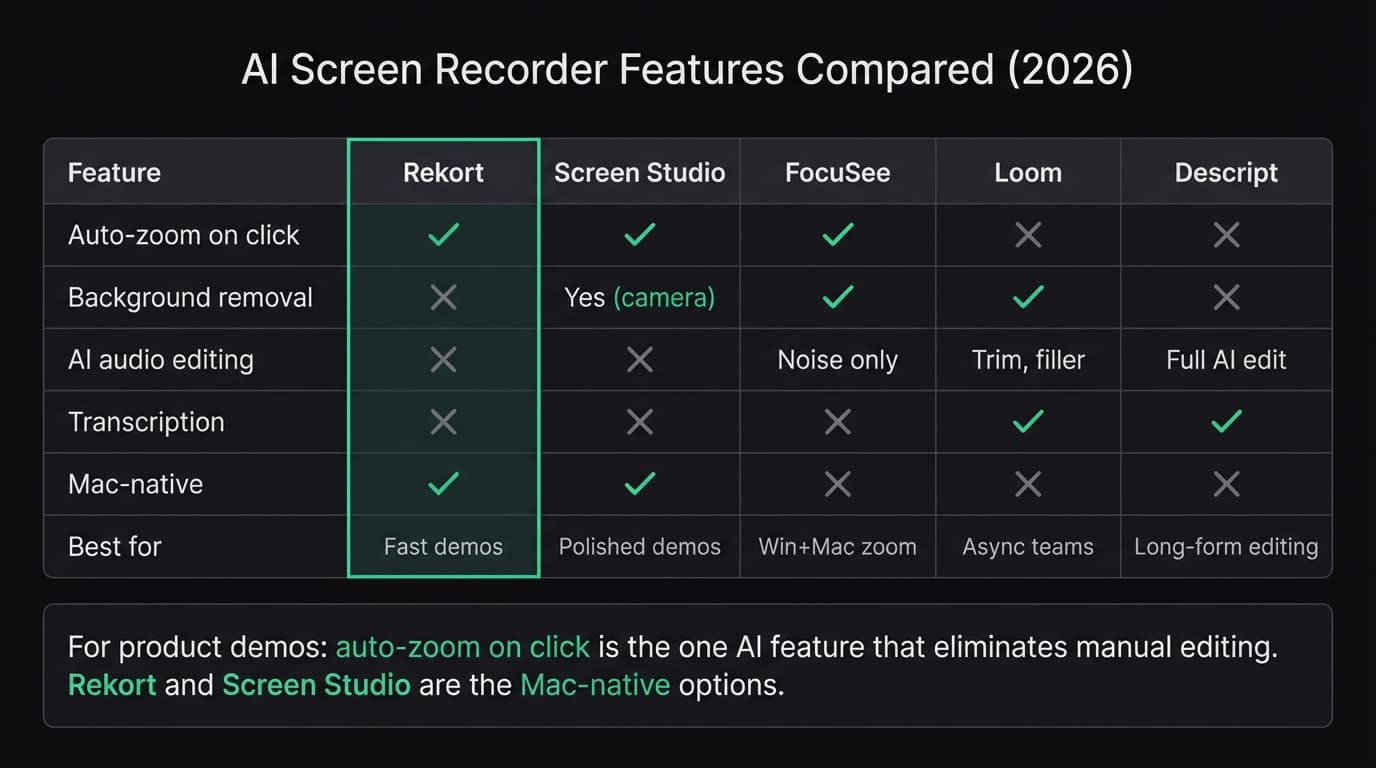
As of April 2026, Rekort and Screen Studio are the only Mac-native apps with auto-zoom on click. FocuSee and Cursorful offer auto-zoom but run as cross-platform apps rather than native Mac software.
Auto-zoom: the feature that matters most for demos#
If you're making product demos or tutorials, auto-zoom on click is the single AI feature worth paying for. Here's why.
A typical product demo involves clicking through a UI. On a 1440p or 4K display, buttons and form fields are small. When you export at 1080p, viewers can't see what you clicked without zooming in. The traditional fix is adding manual zoom keyframes in a video editor — a process that takes 20-30 minutes for a 60-second recording.
Auto-zoom eliminates that entirely. Rekort detects every click during recording and applies smooth zoom transitions automatically. The result looks edited without any editing time.
Screen Studio does the same thing with more advanced camera overlay and background options. As of April 2026, Screen Studio costs $108/year. Rekort costs $9/month, $49/year, or $79 lifetime and is focused on the core record-zoom-export workflow without the full production suite.
For a detailed side-by-side of these two tools, see Screen Studio vs Rekort in the alternatives guide.
AI editing: when it makes sense#
Descript is the most capable AI editing tool for screen recordings. You record in Descript, it transcribes your audio, and you can delete words from the transcript to cut them from the video. Removing filler words takes seconds. It also has overdub (AI voice cloning to fix mistakes) and noise suppression.
Descript makes sense for longer training videos, courses, or content where polished audio matters. For a 30-second product demo, the overhead of AI editing is more than the problem it solves.
Loom sits between Rekort and Descript — it's a video messaging tool with some AI features (trim silences, auto-captions) built in. Loom works well for async team communication but doesn't have auto-zoom, so your clicks won't be legible on a high-resolution display.
Which tool for which use case#
Product demos and tutorials: Auto-zoom on click is the priority. Rekort and Screen Studio both combine webcam, backgrounds, audio, editing, and local export. Rekort favors focused correction and lifetime pricing; Screen Studio adds webcam background removal, transcripts, iOS capture, and deeper cursor polish.
Training videos and courses: Longer recordings where audio quality matters. Consider Descript for its AI editing, or record in Rekort and bring the video into Descript for polish.
Async team video: Loom is built for this. Quick messages, cloud sharing, AI summaries of recordings. Auto-zoom isn't there, but if you're just explaining something conversationally, it may not matter.
GIF workflows or documentation: Rekort exports GIF and MP4. For GitHub READMEs, Slack messages, or documentation, see the GIF screen recorder guide.
Windows users: FocuSee and Cursorful both work on Windows and have auto-zoom. FocuSee has more AI features; Cursorful has a free tier and a $79 one-time Pro option.
The one feature to prioritize#
If your recordings show people what to click, you need auto-zoom. If they need to hear you clearly over a noisy background, you need noise suppression. If you say "um" a lot and care about polish, you need Descript.
Most Mac users making product demos need auto-zoom and nothing else. That's what screen recorders with AI zoom — like Rekort — are built for: record, get clean zoom on every click, export. No post-production required.
For a broader comparison of Mac screen recorders including free and paid options, see the best screen recorder for Mac guide.
Ready to record?
Rekort auto-zooms every click so your screen recordings look professional. No video editing required.
Download for MacmacOS 14+ · $9/month, $49/year, or $79 lifetime
Related Articles
Best Screen Recorder for Mac (2026) — Honest Comparison
13 min read
QuickTime Screen Recording: Complete Guide (2026)
9 min read
Best Screen Recorders with Webcam Overlay for Mac (2026)
9 min read
Best Screen Recording Software in 2026
11 min read
How to Make YouTube Videos with Screen Recording (Mac, 2026)
8 min read