Best Screen Recording Software in 2026
Honest comparison of the best screen recording software for Mac in 2026. Covers QuickTime, OBS, Rekort, Screen Studio, ScreenFlow, and free options — with pricing, features, and who each one is for.
Screen recording software is an application that captures your screen as a video file. The basic function is straightforward: select an area or full display, hit record, and get a video. What separates good screen recording software from basic tools is everything that happens after the recording — automatic zoom on click locations, system audio capture, GIF export, and how much manual editing work the tool eliminates.
This guide focuses on Mac screen recording software, because that's our domain. We also cover the best Windows and cross-platform options briefly, since "screen recording software" is a broad search and many readers are on Windows or need tools that work on both.
Full disclosure: we built Rekort, one of the tools on this list. We'll be honest about what it does and doesn't do.
The best screen recording software at a glance#
| Software | Platform | Price | Auto-zoom | System audio | GIF export |
|---|---|---|---|---|---|
| QuickTime Player | Mac | Free | No | No | No |
| OBS Studio | Mac, Windows, Linux | Free | No | Yes (macOS 13+) | No |
| Rekort | Mac | $79 or $9/mo | Yes | Yes | Yes |
| Screen Studio | Mac | $29/mo or $108/yr | Yes | Yes | Yes |
| ScreenFlow | Mac | $169 | No | Yes | No |
| Kap | Mac | Free | No | No | Yes |
| Xbox Game Bar | Windows | Free (built-in) | No | Yes | No |
| Camtasia | Mac, Windows | $299 | No | Yes | No |
| Loom | Mac, Windows, Browser | Free / $15/mo | No | Yes | No |
| ShareX | Windows | Free | No | Yes | Yes |
Auto-zoom is the single feature most screen recording software doesn't have. If you record product demos or tutorials and your viewers regularly can't see what you're clicking, that one missing feature costs you 20–30 minutes per recording in manual zoom keyframing.
What to look for in screen recording software#
Auto-zoom on click. The recording automatically zooms into wherever you click. Without it, a product demo on a 2560×1600 Retina display shows tiny buttons that viewers can't see. Manual zoom keyframing in a video editor takes 20–30 minutes per recording. Auto-zoom does it in zero.
System audio capture. macOS doesn't expose system audio to applications by default. QuickTime and Kap can't record what your computer is playing without third-party audio routing tools like BlackHole. OBS added native macOS system audio capture in version 30 (requires macOS 13+). Rekort, Screen Studio, and ScreenFlow handle it natively. On Windows, most screen recorders capture system audio without extra setup.
Output format. MP4 is standard for video. GIF is essential for documentation, GitHub issues, README files, and Slack messages. QuickTime, OBS, and ScreenFlow don't export GIF. Kap, Rekort, and Screen Studio do.
Learning curve. OBS Studio has dozens of settings panels built for live streaming. ScreenFlow and Camtasia are full video editors. If you want to record a 30-second product demo and share it, you don't need either.
Price model. Screen recording software ranges from completely free (QuickTime, OBS, Kap) to $299 (Camtasia). What you pay for is primarily auto-zoom, polish, and editing capabilities.
Continue reading
The Screen Recorder That Zooms for You
Record your screen on Mac — every click auto-zooms to what matters. No manual keyframing.
Mac screen recording software#
QuickTime Player#
Price: Free (comes with macOS)
QuickTime Player is already on your Mac. File > New Screen Recording, or press Cmd+Shift+5 to open the Screenshot toolbar. Select your area and hit record. No download, no setup.
What it does well:
- Zero setup — already installed on every Mac
- Records full screen or a selected area
- Microphone audio capture works reliably
- Saves as .mov, easy to share or convert
- No time limits or watermarks
Where it falls short:
- No system audio without BlackHole + Audio MIDI Setup configuration
- No auto-zoom on click
- No GIF export
- No editing beyond basic trim
Who it's for: Anyone who needs a quick, informal capture. Bug reports, Slack clips, personal reference notes. Not for customer-facing demos or tutorials.
OBS Studio#
Price: Free, open-source
OBS Studio is the most capable free screen recording software available. It was designed for live streaming, and that design choice explains both its power and its complexity.
What it does well:
- Records at any resolution and frame rate
- Multi-source compositing: screen, webcam, text overlays, images, all in one scene
- Native system audio capture on macOS 13+ (added in OBS 30)
- Completely free with no restrictions
- Active plugin ecosystem
Where it falls short:
- Steep learning curve — organized around scenes and sources from streaming, not quick screen capture
- No auto-zoom or click highlighting
- No built-in video editor
- No GIF export
- macOS version has historically lagged behind Windows
Who it's for: Streamers, educators running live sessions, and anyone who needs multi-source recordings. If you want to record your screen with a webcam overlay, OBS does this free. For simple product demos, it's more complexity than the task requires.
Rekort#
Price: $9/month, $49/year, or $79 lifetime
This is our app, so take this with appropriate skepticism.
Rekort is a native Mac screen recorder with automatic zoom on click. Record your screen normally — every click automatically zooms in to show what you're interacting with. Preview the result, adjust zoom level and timing, then export as MP4 or GIF.
What it does well:
- Auto-zoom on click — the core feature, works automatically with no configuration
- System audio and microphone without extra setup
- MP4 and GIF export
- Adjustable zoom level, duration, and easing curves
- Native Swift/SwiftUI app, no Electron
- Simple pricing, no feature tiers
Where it falls short:
- No webcam background removal
- No cursor smoothing
- No cursor spotlight or highlight ring effects
- macOS 14+ only — no support for macOS 13 or earlier
- Mac-only, no Windows version
- New app — fewer templates and presets than established tools
Who it's for: Developers, DevRel, and product marketers who record demos and tutorials regularly and want auto-zoom, a configurable webcam overlay, backgrounds, and focused segment editing without Screen Studio's larger production toolkit.
Screen Studio#
Price: $108/year or $29/month (checked July 23, 2026)
Screen Studio set the standard for auto-zoom screen recording on Mac. It produces recordings that look like professionally edited videos without any actual editing.
What it does well:
- Best-in-class auto-zoom with cinematic camera movements
- Webcam overlay with background removal
- Custom backgrounds, padding, rounded corners, and shadows
- System audio and microphone recording
- Cursor effects: highlight ring, size adjustment, click animation
- Multiple export formats: GIF, MP4, WebM
Where it falls short:
- Expensive for occasional use at the current $29/month or $108/year
- Many settings panels, steeper learning curve
- Export can be slow on longer recordings
- Mac-only
Who it's for: Anyone making daily polished product videos who needs the most feature-complete tool available. Camera overlays, background removal, and cursor effects are unique to Screen Studio on this list. If you record customer-facing content every day and $108/year pays for itself in saved editing time, Screen Studio makes sense. For a focused comparison, see our Screen Studio alternative guide.
ScreenFlow#
Price: $169 one-time
ScreenFlow is a screen recorder that became a full video editor, or a video editor that happens to record screens. It's the most editing-capable option on this Mac list.
What it does well:
- Full multi-track video editor: timeline, layers, transitions, callouts
- Records screen, webcam, and iOS devices simultaneously
- System audio capture natively
- Good for longer tutorial videos needing cuts and transitions
Where it falls short:
- No auto-zoom on click — you manually add zoom keyframes in the timeline
- $169 is the second most expensive option on the list
- Interface feels dated
- Heavy on system resources
- Mac-only
Who it's for: People making longer tutorial content (10+ minute YouTube videos) who need combined recording and editing in one app. For a comparison against other Mac options, see our ScreenFlow alternative guide.
Kap#
Price: Free, open-source
Kap is a lightweight menu bar screen recorder focused entirely on GIF export. It does one thing extremely well.
What it does well:
- Free, no restrictions
- Excellent GIF export with size optimization
- Menu bar app — always accessible
- Exports to GIF, MP4, WebM, and APNG
- Plugin system for upload targets
Where it falls short:
- No auto-zoom or click highlighting
- No system audio
- No backgrounds or aspect ratio control
- Less frequent updates in recent years
Who it's for: Developers recording short GIFs for documentation, GitHub issues, and README files. If your workflow is "record 5–15 seconds, export as GIF, paste it somewhere," Kap is the fastest path. See our GIF screen recorder for Mac guide for a deeper comparison of GIF tools.
Windows screen recording software#
We focus on Mac, but here's a brief overview for Windows users who landed here:
Xbox Game Bar (free, Windows 10/11 built-in): Press Win+G. Records game clips and screen video. No installation required. Limited editing. Decent for quick captures.
OBS Studio (free, Windows/Mac/Linux): The same capable, complex tool as on Mac. On Windows, system audio capture is simpler and has worked natively for longer. Best for streamers and power users.
ShareX (free, Windows only): The most capable free Windows screen recorder. Scrolling capture, annotations, GIF export, custom workflows. No Mac version. A genuine OBS alternative for Windows users who don't need streaming features.
Camtasia (Windows and Mac, $299): The ScreenFlow equivalent on Windows — a combined screen recorder and video editor. The gold standard for long-form instructional content on Windows. Expensive. No auto-zoom on click.
Loom (Windows, Mac, browser): Cloud-based async video tool. Records screen + webcam, uploads automatically, gives you a shareable link. $15/month paid plan. Best for asynchronous communication. Files live in the cloud rather than locally.
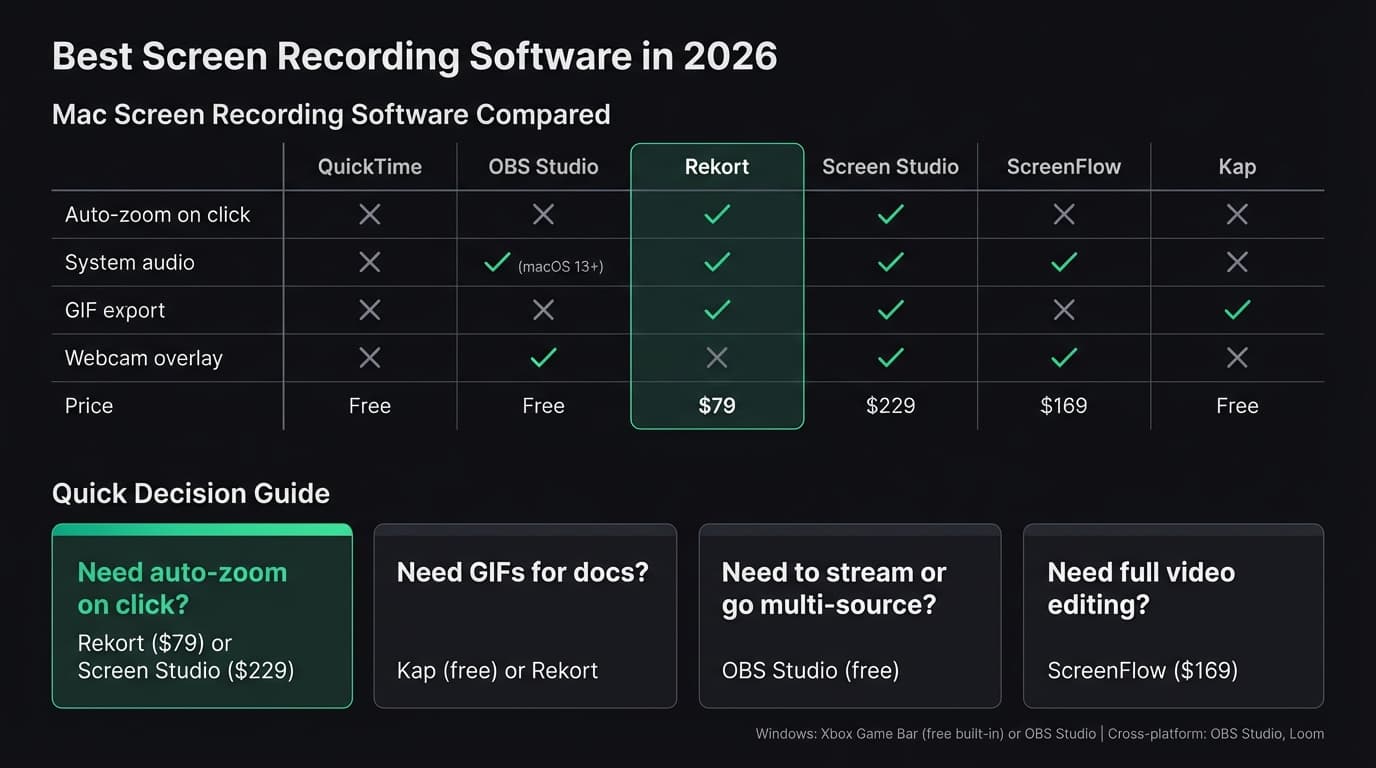
Feature comparison: Mac screen recording software#
| Feature | QuickTime | OBS | Rekort | Screen Studio | ScreenFlow | Kap |
|---|---|---|---|---|---|---|
| Auto-zoom on click | No | No | Yes | Yes | No | No |
| System audio | No | Yes (macOS 13+) | Yes | Yes | Yes | No |
| GIF export | No | No | Yes | Yes | No | Yes |
| Webcam overlay | No | Yes | No | Yes | Yes | No |
| Custom backgrounds | No | No | No | Yes | No | No |
| Built-in editor | Trim only | No | Zoom adjustment | Basic | Full | Trim only |
| Native Mac app | Yes | No (Qt) | Yes | Yes | Yes | No (Electron) |
| Price | Free | Free | $79 | $108/year | $169 | Free |
How to choose screen recording software#
"I just need to record something quickly." QuickTime is on your Mac. File > New Screen Recording. Done. For Windows, press Win+G for Xbox Game Bar.
"I want polished product demos where clicks are visible." Auto-zoom is the differentiating feature. Rekort at $79 lifetime and Screen Studio at $108/year both combine click zoom, webcam, backgrounds, audio, and editing. Screen Studio adds webcam background removal, local transcripts, iOS capture, and deeper cursor polish.
"I make long-form tutorial content with cuts and transitions." ScreenFlow (Mac) or Camtasia (Mac/Windows) are designed for this. Both are full video editors with screen capture built in. Neither has auto-zoom, so clicks in demos still need manual keyframing.
"I need GIFs for docs, GitHub, or Slack." Kap is free and excellent for this on Mac. Rekort also exports GIF with zoom applied.
"I need cross-platform screen recording." OBS Studio (free) works on Mac, Windows, and Linux. Loom works everywhere via browser. Neither offers auto-zoom.
"My budget is zero." QuickTime (Mac), Xbox Game Bar (Windows), and OBS Studio (all platforms) are all free. Kap is free for Mac GIF workflows.
For a deeper dive into Mac options specifically, see our best screen recorder for Mac guide, which covers six Mac tools with detailed comparisons.
The right screen recording software depends almost entirely on what you're recording and who sees it. For internal clips and bug reports, a free built-in tool is enough. For demos that customers or prospects will watch, auto-zoom on click is the difference between squinting at your screen and clearly seeing what you're doing.
Ready to record?
Rekort auto-zooms every click so your screen recordings look professional. No video editing required.
Download for MacmacOS 14+ · $9/month, $49/year, or $79 lifetime
Related Articles
Best Screen Recorder for Mac (2026) — Honest Comparison
13 min read
QuickTime Screen Recording: Complete Guide (2026)
9 min read
Best Screen Recorders with Webcam Overlay for Mac (2026)
9 min read
AI Screen Recorder: Which Features Actually Matter (2026)
5 min read
How to Make YouTube Videos with Screen Recording (Mac, 2026)
8 min read