GIF Screen Recorder for Mac: Best Tools Compared (2026)
Compare the top GIF screen recorders for Mac: Kap, LICEcap, Gifox, GIPHY Capture, and Rekort. Features, pricing, and which one fits your workflow.
A GIF screen recorder for Mac is an app that captures your screen and exports it as an animated GIF — either directly during recording or immediately after, without a separate conversion step. macOS records video natively via QuickTime and the Screenshot toolbar, but neither produces GIFs. Every GIF on a GitHub README, Slack message, or documentation page came from a dedicated tool.
Five apps cover most GIF recording use cases on Mac: Kap, GIPHY Capture, LICEcap, Gifox, and Rekort. They differ in price, active maintenance, file size control, and whether they zoom into your clicks. This guide covers what each one does, where it falls short, and who should use it.
Full disclosure: we built Rekort. We'll tell you when the other tools are the better choice.
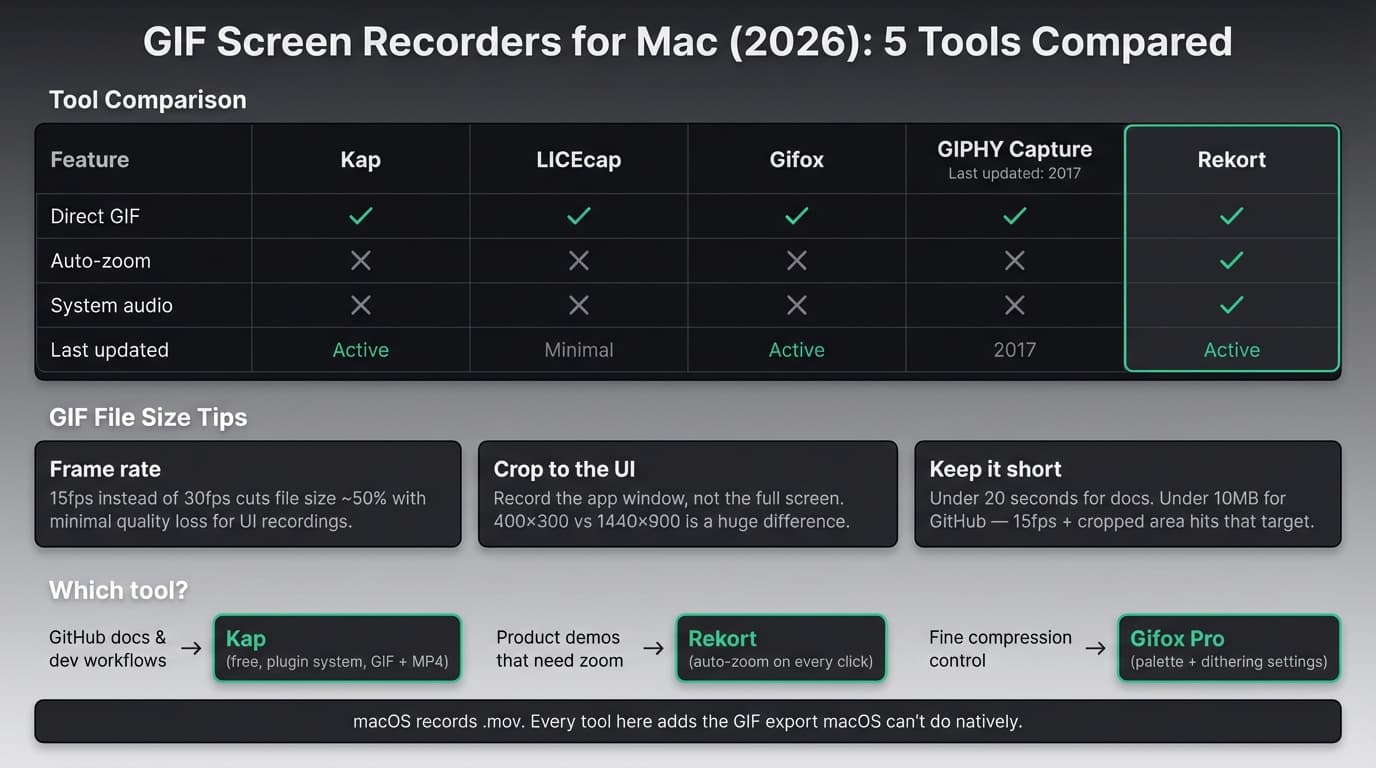
All 5 tools at a glance#
| Tool | Price | Direct GIF | Auto-zoom | System audio | Maintained |
|---|---|---|---|---|---|
| Kap | Free | Yes | No | No | Yes |
| GIPHY Capture | Free | Yes | No | No | No (abandoned) |
| LICEcap | Free | Yes | No | No | Minimal (2022) |
| Gifox | Free / €17.99 Pro | Yes | No | No | Yes |
| Rekort | $9/mo or $79 lifetime | Yes | Yes | Yes | Yes |
What to look for in a GIF screen recorder#
Direct GIF export. The core requirement. Some apps record video and then convert — which adds a manual step and usually requires FFmpeg or a separate converter. The tools on this list all export GIF without an extra step.
File size control. GIF is a notoriously large format compared to video. A 10-second UI recording at 800×500 runs 3-6MB as a GIF and under 1MB as an MP4. Three settings control GIF size: frame rate (15fps instead of 30fps cuts size roughly in half for UI recordings), color palette size, and output resolution. Tools that expose these settings give you better results than tools that don't.
Area selection. You want to record a specific part of your screen — the app window, a form, a menu — not the full desktop. Every tool on this list supports selected-area recording.
Auto-zoom on click. This matters specifically for product demos and tutorials. Without auto-zoom, a click on a 40px button in a 1440px-wide recording is nearly invisible. Auto-zoom is only available in Rekort among the tools here.
Active maintenance and Apple Silicon support. Several older GIF tools haven't been updated for years. On Apple Silicon Macs (M1, M2, M3, M4), an unmaintained app may run via Rosetta 2 or not run at all. This matters more than it might seem for tools you plan to use regularly.
GitHub file size limits. If your primary target is GitHub READMEs and pull requests, the 10MB upload limit is a hard ceiling. Tools with better compression options make it easier to stay under that limit.
Kap#
Price: Free and open-source
Kap is the most popular dedicated GIF screen recorder for Mac. It lives in your menu bar, records any selected area, and exports to GIF, MP4, WebM, or APNG from the same recording. The Kap GitHub repository has over 19,000 stars, and the app is actively maintained with Apple Silicon support.
What it does well:
- Exports to GIF, MP4, WebM, and APNG from one recording — no separate conversion
- Clean, minimal interface built as a menu bar app
- Plugin system for custom export targets (upload to Giphy, Streamable, S3, etc.)
- Frame rate and quality settings to control GIF file size
- Highlights clicks during recording
- Free with no recording time limits, watermarks, or sign-in
Where it falls short:
- No system audio capture. Kap records video silently or with microphone only.
- No auto-zoom on click. Viewers see exactly what was on screen, so small UI elements on high-resolution displays are hard to read.
- Basic editing — trim only. No cuts, no annotations, nothing beyond adjusting start and end points.
- No background removal, padding, or custom aspect ratio.
Who should use it: Developers recording short GIFs for GitHub issues, pull requests, README files, and documentation. If your workflow is "record 5-20 seconds, export GIF, paste it somewhere," Kap is the fastest path. See our guide to recording GIFs on Mac for the step-by-step Kap workflow.
Who shouldn't: Anyone recording product demos or tutorials where viewers need to see exactly what you're clicking on. Without zoom, small buttons and form fields are hard to follow. And if you need system audio in any export, Kap isn't the right tool.
Continue reading
GIFs That Actually Look Good
Record with auto-zoom, export as GIF. Perfect for docs, READMEs, and pull requests.
GIPHY Capture#
Price: Free (Mac App Store)
GIPHY Capture is still available on the Mac App Store, but it hasn't been updated since April 2017. When Facebook acquired GIPHY in 2020, development of the Mac desktop app stopped. The browser-based GIPHY Create tool gets maintained; the desktop app doesn't.
The app can still record and export GIFs. On Intel Macs with older macOS versions, it may work fine. On Apple Silicon Macs or macOS 15+, compatibility is unpredictable. Cockos (makers of LICEcap) and Wulkano (makers of Kap) both publish regular updates. GIPHY Capture doesn't.
Who should use it: Nobody starting fresh in 2026. There's no reason to choose an app that hasn't been updated in eight years when Kap and Gifox are free, actively maintained, and more capable.
Who shouldn't: Anyone who wants reliable behavior on modern macOS. Use Kap instead.
LICEcap#
Price: Free and open-source (GPL)
LICEcap is made by Cockos, the same company behind the REAPER audio workstation. It does one thing: record a selected area of your screen and save it as a GIF or .LCF file (Cockos's own lossless format that supports more than 256 colors per frame).
The app is tiny — 670KB on macOS. It runs as a floating capture frame that you drag over the area you want to record, then press Record. Version 1.31 added native Apple Silicon support; the current version is 1.32 (released 2022).
What it does well:
- Completely free with no limits, watermarks, or accounts
- Extremely small footprint — 670KB, no dependencies
- Supports a global hotkey (Shift+Space) to pause during recording
- LCF format for higher-quality intermediate files if you want to re-export later
- Runs natively on Apple Silicon
Where it falls short:
- No audio capture of any kind.
- No auto-zoom or click highlighting.
- Minimal interface — you get a capture frame and a record button. No frame rate presets, no preview before export, no color palette control.
- Last updated in 2022. Not abandoned, but not actively developed.
- No MP4 or WebM export — GIF and .LCF only.
Who should use it: Developers and power users who want an extremely lightweight, no-frills GIF recorder with no external dependencies. LICEcap is useful when you need to quickly capture something on a machine where installing a heavier app isn't practical.
Who shouldn't: Anyone who needs frame rate control, quality presets, or any export format besides GIF. Kap offers more flexibility at the same price (free) and is more actively maintained.
Gifox#
Price: Free (10-second limit, watermark) / €17.99 Pro one-time
Gifox is a GIF-focused screen recorder and converter built as a menu bar app for Mac. The Pro upgrade is a one-time in-app purchase — no subscription. Gifox is also available via Setapp if you're already a subscriber.
The standout feature is compression control. Gifox exposes frame rate, color palette size, and dithering settings, which lets you tune the quality-to-size tradeoff more precisely than Kap's default export settings. It also handles converting existing video files to GIF in addition to live recording.
What it does well:
- More granular GIF compression settings than Kap (frame rate, palette, dithering)
- Convert existing video files to GIF without recording a new clip
- Menu bar app — stays accessible without cluttering the dock
- One-time Pro purchase at €17.99
- Available on Setapp if you're already subscribed
- Supports GIF and MP4 export
- Active development and Apple Silicon support
Where it falls short:
- No auto-zoom or click highlighting.
- No system audio capture.
- Free tier is limited to 10-second recordings and adds a watermark — not useful for most real workflows.
- Minimal editing beyond trim.
- Less widely known than Kap, so fewer community plugins and integrations.
Who should use it: Users who need finer control over GIF compression than Kap provides, or who want to convert existing video files to GIF without using FFmpeg. The €17.99 one-time price is reasonable for frequent GIF workflows.
Who shouldn't: Anyone whose main use case is quick dev documentation GIFs — Kap is free and has a plugin ecosystem. And if you need auto-zoom for product demos, Gifox doesn't have it.
Rekort#
Price: $9/month, $49/year, or $79 lifetime
Full disclosure: this is our app.
Rekort approaches GIF recording differently from the tools above. Where Kap and Gifox record your screen as-is and export that as a GIF, Rekort records your screen, automatically zooms into every click during recording, and then exports the zoomed result as a GIF. The auto-zoom is part of the recording itself — viewers see a version of the recording where every click moment is enlarged and readable.
What it does well:
- Auto-zoom on click. Record normally, and every click triggers an automatic zoom so viewers can see exactly what you interacted with. The zoom level and duration are adjustable in the preview.
- Exports both MP4 and GIF from the same recording. One take, two formats.
- Captures system audio and microphone without extra setup.
- Native macOS app built with Swift and SwiftUI. No Electron wrapper.
- GIF export with auto-zoom applied — the zoom is baked into the exported file.
- Simple pricing: $9/month, $49/year, or $79 lifetime. No tiers, no watermarks on any plan.
Where it falls short:
- No webcam background removal. Rekort can place and resize a camera overlay, while Screen Studio is the better option when background removal matters.
- macOS 14 (Sonoma) or later required. No support for macOS 13 or earlier.
- Newer app — fewer presets and community resources than established tools like Kap.
- GIF compression controls are less detailed than Gifox. You get the standard frame rate and quality settings, but not Gifox's palette and dithering fine-tuning.
- No video-to-GIF conversion for existing files.
Who should use it: Developers, DevRel, and product marketers who record demos and tutorials and need viewers to actually see what's being clicked. If your GIF is going into a Slack message, GitHub PR, or documentation page and the interaction involves small UI elements on a high-resolution display, auto-zoom makes it readable without any post-processing. See our GIF vs video guide for when to pick each format.
Who shouldn't: Anyone who needs a free tool — Kap or LICEcap are the right choice there. And if you're just capturing a short screen moment with no clicking involved, any of the free tools above will do.
Feature comparison#
| Feature | Kap | GIPHY Capture | LICEcap | Gifox | Rekort |
|---|---|---|---|---|---|
| Price | Free | Free | Free | Free / €17.99 | $9/mo or $79 |
| Direct GIF export | Yes | Yes | Yes | Yes | Yes |
| MP4 export | Yes | No | No | Yes | Yes |
| Auto-zoom on click | No | No | No | No | Yes |
| System audio | No | No | No | No | Yes |
| Click highlighting | Yes | No | No | No | Yes |
| Compression controls | Basic | None | None | Advanced | Standard |
| Video-to-GIF convert | No | No | No | Yes | No |
| Plugin system | Yes | No | No | No | No |
| Last updated | Active | 2017 | 2022 | Active | Active |
| Apple Silicon native | Yes | Unknown | Yes (v1.31+) | Yes | Yes |
| macOS version required | 11+ | Varies | 10.6+ | 11+ | 14+ |
Decision guide#
"I need a free GIF recorder for GitHub docs and dev workflows." Use Kap. It's free, actively maintained, exports GIF and MP4, and has a plugin system for custom upload targets. LICEcap is a simpler alternative if you want something with no dependencies.
"I want more control over GIF file size and compression." Use Gifox Pro (€17.99 one-time). The palette and dithering controls let you squeeze more quality into smaller files than Kap's defaults.
"I'm recording product demos or tutorials where viewers need to see what I'm clicking." Use Rekort. Auto-zoom applies to the GIF export — every click in the GIF zooms in automatically, so small buttons and form fields are readable without manual editing. See our guide on screen recording with zoom effect for more on why this matters on high-resolution displays.
"I want to convert an existing video file to GIF." Use Gifox or FFmpeg. Rekort and Kap don't convert existing video files.
"I need the lightest possible tool with no installation complexity." Use LICEcap. It's 670KB, free, and records directly to GIF with a hotkey to pause.
"Someone told me to use GIPHY Capture." They're probably working from an old recommendation. The app hasn't been updated since 2017 and doesn't make sense to choose over Kap in 2026.
The format question — GIF vs video — is worth considering before you pick a tool. GIFs work well for short interactions in GitHub READMEs, pull requests, and inline documentation where video won't embed natively. Video works better for longer recordings, audio-narrated walkthroughs, and marketing pages where playback controls matter. See our GIF vs video comparison for a breakdown by destination.
If you're building a developer documentation workflow around GIFs, the GitHub README GIF guide covers file size limits, upload workflow, and embedding syntax. For converting existing screen recordings to GIF, the screen to GIF guide covers all the conversion methods including FFmpeg.
The best GIF screen recorder depends on whether you're capturing quick UI moments for dev docs (Kap), need fine-grained compression control (Gifox), or are recording product demos where auto-zoom makes the difference between a watchable and an unreadable GIF (Rekort). All five tools produce GIFs. Only one produces GIFs where the important parts are actually visible.
Ready to record?
Rekort auto-zooms every click so your screen recordings look professional. No video editing required.
Download for MacmacOS 14+ · $9/month, $49/year, or $79 lifetime