Cap Alternative for Mac: Auto-Zoom Without the Cloud
Looking for a Cap screen recorder alternative? Compare 5 tools on auto-zoom, local recording, cloud dependency, and pricing. Honest breakdown for Mac users.
Cap is a free, open-source screen recorder available on Mac and Windows. It's built as a Loom alternative: record your screen, get a shareable link, optionally upload to cloud storage. The free plan covers local recordings and limited 5-minute shareable links. A Desktop License ($58 one-time or $29/year) unlocks the full editor and unlimited local recordings. Cap Pro ($8.16/month billed annually, as of April 2026 via cap.so) adds unlimited cloud storage, AI transcripts, chapter generation, and team workspaces.
Cap is a solid choice for async team communication. Where it's less suited is product demos and tutorials that need automatic zoom on click — that's not Cap's primary use case.
This guide covers five alternatives, when each one makes sense, and who it's actually for.
Full disclosure: we built Rekort, one of the five tools below.
Why people look for Cap alternatives#
No auto-zoom on click. Cap's recording output is a flat capture — what you see is what you get. For async video messages (replays of bug walkthroughs, quick team updates), that's fine. For product demos and tutorials where viewers need to see exactly what you're clicking on a high-resolution display, a flat recording means squinting. Auto-zoom solves that, and Cap doesn't offer it.
Cloud dependency for sharing features. Cap's shareable links rely on their cloud infrastructure. The free tier limits shareable links to 5 minutes. If you want unlimited sharing, you're on Cap Pro. If your recordings contain unreleased features, internal tools, or confidential workflows, the cloud upload path is something to consider. Some workflows call for recordings that never leave your machine.
Loom replacement vs. demo tool. Cap is designed to replace Loom — async video messaging with shareable links, AI summaries, viewer analytics, and team workspaces. That's a different use case from polished product demos and tutorials. If you're building a Loom workflow, Cap is purpose-built for it. If you're making screencasts for documentation, onboarding, or a product page, the toolset you need is different.
Cross-platform breadth vs. Mac-native depth. Cap runs on Mac and Windows. That generality means it doesn't use macOS-specific APIs for system audio or screen capture. Native Mac apps like Rekort and Screen Studio integrate directly with ScreenCaptureKit and AVFoundation, which gives smoother capture performance and no workarounds for system audio.
Continue reading
A Simpler Alternative
Auto-zoom on click, focused timeline editing, MP4 & GIF export. $9/month, $49/year, or $79 lifetime.
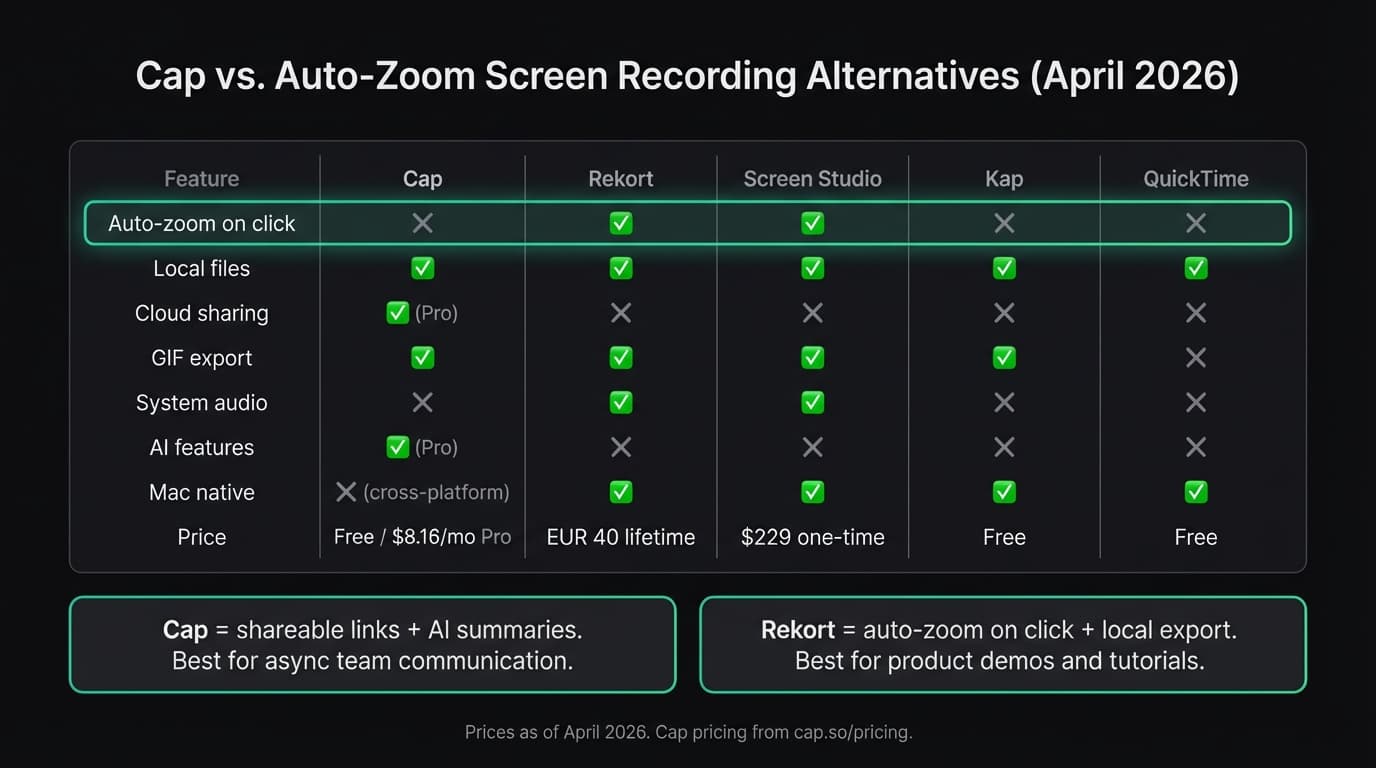
All five tools at a glance#
| Tool | Price | Auto-zoom | Local files | Cloud sharing | Best for |
|---|---|---|---|---|---|
| Rekort | $79 lifetime | Yes | Yes | No | Auto-zoom demos, local-first |
| Screen Studio | $108/year | Yes | Yes | No | Full production suite |
| Cap | Free / $58 Desktop / $8.16/mo Pro | No | Yes | Yes (Pro) | Async team communication |
| Kap | Free | No | Yes | No | Free GIF capture |
| QuickTime | Free (built-in) | No | Yes | No | Quick, no-frills captures |
Rekort#
Price: $9/month, $49/year, or $79 lifetime
Rekort is a native Mac app that records any window or screen area with automatic zoom on click. Every click during recording becomes a smooth zoom in the playback — no manual keyframes, no post-editing. Export as MP4 or GIF.
What it does well:
- Auto-zoom triggers on every click and smoothly zooms back out
- Records any app on your Mac: native apps, Terminal, Finder, Xcode, design tools
- Captures microphone and system audio natively — no BlackHole workaround needed
- All recordings stay on your Mac, nothing uploaded
- GIF export for documentation, GitHub READMEs, and Slack
- Simple workflow: select area, record, preview with zoom, export
Where it falls short:
- Mac only — no Windows version
- No shareable links or cloud storage
- No camera overlay or custom backgrounds (unlike Screen Studio or Cap)
- No AI features, silence removal, or transcription
Who it's for: Mac users who make product demos, tutorials, or internal walkthroughs and want auto-zoom on every click without manual video editing. Not the right pick if your use case is async team communication with shareable links.
Screen Studio#
Price: $29/month or $108/year (as of April 2026, via screen.studio)
Screen Studio is the most fully-featured auto-zoom screen recorder for Mac. It handles smooth auto-zoom, camera overlay, custom backgrounds, background blur, click effects, and export to MP4 or GIF.
What it does well:
- Auto-zoom widely considered the smoothest available on Mac
- Camera overlay with background blur and custom scenes
- 4K export
- Deep control over zoom speed, timing, and behavior
Where it falls short:
- $108/year is a significant commitment for occasional recording
- No cloud sharing or shareable links
- Feature surface is large — takes time to learn
- If you don't use camera overlay, you're paying for features you won't use
Who it's for: People who produce polished product videos daily and want the most refined auto-zoom output, with camera overlay included. Overkill for quick team updates.
Cap#
Price: Free / $58 one-time Desktop License / $8.16/month Pro (annual billing, as of April 2026, via cap.so)
Cap is an open-source, cross-platform screen recorder built explicitly as a Loom alternative. Record locally or with cloud upload, share via link, and optionally get AI-generated titles, transcripts, chapters, and team analytics on the Pro plan.
What it does well:
- Completely free plan with no watermarks on local recordings
- Shareable links with viewer analytics on Pro
- AI features: transcripts, summaries, chapter generation (Pro)
- Self-hosting available via Docker for data sovereignty
- Open-source codebase — transparent and auditable
- Loom importer lets you bring over existing recordings
Where it falls short:
- No auto-zoom on click — recordings are flat captures
- Cloud sharing features require Pro ($8.16/month) for unlimited use
- Not Mac-native — cross-platform app doesn't use macOS-specific capture APIs
- Focused on async messaging, not polished demo production
Who it's for: Teams replacing Loom who want shareable links, AI summaries, and team collaboration features on recordings. Not suited for product demos where click visibility matters.
Kap#
Price: Free, open source
Kap is a free, open-source screen recorder for Mac. It records full screen or a selected area and exports as GIF, MP4, WebM, or APNG. No subscription, no cloud, no auto-zoom.
What it does well:
- Completely free with no usage limits or watermarks
- GIF export is among the best available
- Lightweight and fast to open
- Records any app or area on your Mac
Where it falls short:
- No auto-zoom on click — flat recordings only
- No system audio capture (microphone only)
- No shareable links or cloud features
- Development has slowed — fewer updates in recent years
Who it's for: Developers who need quick GIF exports for READMEs and PRs and don't need zoom or sharing features.
QuickTime Player#
Price: Free (comes with macOS)
QuickTime Player is already on your Mac. Open it, go to File > New Screen Recording, select your area, and record. No download, no account required.
What it does well:
- Zero setup — already installed on every Mac
- Records full screen or a selected area reliably
- Saves .mov files locally, no upload, no account
- Microphone audio capture works without configuration
Where it falls short:
- No auto-zoom on click
- No system audio without third-party tools like BlackHole
- No GIF export
- No shareable links
Who it's for: Quick bug reports, informal captures, or any recording where you just need the content and presentation doesn't matter.
Which one should you use?#
If you need async video messaging with shareable links — replacing Loom for team updates, bug replays, or async walkthroughs — Cap is purpose-built for that. The free plan covers local recordings, and Pro adds cloud sharing and AI features for less than Loom costs.
If you need auto-zoom on click for product demos or tutorials, Cap is not centered on that workflow. Rekort and Screen Studio both handle it on Mac. Rekort at $9/month, $49/year, or $79 lifetime covers screen/window/area capture, webcam, backgrounds, click zoom, focused editing, and MP4/GIF export. Screen Studio at $108/year adds webcam background removal, transcripts, iOS capture, and deeper cursor polish.
If you need a free GIF recorder with no frills, Kap is reliable and costs nothing.
If you need zero setup for a quick capture, QuickTime is already on your Mac.
For more on how Rekort compares to other auto-zoom recorders, see the screen recorder alternatives guide. For GIF-specific workflows, see the GIF screen recorder comparison. For a full breakdown of Mac screen recorders across categories, see the best screen recorder for Mac guide.
Ready to record?
Rekort auto-zooms every click so your screen recordings look professional. No video editing required.
Download for MacmacOS 14+ · $9/month, $49/year, or $79 lifetime
Related Articles
Best Screen Studio Alternatives for Mac: Pick by Workflow (2026)
15 min read
OBS Alternative for Mac: Screen Recording Without the Complexity
10 min read
Cursorful Alternative: Native Mac Auto-Zoom Screen Recording
7 min read
Descript Alternative for Mac: Screen Recording Without the Learning Curve
8 min read
FocuSee Alternative for Mac: Lighter Auto-Zoom Screen Recording
8 min read