Descript Alternative for Mac: Screen Recording Without the Learning Curve
Descript is a transcript-based video editor. If you need auto-zoom demos without the transcription workflow, these 5 Mac screen recorders are simpler to use.
Descript is a transcript-based video editor. You record your screen, Descript transcribes what you said, and you edit the video by editing the text. Cut filler words by deleting them in the transcript, rearrange sentences, remove "um" — the video updates automatically. For narrated long-form content, that's genuinely useful.
It's also the reason Descript isn't the right tool for a specific, common use case: recording a product demo, adding auto-zoom on your clicks so viewers can see what you're doing, and exporting in under five minutes.
If that's what you need, there are tools built specifically for it. This guide covers what Descript does and doesn't do, and five alternatives worth knowing.
What Descript is (and isn't)#
Descript started as a podcast editor and grew into a full video production platform. The screen recorder is one input method into that editing workflow — not the workflow itself.
What Descript does well:
- Transcript-based editing: edit video by editing text, not a timeline
- Automatic filler word removal ("um," "uh," word repetition)
- Studio Sound: AI background noise reduction and audio cleanup
- Overdub: re-record specific words in your own synthesized voice
- Multi-track: combine screen recording, webcam, and multiple audio sources
- Collaboration: comments, shared projects, team editing
What Descript doesn't do:
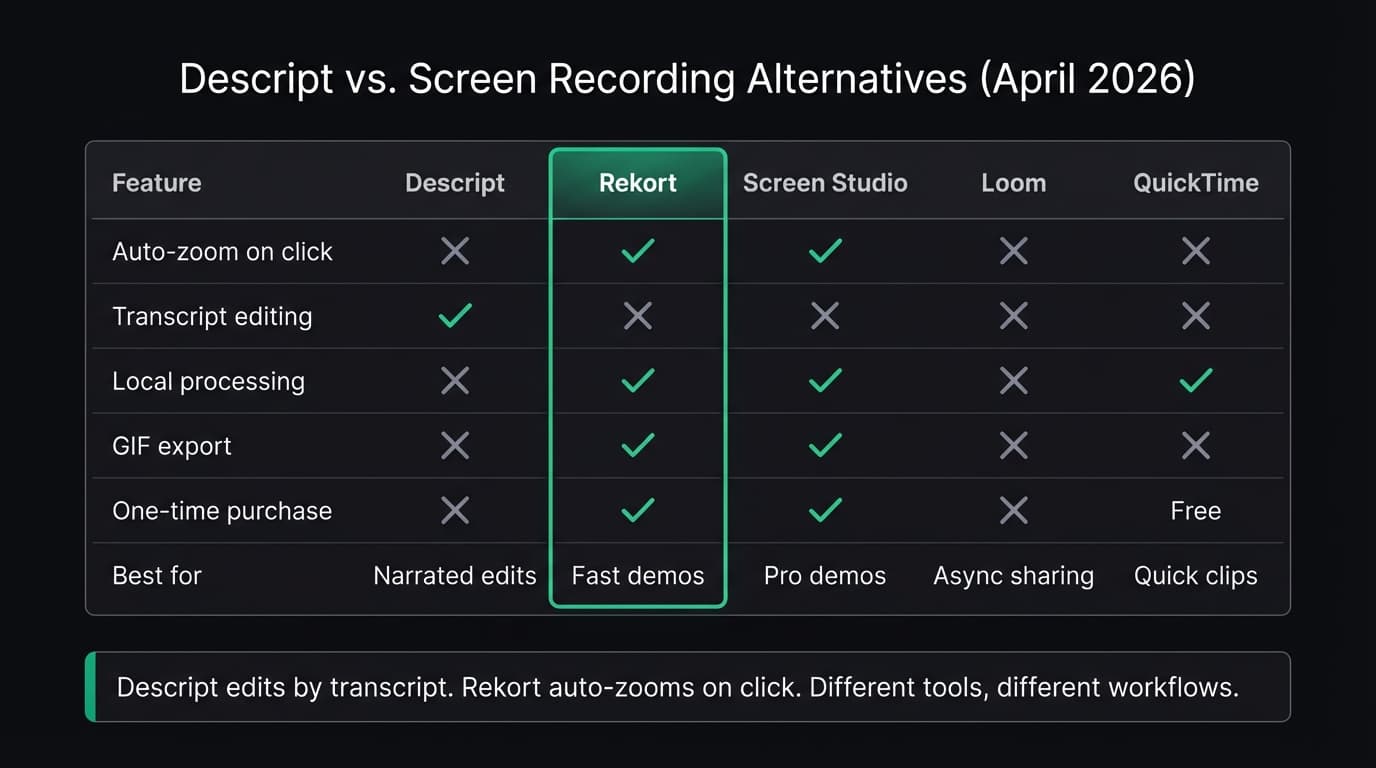
- Auto-zoom on click. Descript captures your screen as-is. On a Retina display, small UI elements — menu items, form fields, tiny buttons — are nearly invisible at full-screen resolution. Adding zoom requires manual keyframing in a video editor after the fact.
- Local-only processing. Your recordings upload to Descript's servers. For content involving internal tools, unreleased features, or sensitive workflows, that matters.
- Simple clip-and-share. The Descript workflow assumes you'll transcribe, review, and edit. If you want to record a 60-second demo and share it immediately, that pipeline adds friction you don't need.
Descript pricing (as of April 2026, from Descript's pricing page):
- Free: limited transcription, export watermark on longer videos
- Creator: $12/month billed annually ($15/month billed monthly)
- Pro: $24/month billed annually ($30/month billed monthly)
The Creator tier is the minimum for most users who need the recording and editing features without restrictions.
Descript is the right tool when:
- You're producing narrated video content — podcasts, YouTube, tutorials with voiceover — and want to edit it like a document
- Your team collaborates on video and needs commenting, multi-user editing, or review workflows
- You regularly need AI audio cleanup (noise removal, filler words)
Descript is probably not the right tool when:
- You want to record a product demo and export it in a few minutes
- Your recordings don't have narration to transcribe
- You don't want content on cloud servers
- You want a one-time purchase rather than a monthly subscription
Continue reading
A Simpler Alternative
Auto-zoom on click, focused timeline editing, MP4 & GIF export. $9/month, $49/year, or $79 lifetime.
5 Descript alternatives for Mac#
| Tool | Price | Auto-zoom | Processing | Best for |
|---|---|---|---|---|
| Rekort | $79 lifetime or $9/mo | Yes | Local | Fast auto-zoom demos |
| Screen Studio | $29/mo or $108/yr | Yes | Local | Full-featured video production |
| Loom | Free tier available | No | Cloud | Async video messaging |
| OBS Studio | Free | No | Local | Multi-source streaming setup |
| QuickTime | Free (built-in) | No | Local | Quick informal captures |
Rekort#
Price: $79 lifetime, $49/year, or $9/month
Rekort is a Mac-native screen recorder built around one idea: auto-zoom on click. Record your screen, and the app automatically zooms into whatever you click — buttons, dropdowns, form fields, menu items — with a smooth animated transition. No transcript or cloud workflow; the local timeline supports split, ripple delete, trim, and segment speed changes.
When the recording is done, preview it with the zoom applied, then export as MP4 or GIF. The whole workflow from "record" to "exported file" is a few minutes.
What it does well:
- Auto-zoom on click without any manual keyframing
- Local processing — nothing uploads to external servers
- GIF and MP4 export, including for GitHub READMEs and PRs
- System audio and microphone capture, no BlackHole workaround required
- One-time purchase option (no recurring subscription required)
Where it falls short:
- No transcript-based editing. If you record a narrated walkthrough and need to cut out mistakes by editing text, Rekort can't do that.
- Webcam overlay and color or image backgrounds are available.
- No multi-track audio or collaboration features.
- macOS only.
Rekort makes sense when the job is "record, zoom, export" — not "record, transcribe, edit, produce."
Screen Studio#
Price: $108/year or $29/month (as of April 2026)
Screen Studio is a feature-rich auto-zoom recorder on Mac. It overlaps with Rekort on webcam overlay, backgrounds, padding, auto-zoom, editing, and MP4/GIF export, then adds webcam background removal, deeper cursor effects, local transcripts, iOS capture, and WebM export.
The honest comparison: Screen Studio is a better tool than Rekort on almost every feature axis. It's also significantly more expensive. At $108/year, it's priced for people who produce polished product videos regularly and use all of those features.
If you're deciding between the two, see our screen recording with zoom effect guide for a detailed breakdown.
If you're comparing Screen Studio to several alternatives at once, our screen recorder comparison covers the major options in one place.
Loom#
Price: Free tier available; check Loom's website for current plans
Loom is built for async video messaging, not production demos. Record your screen with an optional webcam bubble, and Loom generates a shareable link in seconds. The viewer watches in Loom's player, can comment at timestamps, and you get notifications when someone watches.
The workflow is fast for team communication. It's a different category from Descript or Rekort.
What Loom does well:
- Shareable link with no download required
- Viewer engagement tracking (watch time, comments)
- Reactions and timestamp comments
- Clean recording interface with minimal setup
What Loom doesn't do:
- Auto-zoom on click
- Local file export by default
- Transcript-based editing (though Loom added some AI transcript tools)
- One-time purchase
If you're choosing between Loom and Descript, the distinction is purpose: Loom is for sharing quickly, Descript is for editing carefully. For more context, see our Loom alternative guide.
OBS Studio#
Price: Free and open-source
OBS has a screen recorder built in, but it was designed for live streaming. The interface is organized around scenes, sources, and transitions — concepts that make no sense if you just want to record a product demo.
What OBS does well:
- Free with no restrictions
- Multi-source recording: screen regions, windows, webcam, multiple audio sources simultaneously
- Native system audio capture on macOS 13 Ventura and later (added in OBS 30)
- Active plugin ecosystem
Where it falls short for demos:
- No auto-zoom on click
- No transcript editing
- Steep learning curve — the setup required before you can record is significant
- No GIF export
- No built-in editor
OBS is the right call if you need free multi-source recording and already know the tool. It's not the right call if you want a quick demo with auto-zoom or transcript-based editing. See our OBS alternative for Mac comparison for other options.
QuickTime Player#
Price: Free (already on your Mac)
QuickTime is already installed on every Mac. Open it, go to File > New Screen Recording (or press Cmd+Shift+5 to use the Screenshot toolbar), pick your area, and hit record. No download, no account, no upload.
What QuickTime does:
- Screen recording with no setup
- Microphone audio
- Basic trim (start and end only)
What QuickTime doesn't do:
- Auto-zoom on click
- System audio (without BlackHole and manual setup)
- Transcript-based editing
- GIF export
For informal captures — a quick bug report, a Slack message, something for personal reference — QuickTime works well. For anything customer-facing, the lack of zoom makes small UI elements unreadable on Retina displays. Our QuickTime screen recording guide covers how to get the most out of it.
Which one to use#
Use Descript when your work centers on narrated video that benefits from transcript-based editing — podcasts, YouTube, tutorial series with heavy voiceover where you want to cut mistakes by editing text.
Use Rekort when you need to record product demos or walkthroughs where viewers can see your clicks, without narration editing or cloud uploads. The one-time purchase option is worth considering if subscriptions aren't your preference.
Use Screen Studio when you produce polished product videos daily and need webcam overlay, custom backgrounds, and cursor effects on top of auto-zoom.
Use Loom when you need to share a video link fast for async team communication, and you don't need the recording to be a permanent polished artifact.
Use QuickTime when you need a quick informal capture with zero setup.
For a broader look at Mac screen recorders across all use cases — including pricing, feature tables, and who each tool is actually for — see our best screen recorder for Mac guide.
Ready to record?
Rekort auto-zooms every click so your screen recordings look professional. No video editing required.
Download for MacmacOS 14+ · $9/month, $49/year, or $79 lifetime
Related Articles
Best Screen Studio Alternatives for Mac: Pick by Workflow (2026)
15 min read
OBS Alternative for Mac: Screen Recording Without the Complexity
10 min read
Cap Alternative for Mac: Auto-Zoom Without the Cloud
8 min read
Cursorful Alternative: Native Mac Auto-Zoom Screen Recording
7 min read
FocuSee Alternative for Mac: Lighter Auto-Zoom Screen Recording
8 min read