Best Screen Recorder for Mac (2026) — Honest Comparison
Honest comparison of 6 Mac screen recorders: QuickTime, OBS, Screen Studio, Kap, Rekort, and ScreenFlow. Features, pricing, and who each one is for.
Best by job: use QuickTime for a built-in capture, OBS Studio for live scenes and streaming, Screen Studio for maximum cursor/presentation polish, Kap for small free GIF capture, Rekort for auto-zoomed local demos with lifetime pricing, and ScreenFlow for long multi-track production.
This is a source-backed comparison, not a lab benchmark. Current features and prices were checked against official product pages on July 23, 2026; workflow recommendations are editorial judgment. We removed the old unsupported “we tested” framing because no repeatable test log existed.
Full disclosure: we built Rekort, one of the six tools on this list. We'll be honest about what it does and doesn't do, and we'll tell you when a different tool is the better choice.
Demand evidence: DataForSEO reported 880 US monthly searches for “best screen recorder for mac,” keyword difficulty 42, and $9.55 CPC on July 23. The live SERP mixed editorial lists, product pages, Reddit, and video results. That supports a comparison page, but not a claim that any one tool is objectively best.
All 6 tools at a glance#
| Tool | Price | Auto-zoom | System audio | GIF export | Best for |
|---|---|---|---|---|---|
| QuickTime Player | Free (built-in) | No | No | No | Quick, no-frills recordings |
| OBS Studio | Free | No | Yes (macOS 13+) | No | Streaming and multi-source |
| Screen Studio | $29/mo or $108/yr | Yes | Yes | Yes | Daily product videos |
| Kap | Free | No | No | Yes | GIF-only workflows |
| Rekort | $9/mo, $49/yr, or $79 lifetime | Yes | Yes | Yes | Auto-zoomed local demos |
| ScreenFlow | $169 | No | Yes | No | Full video production |
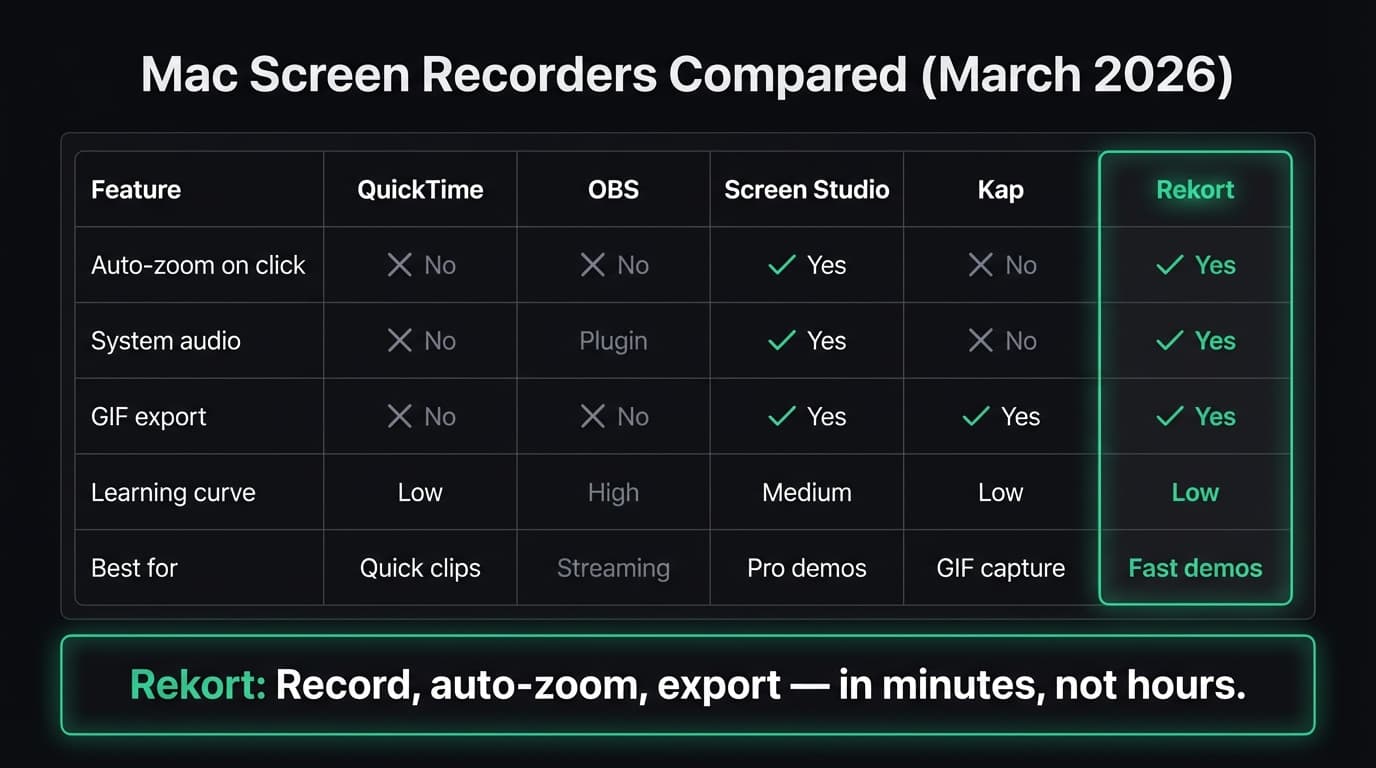
Screen Studio and Rekort both create zoom from click activity; FocuSee is another relevant auto-zoom option outside this six-tool table. Zoom behavior, cursor motion, and editing controls differ, so test the same short workflow before choosing.
What to look for in a screen recorder#
Five things separate a good Mac screen recorder from a mediocre one:
Auto-zoom on click. When you click a control, the recording creates a closer view of that area. This can make small UI easier to follow, but too many zooms are distracting. Prefer tools where individual events can be adjusted or removed.
System audio capture. macOS doesn't expose system audio to screen recorders by default. QuickTime and Kap can't record what your computer is playing without third-party audio routing tools like BlackHole. OBS added native macOS audio capture in version 30 (requires macOS 13+). Screen Studio, Rekort, and ScreenFlow handle it natively.
Export format. MP4 is standard for video. But for documentation, GitHub READMEs, or Slack messages, GIF export is more practical. QuickTime, OBS, and ScreenFlow don't export GIFs at all.
Learning curve. OBS has dozens of settings panels designed for live streaming. ScreenFlow is a full video editor. If you want to record a 30-second product demo and share it, you don't need either of those.
Price. Ranges from free to $108/year. The right choice depends on how often you record and how polished the output needs to be.
Continue reading
The Screen Recorder That Zooms for You
Record your screen on Mac — every click auto-zooms to what matters. No manual keyframing.
QuickTime Player#
Price: Free (comes with macOS)
QuickTime Player is already on your Mac. Open it, go to File > New Screen Recording (or press Cmd+Shift+5 to use the Screenshot toolbar), select your area, and hit record. No download, no setup.
What it does well:
- Zero setup, already installed on every Mac
- Records full screen or a selected area
- Microphone audio capture works reliably
- Saves as .mov, which is easy to share or convert
- Fast startup for quick, informal captures
Where it falls short:
- No system audio. You can't record what your computer is playing without installing a third-party audio routing tool like BlackHole, then configuring a multi-output audio device in Audio MIDI Setup.
- No editing beyond basic trim. You can cut the start and end of a recording, and that's it.
- No auto-zoom. The recording captures your screen exactly as-is, which means tiny text and unclear click targets on Retina displays.
- No GIF export.
- No backgrounds, padding, or aspect ratio control.
Who should use it: Anyone who needs a quick, informal capture and doesn't care about production quality. Bug reports, quick Slack messages, personal reference notes.
Who shouldn't: Anyone making product demos, tutorials, or customer-facing recordings. Without zoom, viewers can't see what you're clicking on a 2560x1600 display. For those use cases, see our screen recording with zoom effect guide.
OBS Studio#
Price: Free and open-source
OBS Studio is one of the most capable recording tools available. It was designed for live streaming, and that shows in both its power and its complexity. According to the OBS Project website, OBS is used by millions of streamers and content creators worldwide.
What it does well:
- Free and open-source with no restrictions
- Records at any resolution and frame rate
- Multi-source compositing: webcam, screen, images, text overlays, all in one scene
- Native system audio capture on macOS 13 Ventura and later (added in OBS 30). On older macOS versions, you need a third-party tool like iShowU Audio Capture.
- Extremely customizable with plugins and scripts
- Active community and plugin ecosystem
Where it falls short:
- Steep learning curve. The interface is organized around scenes, sources, and transitions, all concepts from live streaming that don't map to "record my screen and share it."
- No auto-zoom or click highlighting.
- No built-in editor. You record, and then you need a separate app to trim, cut, or add effects.
- No GIF export.
- The macOS version historically lagged behind Windows in performance and features, though OBS 30+ closed much of that gap.
Who should use it: Streamers. Educators running live sessions. Anyone who needs multi-source layouts with webcam overlays. People already comfortable with OBS from streaming.
Who shouldn't: Anyone who wants to record a product demo and share it in under 5 minutes. OBS is a semi truck when you need a bicycle. If you're considering OBS for simple screen recordings, see our OBS alternative for Mac comparison.
Screen Studio#
Price: $29/month or $108/year (official pricing checked July 23, 2026)
Screen Studio set the standard for auto-zoom screen recording on Mac. Record normally, and the app automatically zooms into your clicks with smooth, cinematic camera movements. The result looks like a professionally edited video, but you didn't edit anything.
What it does well:
- Best-in-class auto-zoom with smooth camera movements and configurable zoom levels
- Customizable backgrounds, padding, rounded corners, and shadows
- System audio and microphone recording
- Webcam overlay with background removal
- Multiple export formats including GIF, MP4, and WebM
- Cursor effects: highlight ring, size adjustment, click animation
- Regular updates with new features
Where it falls short:
- Subscription-only on the current official pricing page; no lifetime option was shown.
- The interface has a lot of options. If you just want to record and export, the number of settings can slow you down.
- The current editor includes cuts and speed changes, but it is not a full multi-track production editor.
- macOS only.
Who should use it: Anyone who makes polished product videos, demo recordings, or tutorials daily and needs the most feature-complete tool available. The camera overlays, background removal, and cursor effects are things no other tool on this list matches. If you record customer-facing content every day and the $108/year pays for itself in saved editing time, Screen Studio is the right choice.
Who shouldn't: Occasional recorders or anyone on a tight budget. If you record once or twice a week and only need auto-zoom without the full production suite, the $108/year price tag is hard to justify. For a more focused alternative, see our Screen Studio alternative comparison.
Kap#
Price: Free and open-source
Kap is a lightweight screen recorder that lives in your menu bar. It focuses on one thing: recording short screen captures and exporting them as GIFs. It does that well.
What it does well:
- Free and open-source with no limits
- Clean, minimal interface that stays out of the way
- Excellent GIF export with size optimization
- Records selected area, window, or full screen
- Menu bar app: always accessible, never cluttering your dock
- Exports to GIF, MP4, WebM, and APNG
- Plugin system for custom export targets (upload to Giphy, Imgur, etc.)
Where it falls short:
- No auto-zoom or click highlighting.
- No system audio capture.
- No editing beyond basic trim.
- No backgrounds, padding, or aspect ratio control.
- Recording quality can drop at high frame rates on older hardware.
- Requires macOS 10.15+. The GitHub repository shows less frequent updates than it had a few years ago.
Who should use it: Developers recording short GIFs for documentation, GitHub issues, pull requests, or README files. If your workflow is "record 5-15 seconds, export as GIF, paste it somewhere," Kap is the fastest path. See our GIF screen recorder for Mac guide for a deeper comparison of GIF tools.
Who shouldn't: Anyone recording product demos, tutorials, or anything longer than 30 seconds. Kap is a GIF specialist, not a general-purpose screen recorder.
Rekort#
Price: $9/month, $49/year, or $79 lifetime
Full disclosure: this is our app.
Rekort is a native Mac screen recorder with automatic zoom on click. Capture a screen, window, or area with optional webcam, system audio, and microphone. Adjust zoom events; trim, split, ripple-delete, or change segment speed; add a color or image background; then export MP4 or GIF.
What it does well:
- Auto-zoom on click. This is the core feature. Record normally, and clicks zoom in automatically so viewers can see what's happening.
- System audio and microphone capture without extra setup.
- MP4 and GIF export.
- Adjustable zoom level, zoom duration, and easing curves in the preview.
- Webcam overlay with position and size controls.
- Timeline editor with trim, split, ripple delete, and speed controls.
- Color or image backgrounds, padding, corners, shadow, and aspect ratios.
- Native Mac app built with Swift and SwiftUI. No Electron.
- Simple pricing: $9/month, $49/year, or $79 lifetime. No feature gates.
Where it falls short:
- No webcam-background removal.
- No cursor beautification beyond size adjustment. No spotlight or highlight ring effects.
- No transcript, hosted review page, or multi-track compositing.
- New app with fewer templates and presets than established tools.
- macOS 14+ required. No support for macOS 13 or earlier.
- No Windows or Linux version.
Who should use it: Developers, DevRel, and product marketers who record demos, tutorials, bug reproductions, and PR walkthroughs and want auto-zoom without Screen Studio's subscription. The sweet spot: you want webcam, audio, backgrounds, focused timeline corrections, and local MP4/GIF exports without a broader transcription or cursor-effects suite.
Who shouldn't: Anyone who needs full multi-track production, cursor smoothing, webcam-background removal, transcripts, or a hosted review workspace. Screen Studio, ScreenFlow, Loom, or Cap may be better depending on that requirement. If the budget is zero, QuickTime, Kap, and OBS are free.
ScreenFlow#
Price: $169 one-time (as of March 2026)
ScreenFlow has been on Mac for over a decade. It's a screen recorder that grew into a full video editor, or a video editor that happens to record your screen. Either way, it's the most editing-capable tool on this list.
What it does well:
- Full multi-track video editor built in. Timeline, layers, transitions, callouts.
- Records screen, webcam, and iOS devices simultaneously.
- System audio capture works natively.
- Stock media library included (with the $248 Super Pak).
- Animations, text overlays, and callout effects.
- Good for longer, edited tutorial videos that need cuts and transitions.
Where it falls short:
- $169 is the second most expensive option on this list (after Screen Studio's $108/year).
- No auto-zoom on click. You manually add zoom keyframes in the timeline editor. This works, but it's tedious if you have dozens of clicks in a recording.
- The interface feels dated compared to newer tools.
- Overkill if you just want quick, polished recordings.
- Heavier on system resources than single-purpose recorders.
- The video editing features have a real learning curve.
Who should use it: People who need a combined screen recorder and video editor for producing longer tutorial content. If you make 10-minute YouTube tutorials with cuts, annotations, and transitions, ScreenFlow covers everything in one app. For more detail, see our ScreenFlow alternative comparison.
Who shouldn't: Anyone who wants quick recordings. The $169 price and editing complexity aren't justified for 30-second demos. And without auto-zoom, every recording still needs manual zoom keyframes to look polished.
Feature comparison#
Here's a detailed breakdown of features across all six tools:
| Feature | QuickTime | OBS | Screen Studio | Kap | Rekort | ScreenFlow |
|---|---|---|---|---|---|---|
| Auto-zoom on click | No | No | Yes | No | Yes | No |
| System audio | No | Yes (macOS 13+) | Yes | No | Yes | Yes |
| Microphone audio | Yes | Yes | Yes | No | Yes | Yes |
| GIF export | No | No | Yes | Yes | Yes | No |
| Video editing | Trim + split clips | No | Cut + speed | Trim only | Split + ripple delete + speed + zoom | Full editor |
| Webcam overlay | No | Yes | Yes | No | Yes | Yes |
| Custom backgrounds | No | Scene composition | Yes | No | Yes | Editor canvas |
| Cursor effects | No | No | Yes | Highlight | Size only | Callouts |
| Area selection | Yes | Yes | Yes | Yes | Yes | Yes |
| Full screen recording | Yes | Yes | Yes | Yes | Yes | Yes |
| Native Mac app | Yes | No (Qt) | Yes | No (Electron) | Yes | Yes |
Decision guide#
Pick based on what you actually need:
"I need to capture something quick right now." Use QuickTime. It's on your Mac already. File > New Screen Recording, done.
"I want GIFs for docs and GitHub." Use Kap. Free, focused, makes great GIFs. If you also want auto-zoom in your GIFs, Rekort exports GIFs with zoom applied.
"I record product demos regularly and want them to look professional." This is where auto-zoom matters. Screen Studio adds cursor smoothing, webcam background removal, transcripts, and iOS capture at $108/year. Rekort combines auto-zoom, webcam, audio, backgrounds, segment editing, and MP4/GIF export at $79 lifetime.
"I need a full video editor for long tutorials." ScreenFlow is the best combined recorder and editor on Mac. You get a real timeline, multi-track editing, and annotations in one app.
"I stream or need multi-source recording." OBS Studio. Nothing else on this list is designed for that.
"I want auto-zoom, webcam, backgrounds, and local exports with a lifetime option." Rekort. The current feature set is included at $9/month, $49/year, or $79 lifetime.
The best screen recorder is the one that fits how you work. For developers and product people who record demos and tutorials, auto-zoom on click saves more time than any other single feature. For streamers, OBS is unmatched. For people who need a video editor, ScreenFlow is the answer. And for a quick capture, QuickTime is right there on your Mac.
Ready to record?
Rekort auto-zooms every click so your screen recordings look professional. No video editing required.
Download for MacmacOS 14+ · $9/month, $49/year, or $79 lifetime
Related Articles
QuickTime Screen Recording: Complete Guide (2026)
9 min read
Best Screen Recorders with Webcam Overlay for Mac (2026)
9 min read
AI Screen Recorder: Which Features Actually Matter (2026)
5 min read
Best Screen Recording Software in 2026
11 min read
How to Make YouTube Videos with Screen Recording (Mac, 2026)
8 min read