OBS Alternative for Mac: Screen Recording Without the Complexity
OBS Studio is powerful but built for live streaming. If you need screen recordings for demos and tutorials on Mac, here are 5 simpler alternatives.
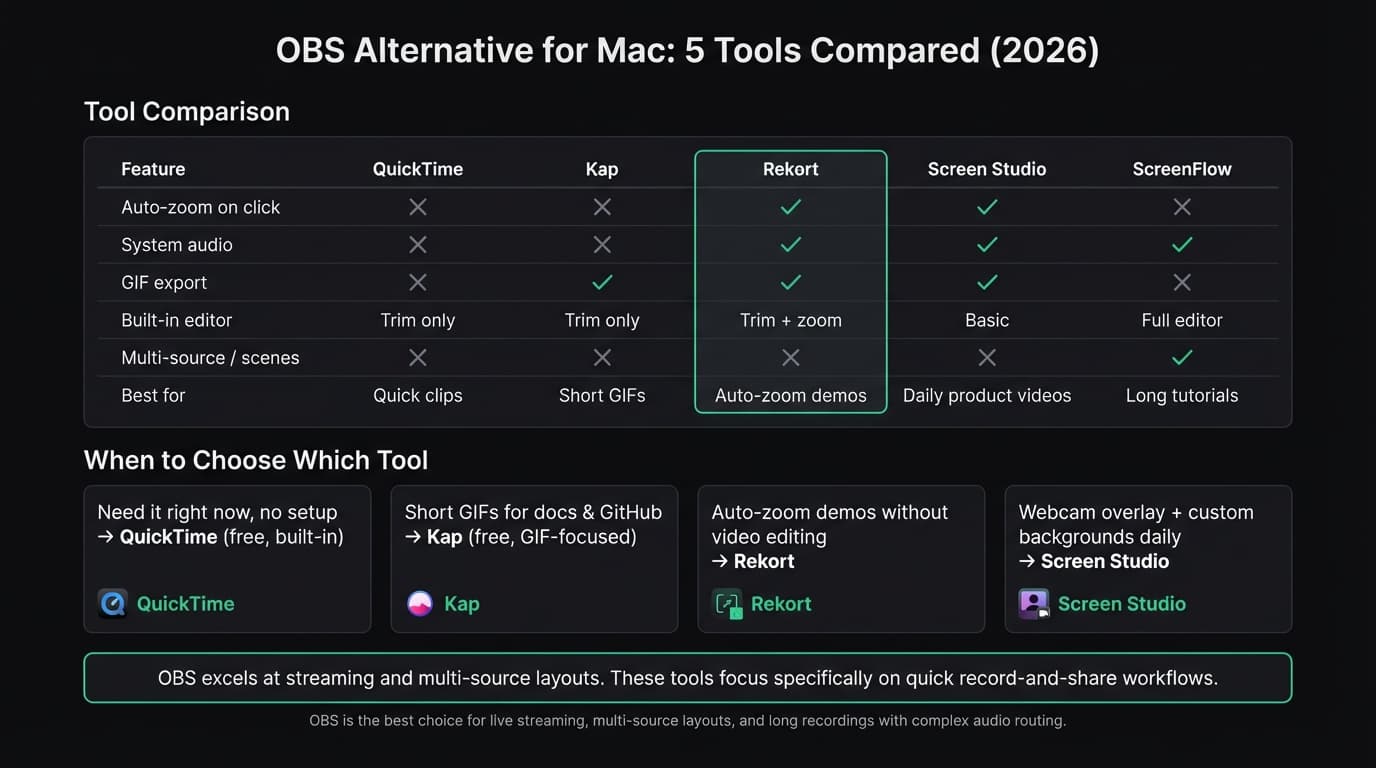
Choose QuickTime for an immediate built-in capture, Kap for a small GIF utility, Rekort for auto-zoomed local demos, Screen Studio for deeper cursor polish, and ScreenFlow for long multi-track editing. Stay with OBS when you need live streaming, complex scenes, audio filters, source routing, or real-time composition.
OBS Studio's official site currently describes it as free, open-source software for video recording and live streaming on Mac, Windows, and Linux. Its scenes, sources, transitions, and audio mixer are strengths for production work, but they can be unnecessary for a short product walkthrough.
Search evidence: This page received 21 clicks from 1,576 impressions (1.3% CTR) at average position 7.0 in the final 28-day GSC window ending July 20, 2026. DataForSEO reported 110 US monthly searches for “obs alternative for mac,” difficulty 41, and $6.23 CPC on July 23. Rekort ranked fourth in the live organic SERP. This refresh preserves the working intent match while correcting the current Rekort and Screen Studio feature comparison.
Why people look for OBS alternatives#
OBS is the right tool for streaming, multi-source layouts, and long recordings with complex audio routing. For those use cases, nothing free comes close.
The problem shows up when you need to:
- Record a quick product demo and share it
- Capture a tutorial and export it as a GIF
- Zoom into clicks automatically so viewers can see what you're doing
- Go from start to published video in under 10 minutes
OBS wasn't designed for any of those. There's no auto-zoom, no built-in editor, and the output is a flat file where every source is baked in. You can get a recording out of OBS, but getting a polished recording out of OBS requires editing work it doesn't help you do.
That's the gap these alternatives fill.
Quick comparison#
| Tool | Price | Auto-zoom | System audio | GIF export | Best for |
|---|---|---|---|---|---|
| QuickTime | Free (built-in) | No | No | No | Quick informal captures |
| Kap | Free | No | No | Yes | Short GIFs for docs |
| Rekort | $9/mo, $49/yr, or $79 lifetime | Yes | Yes | Yes | Auto-zoom demos and tutorials |
| Screen Studio | $29/mo or $108/yr | Yes | Yes | Yes | Daily polished product videos |
| ScreenFlow | $169 | No | Yes | No | Long tutorials with editing |
Continue reading
A Simpler Alternative
Auto-zoom on click, focused timeline editing, MP4 & GIF export. $9/month, $49/year, or $79 lifetime.
QuickTime Player#
Price: Free, built into macOS
QuickTime is already on your Mac. File > New Screen Recording, or press Cmd+Shift+5 for the Screenshot toolbar. Select your area and record.
What it does well:
- Zero setup. No download, no installation.
- Records full screen or a selected area.
- Microphone audio works reliably.
- Saves as .mov, easy to convert or share.
- Fast startup when you need a quick capture.
Where it falls short:
- No system audio without a workaround. Capturing what your computer plays requires installing BlackHole and configuring a multi-output device in macOS Audio MIDI Setup.
- No auto-zoom. Everything is captured at full resolution, which means viewers can't see what you're clicking on a Retina display.
- Basic clip editing. QuickTime can trim, split, rearrange, and delete clips, but it has no zoom-event or production timeline.
- No GIF export.
Who it's for: Bug reports, quick Slack messages, informal captures where production quality doesn't matter. If your recording never leaves your team, QuickTime is enough.
Who should look elsewhere: Anyone making customer-facing demos, tutorials, or documentation. Without zoom, viewers spend more time squinting than watching.
Kap#
Price: Free and open-source
Kap is a lightweight Mac app that lives in your menu bar. Click the icon, draw a selection, record, export. It does one thing — short screen captures and GIF export — and it does it well.
What it does well:
- Free with no restrictions or limits.
- Clean interface with no configuration required.
- Excellent GIF export with compression control.
- Records to GIF, MP4, WebM, and APNG.
- Plugin system for uploading to external services.
Where it falls short:
- No auto-zoom or click highlighting.
- No system audio capture.
- No backgrounds, padding, or any visual enhancements.
- Kap is an Electron app, not a native Mac app, which shows in performance on older hardware.
- The GitHub repository shows slower update cadence than earlier years.
Who it's for: Developers recording short GIFs for GitHub issues, pull requests, README files, or documentation. If your use case is "record 5-15 seconds, export as GIF, paste it in," Kap is the fastest path. See our GIF screen recorder for Mac guide for a deeper comparison of GIF-focused tools.
Who should look elsewhere: Anyone recording product demos, tutorials, or anything longer than 30 seconds. Kap has no zoom and no system audio — it's a GIF specialist.
Rekort#
Price: $9/month, $49/year, or $79 lifetime
Full disclosure: this is our app.
Rekort is a native Mac screen recorder built around automatic zoom on click. Record a full screen, window, or selected area with optional webcam, system audio, and microphone. Preview and adjust zoom events; trim, split, ripple-delete, or change segment speed; add a color or image background; then export MP4 or GIF.
What it does well:
- Auto-zoom on every click. The feature that makes demos actually readable without post-production editing.
- System audio and microphone captured natively without extra setup or audio routing workarounds.
- MP4 and GIF export with zoom applied.
- Adjustable zoom level, duration, and easing in the preview.
- Webcam overlay with position and size controls.
- Color or image backgrounds, padding, rounded corners, shadow, and aspect ratios.
- Focused editor for split, ripple delete, trim, and segment speed.
- Native Swift/SwiftUI app. No Electron.
- Simple pricing with no feature gates: $9/month, $49/year, or $79 lifetime.
Where it falls short:
- Webcam overlay is available with position and size controls; unlike Screen Studio, Rekort does not remove the camera background.
- Color and image backgrounds, padding, rounded corners, and shadow are available.
- No cursor spotlight or click animation effects beyond size adjustment.
- Requires macOS 14 Sonoma or later. macOS 13 isn't supported.
- No Windows or Linux version.
Who it's for: Developers, DevRel engineers, product marketers, and founders who record demos, PR walkthroughs, bug reproductions, and tutorials regularly and want the output to look good without editing time. If the reason you considered OBS was to get something more capable than QuickTime — but you don't need streaming or multi-source layouts — Rekort covers the gap.
Who should look elsewhere: Anyone who needs live streaming, complex source scenes, audio filters, or plugins should stay with OBS. Screen Studio is stronger for cursor smoothing, webcam background removal, transcripts, and iOS capture. If the budget is zero, Kap and QuickTime remain useful.
Screen Studio#
Price: $29/month or $108/year (official page checked July 23, 2026)
Screen Studio is the most feature-complete screen recorder on Mac. It adds automatic zoom on click, cinematic camera movements, webcam overlay with background removal, custom backgrounds, padding, and cursor effects. Record your screen, and the app produces something that looks professionally edited without any editing work.
What it does well:
- Best-in-class auto-zoom with smooth, configurable camera movements.
- Webcam overlay with background removal.
- Custom backgrounds, padding, rounded corners, shadows.
- Cursor highlight ring, click animation, size adjustment.
- Multiple export formats: MP4, GIF, WebM.
- Regular updates with new features.
Where it falls short:
- Expensive for occasional use at the current $108/year or $29/month.
- Lots of settings. If you want to record and export quickly, the options can slow you down.
- The current editor includes cuts and speed changes, but it is not a full multi-track post-production suite.
Who it's for: Anyone making polished product videos daily who needs the full production suite — camera overlays, background effects, cursor animations, and the highest-quality auto-zoom available. See our Screen Studio alternative guide for a broader comparison.
Who should look elsewhere: Occasional recorders or anyone who doesn't need camera overlays and custom backgrounds. The $108/year price is hard to justify if you record once or twice a week.
ScreenFlow#
Price: $169 one-time
ScreenFlow combines screen recording with a full multi-track video editor. If you need to record your screen and then cut, annotate, and produce a polished long-form tutorial in the same app, ScreenFlow does all of that.
What it does well:
- Full timeline editor with layers, transitions, and callouts.
- Records screen, webcam, and iOS devices at once.
- System audio captured natively.
- Annotations, text overlays, and animation effects.
- Good for longer tutorial content that needs real cuts.
Where it falls short:
- $169 is the second-highest price on this list after Screen Studio's $108/year.
- No auto-zoom on click. You add zoom keyframes manually in the timeline, which works but takes time.
- The interface feels dated compared to newer apps.
- Heavier on system resources than single-purpose recorders.
- Significant learning curve if you just want quick recordings.
Who it's for: People who produce long tutorials — 10+ minute YouTube videos with cuts, annotations, and visual effects — and want one app for recording and editing. For more detail, see our ScreenFlow alternative comparison.
Who should look elsewhere: Anyone who wants fast, polished recordings without video editing. ScreenFlow's power comes with real time investment.
What OBS does better than all of these#
To be fair: none of these tools replace OBS for what OBS is actually built for.
If you run a live stream with multiple camera feeds, on-screen graphics, and scene transitions, OBS is the tool. It's free, endlessly customizable, and has a large plugin ecosystem. The OBS Project website shows it's used by millions of streamers and content creators for exactly that.
If your Mac runs macOS 13 Ventura or later, OBS 30 also added native desktop audio capture — which means you can record system audio without BlackHole or other workarounds.
The alternatives in this post are for a different use case: recording product demos, tutorials, and documentation that need to be polished and shareable, not streamed live.
Decision guide#
"I need to capture something right now." QuickTime. Already on your Mac.
"I need short GIFs for docs or GitHub." Kap. Free, focused, exports GIFs well.
"I record demos and tutorials and want auto-zoom." Rekort for webcam, audio, backgrounds, focused timeline corrections, local MP4/GIF, and a $79 lifetime option. Screen Studio for cursor smoothing, webcam background removal, transcripts, and iOS capture at $108/year.
"I make long YouTube tutorials and need a video editor too." ScreenFlow. One app for recording and editing.
"I stream or need multi-source recording." Stay with OBS. Nothing here replaces it for that.
For a broader comparison of screen recorders including OBS, see our best screen recorder for Mac guide. For more on auto-zoom specifically, see screen recording with zoom effect.
Ready to record?
Rekort auto-zooms every click so your screen recordings look professional. No video editing required.
Download for MacmacOS 14+ · $9/month, $49/year, or $79 lifetime
Related Articles
Best Screen Studio Alternatives for Mac: Pick by Workflow (2026)
15 min read
Cap Alternative for Mac: Auto-Zoom Without the Cloud
8 min read
Cursorful Alternative: Native Mac Auto-Zoom Screen Recording
7 min read
Descript Alternative for Mac: Screen Recording Without the Learning Curve
8 min read
FocuSee Alternative for Mac: Lighter Auto-Zoom Screen Recording
8 min read