Cursorful Alternative: Native Mac Auto-Zoom Screen Recording
Looking for a Cursorful alternative? Compare 5 screen recorders on auto-zoom, native app support, local files, and pricing. Honest breakdown of what each does.
Cursorful is a browser extension that records your screen with automatic zoom and pan. Install it in Chrome, Edge, or Brave, hit record, and it follows your cursor — zooming in on actions as you go. The free plan gets you unlimited exports, and Pro unlocks 4K and camera support for $99 one-time (as of April 2026, via cursorful.com).
That scope is also where the limit is. Cursorful works inside a browser tab. If you need to record Xcode, Terminal, Figma, or any native Mac app, the extension can't reach it.
This guide covers five alternatives — when each one makes sense, what it costs, and who it's actually for.
Full disclosure: we built Rekort, one of the five tools below.
Why people look for Cursorful alternatives#
Browser-only recording. Cursorful records what's inside a browser window. That's enough for recording web apps and SaaS product demos that run in a browser. It's not enough for recording Figma (desktop app), Terminal, Finder, Xcode, or anything else outside the browser. If your workflow involves native Mac software, you need a different tool.
Cloud rendering dependency. Some of Cursorful's rendering features happen in the cloud, not locally. If you're recording anything confidential — internal tools, unreleased features, proprietary workflows — the upload step is something to think about. The Pro plan's cloud features are also time-limited to one year, while offline features are lifetime.
Wanting a dedicated app. Browser extensions are convenient to install but add friction in day-to-day use: they only work when the browser is open, they can't be pinned to the Dock, and they lack the keyboard shortcuts and OS-level integrations you get with a native app.
Cross-platform vs. Mac-native. Cursorful works on macOS, Windows, and Linux. That breadth is useful if your team is mixed. It also means the app isn't optimized specifically for macOS — no ScreenCaptureKit integration, no native audio capture, no macOS 14 system extension.
Continue reading
A Simpler Alternative
Auto-zoom on click, focused timeline editing, MP4 & GIF export. $9/month, $49/year, or $79 lifetime.
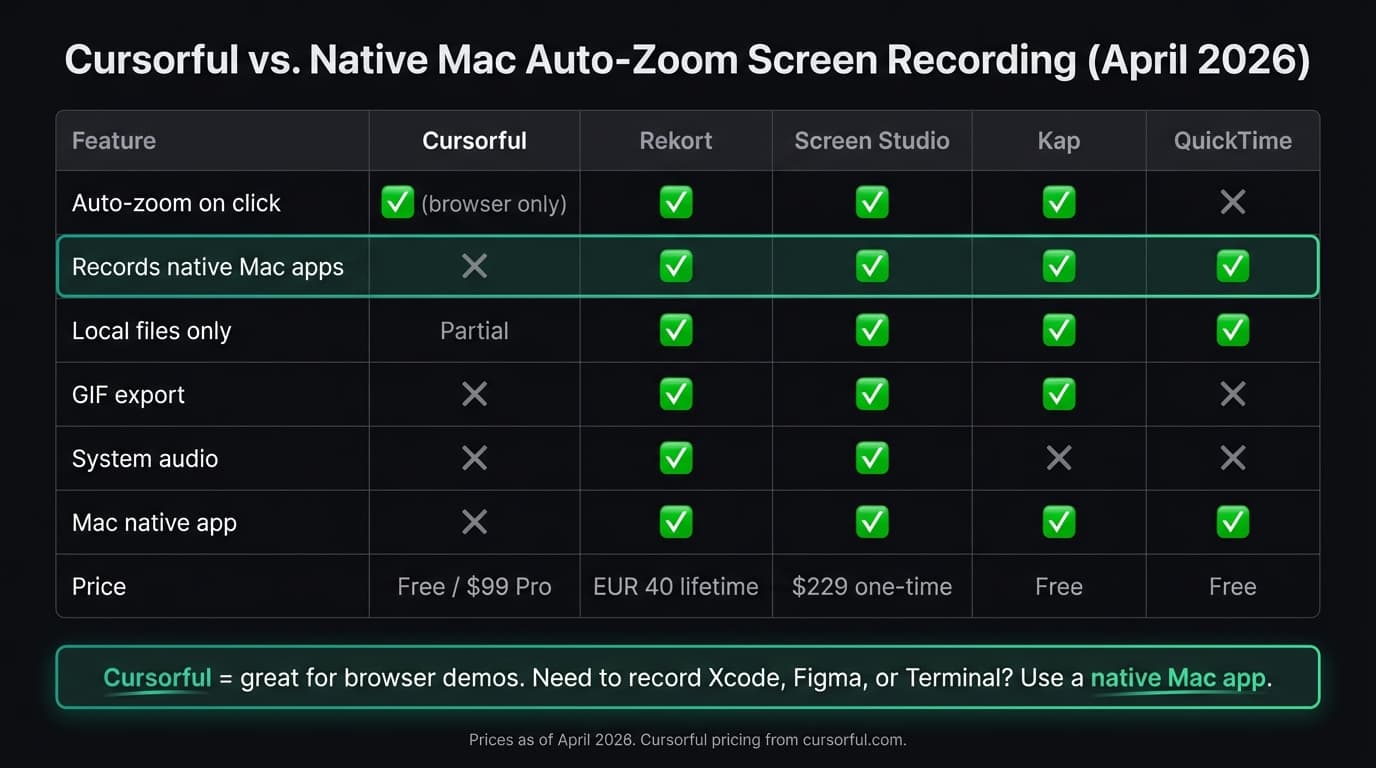
All five tools at a glance#
| Tool | Price | Auto-zoom | Records native apps | Local files | Best for |
|---|---|---|---|---|---|
| Rekort | $79 lifetime | Yes | Yes | Yes | Mac-native auto-zoom, local-first |
| Screen Studio | $108/year | Yes | Yes | Yes | Full production suite, Mac |
| Cursorful | Free / $99 Pro | Yes (browser only) | No | Partial | Browser-only recordings |
| Kap | Free | No | Yes | Yes | Free GIF capture |
| QuickTime | Free (built-in) | No | Yes | Yes | Quick, no-frills captures |
Rekort#
Price: $9/month, $49/year, or $79 lifetime
Rekort is a native Mac app that records any window or screen area with automatic zoom on click. When you click a button during recording, the playback zooms into that target — no manual keyframes, no post-editing. Export as MP4 or GIF.
What it does well:
- Records any app on your Mac: native apps, Terminal, Finder, design tools, anything
- Auto-zoom triggers on every click, then smoothly zooms back out
- Records microphone and system audio natively — no BlackHole required
- All recordings stay on your Mac, nothing uploaded
- GIF export for GitHub READMEs, Slack, and documentation
- Simple workflow: select area, record, preview with zoom, export
Where it falls short:
- Mac only — no Windows or Linux version
- No camera overlay or custom background (unlike Screen Studio or Cursorful)
- No AI-powered editing, silence removal, or subtitle generation
- No browser extension — must be installed as a standalone app
Who it's for: Mac users who record product demos, tutorials, or internal walkthroughs and want auto-zoom on every click without a video editor. Especially useful when recording anything outside the browser.
Screen Studio#
Price: $29/month or $108/year (as of April 2026, via screen.studio)
Screen Studio is the most fully-featured auto-zoom screen recorder for Mac. It handles everything: smooth auto-zoom, camera overlay, custom backgrounds, background blur, click effects, and export to MP4 or GIF.
What it does well:
- Auto-zoom that's widely considered the smoothest on the market
- Camera overlay with background blur and custom scenes
- 4K export
- Deep control over zoom speed, curve, and behavior
Where it falls short:
- $108/year is a meaningful commitment for occasional use
- Feature surface is large — takes time to learn the controls
- If you don't use camera overlay or custom backgrounds, you're paying for features you won't touch
Who it's for: People who record product videos daily and want the most polished output possible, with camera overlay included.
Cursorful#
Price: Free / $99 one-time Pro (as of April 2026, via cursorful.com)
Cursorful installs as a browser extension and records browser tabs with smooth automatic zoom and pan. The free plan covers basic zoom, background editing, and unlimited exports. Pro adds 4K, camera and microphone support, and offline rendering — with cloud features available for one year.
What it does well:
- Zero-install friction for browser-based workflows
- Smooth zoom and pan that follow the cursor
- Customizable backgrounds and the ability to hide browser toolbars
- Generous free plan — unlimited exports with auto-zoom
Where it falls short:
- Browser-only: can't record native Mac apps, desktop, or anything outside a tab
- Cloud rendering means some recordings pass through external servers
- Not a standalone app — requires the browser to be open
- Not optimized for macOS specifically
Who it's for: Teams recording browser-based SaaS products or web app workflows, especially those who want auto-zoom without committing to a paid app.
Kap#
Price: Free, open source
Kap is a free, open-source screen recorder for Mac. It records full screen or a selected area and exports as GIF, MP4, WebM, or APNG. No auto-zoom, no subscription, no cloud.
What it does well:
- Completely free with no usage limits or watermarks
- GIF export is among the best in class
- Records any app or area on your Mac
- Lightweight, fast to open and use
Where it falls short:
- No auto-zoom on click — flat recordings only
- No system audio capture (microphone only)
- Development has slowed — fewer updates in recent years
Who it's for: Developers who need quick GIF exports for READMEs and PRs and don't need zoom.
QuickTime Player#
Price: Free (comes with macOS)
QuickTime Player is already installed on every Mac. Open it, go to File > New Screen Recording, select your area, and record. It's the simplest option and the right default for recordings where presentation doesn't matter.
What it does well:
- Zero setup — already on your Mac
- Records full screen or a selected area reliably
- Saves .mov files locally, no upload, no account
- Microphone audio capture works without configuration
Where it falls short:
- No auto-zoom on click
- No system audio (no built-in workaround)
- No GIF export
- No post-recording editing
Who it's for: Quick bug reports, informal captures, or recordings where you just need the content and presentation doesn't matter.
Which one should you use?#
If you record browser-based products and mostly stay inside a browser tab, Cursorful's free plan is hard to beat. Install the extension, get auto-zoom, and export without paying anything.
If you need to record native Mac apps — Figma, Xcode, Terminal, Sketch, or anything outside the browser — Cursorful can't help you. Rekort or Screen Studio are the right options. Both are native Mac apps with auto-zoom on click that can capture any window on your screen.
If you want auto-zoom without spending $108/year, Rekort at $79 lifetime covers screen, window, or area capture; webcam; system audio and microphone; click-driven zoom; timeline corrections; color or image backgrounds; and MP4 or GIF export. Cursorful remains the lighter browser-based choice when installing a native app is the constraint.
If you just need a free GIF, Kap is good and costs nothing.
If you need zero setup for a one-off recording, QuickTime is already there.
For more on how Rekort compares to other auto-zoom recorders, see the screen recorder alternatives guide. For GIF-specific workflows, see the GIF screen recorder comparison. For a full breakdown of the best Mac screen recorders across categories, see the best screen recorder for Mac guide.
Ready to record?
Rekort auto-zooms every click so your screen recordings look professional. No video editing required.
Download for MacmacOS 14+ · $9/month, $49/year, or $79 lifetime
Related Articles
Best Screen Studio Alternatives for Mac: Pick by Workflow (2026)
15 min read
OBS Alternative for Mac: Screen Recording Without the Complexity
10 min read
Cap Alternative for Mac: Auto-Zoom Without the Cloud
8 min read
Descript Alternative for Mac: Screen Recording Without the Learning Curve
8 min read
FocuSee Alternative for Mac: Lighter Auto-Zoom Screen Recording
8 min read