Kap Alternative: When You Need More Than a Simple GIF Recorder
Looking for a Kap alternative? Compare 5 Mac screen recorders on auto-zoom, system audio, GIF quality, and price. Honest comparison for developers and product teams.
Kap is a free, open-source Mac screen recorder that lives in your menu bar. It records a selected area and exports as GIF, MP4, WebM, or APNG. For short screen captures destined for GitHub, documentation, or Slack, it's the fastest zero-cost option available.
But Kap has hard limits: no auto-zoom on click, no system audio capture, no recording of longer sessions, and an update cadence that has slowed in recent years. When those limits start to matter, you need something else.
This guide covers five alternatives — what each does well, where it falls short, and which is the right fit depending on what you actually need from a screen recorder.
Full disclosure: we built Rekort, one of the tools on this list.
Why people look for Kap alternatives#
The reasons to look elsewhere from Kap tend to cluster around a few specific gaps.
No auto-zoom on click. Kap records your screen as-is. On a 1440p or Retina display, small UI elements stay small. There's no way to zoom into the area you're clicking. For quick bug clips, that's fine. For product demos or tutorials where viewers need to see what you're interacting with, it's a real problem.
No system audio. Kap records microphone audio if you enable it, but it can't capture what your computer is playing — music, notification sounds, or UI sounds from the app you're recording. If your workflow requires system audio, Kap isn't the right tool.
Short clips only. Kap is optimized for captures under 30 seconds. Longer recordings can result in large file sizes and degraded GIF quality. For tutorials or product walkthroughs, you need a recorder designed for longer sessions.
Reduced maintenance. The Kap GitHub repository has seen less active development than earlier years. The app still works, but the plugin ecosystem has stalled and macOS compatibility issues are slower to resolve.
GIF quality limitations. Kap's GIF output is good for its price point, but it lacks the palette control and dithering options that dedicated GIF tools like Gifox offer. If GIF file size and color fidelity matter for your workflow, the quality ceiling is noticeable.
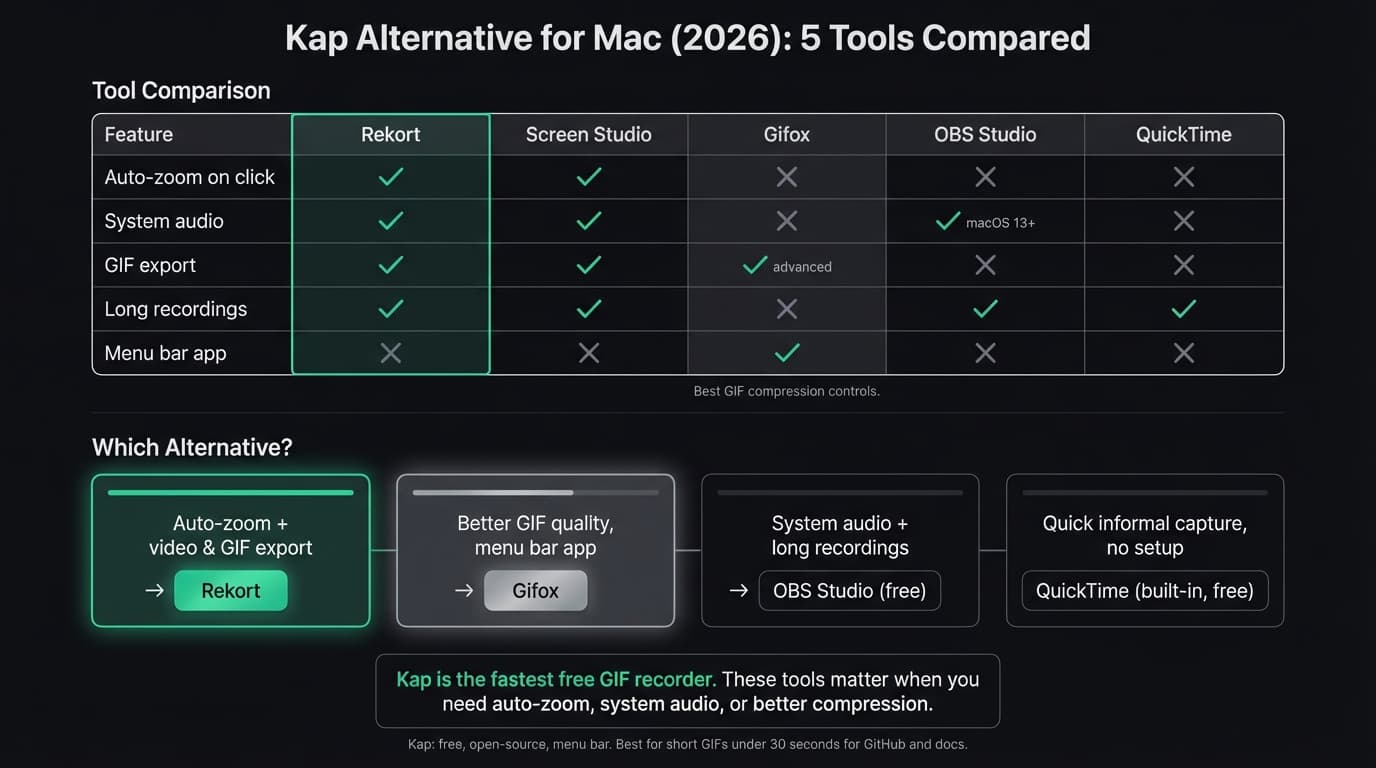
All five tools at a glance#
| Tool | Price | Auto-zoom | System audio | GIF export | Best for |
|---|---|---|---|---|---|
| Rekort | $79 lifetime | Yes | Yes | Yes | Auto-zoom demos with GIF export |
| Screen Studio | $29/mo or $108/yr | Yes | Yes | Yes | Full production suite |
| Gifox | $15 one-time | No | No | Yes (advanced) | High-quality GIF capture |
| OBS Studio | Free | No | Yes (macOS 13+) | No | Long recordings, streaming |
| QuickTime | Free (built-in) | No | No | No | Quick informal captures |
Rekort#
Price: $9/month, $49/year, or $79 lifetime
Full disclosure: this is our app.
Rekort is a native Mac screen recorder with automatic zoom on click. You select a recording area, capture your screen normally, and every click automatically zooms in so viewers can see what you're interacting with. After recording, you can adjust the zoom level, duration, and easing curve in the preview, then export as MP4 or GIF.
What it does well:
- Auto-zoom on click — the core thing Kap doesn't have. Every click in a recording zooms in automatically during playback.
- System audio and microphone capture without additional setup or audio routing tools.
- MP4 and GIF export. GIFs from Rekort have zoom applied, so the output shows exactly what you were clicking on.
- Adjustable zoom level (1.0× to 4.0×), duration, and easing curves in the preview.
- Native Swift/SwiftUI app — not Electron, not a web wrapper. Minimal resource usage.
- Works for both short GIF-style captures and longer tutorial recordings.
- One-time pricing. $79 covers the app with no annual renewal.
Where it falls short:
- Not free. Kap is free; Rekort isn't. If budget is the primary concern, this is the wrong tool.
- Webcam overlay is available with position and size controls; Rekort does not currently remove the camera background.
- Color and image backgrounds, padding, rounded corners, and shadow are available.
- No cursor highlight ring or spotlight effect — cursor size adjustment only.
- macOS 14 (Sonoma) or later required. Kap supports macOS 10.15+.
- Newer app — smaller community and fewer third-party integrations than established tools.
Who should use it: Developers, DevRel, and product teams who outgrew Kap's GIF-only workflow and need auto-zoom for demos, tutorials, and PR walkthroughs. If you currently use Kap for short GIFs and find yourself manually adding zoom notes or re-recording because viewers couldn't see what you clicked, Rekort solves that specific problem.
Who shouldn't: Anyone whose primary need is GIF capture for GitHub with zero cost. Kap does that job well. Rekort makes sense when you need auto-zoom, system audio, or longer recordings — not as a straight drop-in for Kap's GIF workflow. See our GIF screen recorder for Mac guide for a comparison of dedicated GIF tools.
Continue reading
A Simpler Alternative
Auto-zoom on click, focused timeline editing, MP4 & GIF export. $9/month, $49/year, or $79 lifetime.
Screen Studio#
Price: $29/month or $108/year (as of March 2026)
Screen Studio is the most capable Mac screen recorder available. It records your screen, adds smooth auto-zoom on every click, supports webcam overlay with background removal, and lets you customize backgrounds, shadows, padding, and cursor effects. The output looks like a professionally edited video without any editing.
What it does well:
- Best-in-class auto-zoom with configurable camera movements and zoom levels.
- Webcam overlay with background removal — no other tool on this list has this.
- Custom backgrounds, rounded corners, and drop shadows for polished video frames.
- System audio and microphone recording.
- GIF, MP4, and WebM export.
- Cursor effects: highlight ring, click animations, size adjustment.
- Actively developed with regular feature updates.
Where it falls short:
- Expensive relative to Kap (free) and Rekort ($79 lifetime). Current pricing is $29/month or $108/year.
- More complex than necessary for quick captures. If you just want to record and export, the settings panel has a lot to ignore.
- Export can be slow on longer recordings.
- Its editing workflow is focused on recording polish rather than full multi-track post-production.
- macOS only.
Who should use it: Anyone who makes polished customer-facing product videos daily and needs the complete production suite — webcam overlay, custom backgrounds, cursor effects, and auto-zoom all in one app. If you're leaving Kap because you need to upgrade the production value of your demos significantly, Screen Studio is the top-of-market option.
Who shouldn't: Developers who want auto-zoom for demos and PRs but don't need webcam overlay or custom backgrounds. At $108/year, it's hard to justify if you'll only use the auto-zoom feature. For a more focused comparison, see our Screen Studio alternative guide.
Gifox#
Price: $15 one-time (available on the Mac App Store)
Gifox is a dedicated GIF recorder for Mac. Like Kap, it lives in the menu bar and focuses on one thing: recording screen areas and producing clean GIFs. Unlike Kap, it offers advanced compression controls — palette selection, dithering modes, and frame rate adjustment — that give you meaningful control over GIF file size and color quality.
What it does well:
- Advanced GIF compression: 16 to 256-color palette, multiple dithering algorithms, fine-grained frame rate control.
- Smaller GIF files at equivalent quality compared to Kap's default export.
- Window recording mode that tracks a specific app window even if it moves.
- Drag-to-share and automatic clipboard copy after recording.
- Clean, minimal interface that stays out of the way.
- macOS App Store distribution — straightforward installation, automatic updates.
Where it falls short:
- No auto-zoom on click.
- No system audio capture.
- GIF output only — no MP4 or other video formats.
- Not free. At $15 it's inexpensive, but Kap is free.
- Best for short clips; not designed for longer recordings.
Who should use it: Developers and designers who use Kap for GIF capture but care about file size and color fidelity — GitHub READMEs, product documentation, or anywhere a 500KB GIF is better than a 2MB one. If the output format stays GIF but you want more control over the output quality, Gifox is the most focused upgrade. For a full comparison of GIF tools, see our GIF screen recorder for Mac guide.
Who shouldn't: Anyone who needs auto-zoom on click, system audio, longer recordings, or video export. Gifox is a GIF specialist, same as Kap — it just makes better GIFs.
OBS Studio#
Price: Free and open-source
OBS Studio is the standard tool for live streaming and multi-source recording. It's designed for professional streaming workflows, and that shows in both its power and its complexity. Native macOS system audio capture landed in OBS 30 (requires macOS 13 Ventura or later).
What it does well:
- Free and open-source with no restrictions.
- Records at any resolution and frame rate.
- Multi-source compositing: screen, webcam, images, and text overlays in a single scene.
- System audio capture natively on macOS 13+. On earlier macOS, you need iShowU Audio Capture or a similar tool.
- Extremely customizable with plugins and scripts.
- Handles long recordings without the file size concerns that affect Kap.
- Active community and well-documented.
Where it falls short:
- Steep learning curve. The interface is organized around scenes, sources, and transitions — concepts from live streaming that don't translate directly to "record my app and share it."
- No auto-zoom on click or click highlighting.
- No GIF export.
- No built-in editor — you record, then need a separate tool to trim and cut.
- The macOS version historically lagged behind the Windows version in stability and features, though OBS 30+ substantially closed that gap.
- Overkill for quick clips.
Who should use it: Developers and educators who outgrew Kap because they need system audio or longer recording sessions, and who are comfortable investing time in a more complex setup. OBS is also the right choice if you ever need multi-source layouts (screen plus webcam plus overlays) in a single recording. For a direct comparison, see our OBS alternative for Mac guide.
Who shouldn't: Anyone who wants a quick capture. OBS requires scene setup before you can start recording. For demos and product walkthroughs, the workflow overhead isn't worth it.
QuickTime Player#
Price: Free (comes with macOS)
QuickTime Player is on every Mac. File > New Screen Recording, select your area, press record. It exports .mov files locally with no account, no setup, and no recording limit.
What it does well:
- Already installed — zero download, zero setup.
- Records full screen or a selected area.
- Microphone audio capture works reliably.
- No recording length limits, no watermarks.
- Fast startup for quick captures.
Where it falls short:
- No system audio without installing BlackHole and routing through Audio MIDI Setup — a multi-step workaround.
- No auto-zoom on click.
- No GIF export.
- Trim only — no mid-clip editing.
- Outputs .mov, which needs conversion for some destinations.
Who should use it: Anyone who needs a quick, informal capture for internal use — bug reports to a teammate, quick Slack clips, reference recordings — and doesn't need GIF export, zoom, or system audio. If you don't need GIFs, QuickTime is simpler than Kap and already available.
Who shouldn't: Anyone making demos, tutorials, or documentation for external audiences. Without auto-zoom, viewers on Retina displays can't see what you're clicking.
What Kap does well#
Before recommending alternatives, it's worth being specific about what Kap gets right — because no tool on this list beats it in every dimension.
Zero cost with no restrictions. Kap is completely free and open-source. There are no recording time limits, no watermarks, no registration required. For a free tool, its GIF output quality is competitive.
Menu bar simplicity. Kap lives in the menu bar. Click the icon, drag a selection, click record. That's the entire workflow for a short capture. No project files, no setup panels, no account.
GIF ecosystem. Kap's plugin system includes upload targets for Giphy, Streamable, Imgur, Slack, and other services. Once configured, recording and uploading to a destination is a one-click operation after the capture.
GitHub and docs workflows. For the specific workflow of recording a short interaction and sharing it in a GitHub issue, pull request, or documentation page, Kap is genuinely the fastest free option.
If those are your only requirements, the alternatives above don't clearly improve your situation. The tools in this guide make sense when you need something Kap can't do: auto-zoom on click, system audio capture, longer recordings, better GIF compression control, or a more actively maintained codebase.
How to pick#
"I use Kap for GIFs and I just need better compression control." Gifox. Same workflow, better output quality, $15 one-time.
"I need auto-zoom on click for demos and tutorials." Rekort ($79 lifetime) or Screen Studio ($108/year). Both include auto-zoom, webcam, backgrounds, audio, and editing. Rekort emphasizes focused local correction; Screen Studio adds webcam background removal, transcripts, iOS capture, and deeper cursor polish.
"I need system audio and longer recordings, and I'm willing to invest setup time." OBS Studio. Free, captures system audio on macOS 13+, handles long sessions without file size concerns.
"I just need a quick informal capture without GIF." QuickTime. It's already on your Mac.
"I need the complete production suite — webcam, backgrounds, auto-zoom, everything." Screen Studio. It's the most capable option on macOS and justifies its price for anyone producing polished product videos daily.
Kap is genuinely good for what it does. The alternatives matter when the workflow outgrows it — when short GIFs become demos, when viewers need to see what you're clicking, or when system audio becomes a requirement.
For a broader comparison of Mac screen recorders including free and paid options, see our best screen recorder for Mac guide. For the full comparison of alternatives to Screen Studio, see our Screen Studio alternative guide.
Ready to record?
Rekort auto-zooms every click so your screen recordings look professional. No video editing required.
Download for MacmacOS 14+ · $9/month, $49/year, or $79 lifetime
Related Articles
Best Screen Studio Alternatives for Mac: Pick by Workflow (2026)
15 min read
OBS Alternative for Mac: Screen Recording Without the Complexity
10 min read
Cap Alternative for Mac: Auto-Zoom Without the Cloud
8 min read
Cursorful Alternative: Native Mac Auto-Zoom Screen Recording
7 min read
Descript Alternative for Mac: Screen Recording Without the Learning Curve
8 min read