Best Screen Recorders for MacBook Air (2026)
MacBook Air screen recording guide: which apps work best on Apple Silicon, how the fanless design affects performance, and which tool to choose for demos, GIFs, and tutorials.
A screen recorder for MacBook Air is any app that captures your display as video, with some tools adding automatic zoom on click, system audio, and GIF export. macOS includes QuickTime Player and the Screenshot toolbar built in, but neither zooms into clicks or captures system audio without workarounds.
The MacBook Air — now updated to the M5 chip as of March 2026 — handles screen recording well. ScreenCaptureKit, the Apple framework that powers modern Mac screen recorders, is hardware-accelerated on all Apple Silicon chips. You won't hit thermal issues from recording alone.
This guide covers the best screen recorders for MacBook Air, what each tool actually does, and which one fits your workflow.
MacBook Air screen recording: what you need to know first#
The fanless design isn't a problem for recording. Screen capture via ScreenCaptureKit offloads work to the media engine, not the CPU. In practice, a recording session won't cause the MacBook Air to throttle the way a sustained Cinebench run would. Where you might notice throttling is during long export jobs — if you're processing an hour of footage, the MacBook Pro's active cooling gives it a sustained advantage. For 5-30 minute demo recordings, the Air is more than capable.
The silence is a feature. No fan means no fan noise in your recordings. If you're recording a narrated product demo with a microphone, you don't have to worry about a fan spin-up bleeding into your audio track. The MacBook Air is genuinely silent during typical recording workloads.
Apple Silicon requires native apps. Apps built for Apple Silicon use ScreenCaptureKit's hardware acceleration. Apps that run under Rosetta 2 emulation (Intel binaries on M-series chips) work, but they're less efficient. The tools on this list are all native on Apple Silicon.
macOS version matters. ScreenCaptureKit requires macOS 12.3 or later. All M1 and later MacBook Air models shipped with macOS 12 or higher, so this isn't a practical concern.
All 5 tools at a glance#
| Tool | Price | Auto-zoom | System audio | GIF export | Best for |
|---|---|---|---|---|---|
| QuickTime Player | Free (built-in) | No | No | No | Quick, zero-setup captures |
| Kap | Free | No | No | Yes | Short GIFs for docs |
| Rekort | $79 or $9/mo | Yes | Yes | Yes | Fast demo recordings |
| Screen Studio | $29/mo or $108/yr | Yes | Yes | Yes | Polished daily production |
| OBS Studio | Free | No | Yes (macOS 13+) | No | Streaming, multi-source |
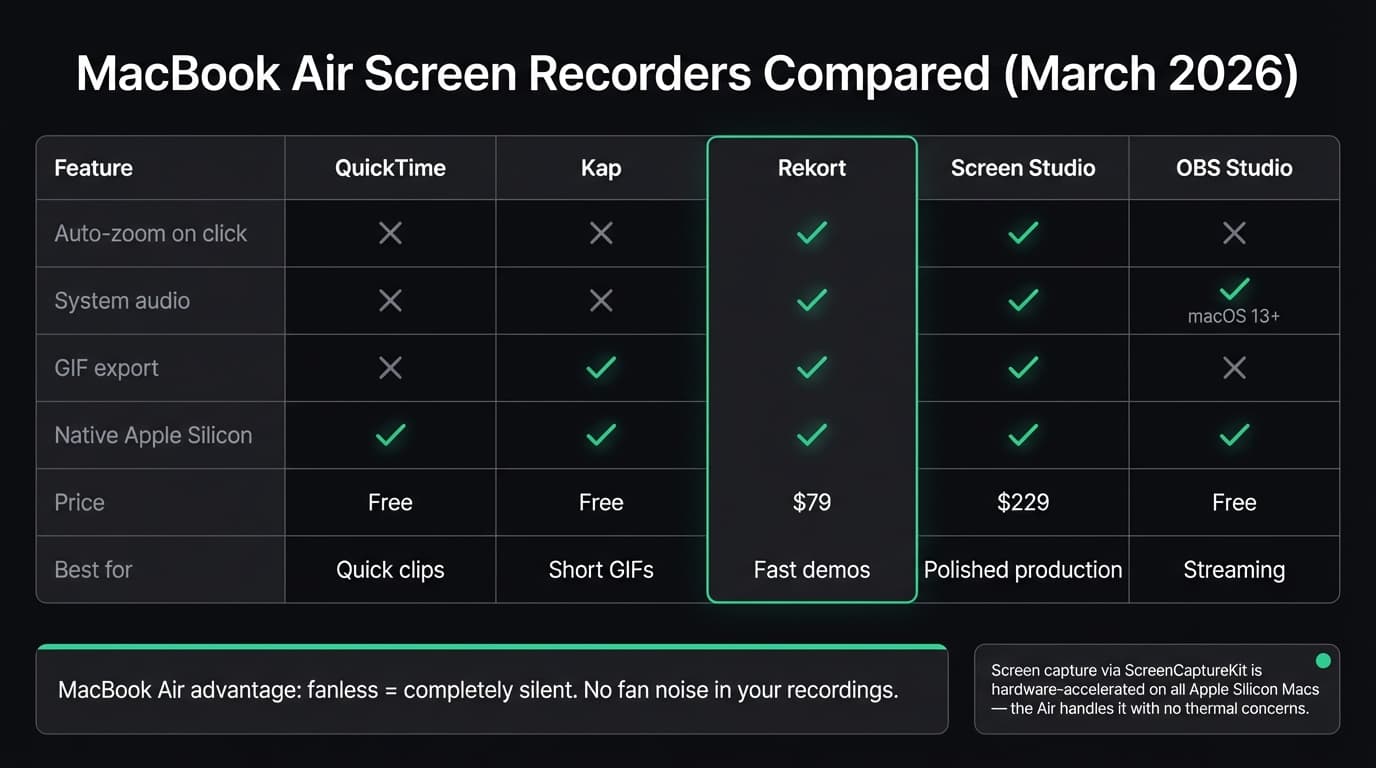
As of March 2026, two apps on this list offer automatic zoom on click: Rekort and Screen Studio. That's the feature that turns a screen recording from "footage someone squints at" into something that communicates clearly without editing.
Continue reading
The Screen Recorder That Zooms for You
Record your screen on Mac — every click auto-zooms to what matters. No manual keyframing.
QuickTime Player#
Price: Free (pre-installed on every Mac)
QuickTime is already on your MacBook Air. File > New Screen Recording, or press Cmd+Shift+5 for the Screenshot toolbar. Select an area, click Record, and stop when you're done. No download, no account, no setup.
What it does well:
- Zero friction — already installed, no setup required
- Records full screen or a selected area
- Microphone audio works reliably
- Saves as .mov, which most platforms accept
- Fast to start when you need a quick capture
Where it falls short:
- No system audio. To record what your Mac is playing, you need a third-party audio routing tool like BlackHole, plus configuration in Audio MIDI Setup. Not complicated, but not simple either.
- No auto-zoom. On a 2560×1664 Retina display, a full-screen recording makes buttons look tiny. Viewers can't see what you're clicking.
- No GIF export.
- Editing is limited to trimming the start and end.
Who should use it: Anyone who needs a quick, informal capture — a bug report, a question for a colleague, a personal reference. If output quality doesn't matter, QuickTime is the fastest path.
Who shouldn't: Anyone making content that other people will actually watch. Without zoom, your MacBook Air's high-resolution display works against you — everything is crisp, and everything is tiny.
Kap#
Price: Free and open-source
Kap lives in your menu bar and specializes in one thing: recording short clips and exporting them as GIFs. It's built natively for macOS and runs efficiently on Apple Silicon.
What it does well:
- Free with no limits
- Clean menu bar interface — unobtrusive until you need it
- Excellent GIF export with size optimization
- Records to GIF, MP4, WebM, or APNG
- Minimal resource usage during recording
Where it falls short:
- No auto-zoom or click highlighting.
- No system audio capture.
- No editing beyond basic trim.
- Best for recordings under 30 seconds. Longer recordings produce large GIFs that aren't practical to share.
Who should use it: Developers making GIFs for GitHub READMEs, pull requests, issue reports, or Notion pages. If your workflow is "record 10 seconds, export as GIF, paste it somewhere," Kap is the fastest path. For a broader look at GIF tools on Mac, see our GIF screen recorder for Mac guide.
Who shouldn't: Anyone recording product demos, tutorials, or anything where viewers need to see small UI details. Kap captures what's there — it doesn't zoom in.
Rekort#
Price: $9/month, $49/year, or $79 one-time
Full disclosure: this is our app.
Rekort is a native Mac screen recorder with automatic zoom on click. Draw a selection area, start recording, and every click automatically zooms in to show exactly what you clicked. When you stop, you preview the recording with all zoom effects applied, adjust the zoom level and timing if you want, and export as MP4 or GIF.
On MacBook Air, Rekort uses ScreenCaptureKit's hardware acceleration, so the recording process stays efficient even on fanless hardware. The preview and export steps are where more processing happens — on M4 and M5, exports are fast.
What it does well:
- Auto-zoom on click — every click zooms in automatically, no editing required
- System audio and microphone capture without extra setup
- MP4 and GIF export, both with zoom applied
- Adjustable zoom level, duration, and easing curves
- Native Swift/SwiftUI app — no Electron, no web wrapper
- Simple pricing: $9/month, $49/year, or $79 lifetime, no feature tiers
Where it falls short:
- Webcam overlay is available with position and size controls; unlike Screen Studio, Rekort does not remove the camera background.
- Color and image backgrounds, padding, rounded corners, and shadow are available.
- No cursor highlight ring or spotlight effect.
- Requires macOS 14+. If your MacBook Air is running macOS 13 or earlier, Rekort won't run.
- New app — fewer templates and presets than tools with longer track records.
Who should use it: Developers, DevRel, and product marketers who record demos and tutorials and want auto-zoom without Screen Studio's price. The sweet spot: you record a few times a week, you want clean output quickly, and you don't need a camera overlay or elaborate production setup.
Who shouldn't: Anyone who needs webcam overlay, custom backgrounds, or full video editing. Screen Studio or ScreenFlow is the better choice. And if you need a $0 option, QuickTime and Kap are free.
Screen Studio#
Price: $108/year or $29/month (as of March 2026)
Screen Studio is the most feature-complete auto-zoom screen recorder available. Record normally and the app automatically applies cinematic camera movements to your clicks. The output looks like a professionally edited video with no editing time spent.
What it does well:
- Best auto-zoom implementation on the market — smooth, configurable camera movements
- Webcam overlay with background removal
- Custom backgrounds, padding, rounded corners, and drop shadows
- System audio and microphone recording
- Cursor effects: highlight ring, click animation, size adjustment
- GIF, MP4, and WebM export
- Regular updates with new features
Where it falls short:
- Expensive for occasional use. Current pricing is subscription-only at $108/year or $29/month.
- More settings than you need for quick recordings. If you just want to record and export, the option count adds friction.
- No true timeline editor for cutting within a recording.
Who should use it: Anyone who makes polished product demos or marketing videos daily and needs the complete feature set. Camera overlay, background removal, and cursor effects are things no other tool on this list matches. If you record customer-facing content every day, Screen Studio is the right choice.
Who shouldn't: Occasional recorders or anyone where $108/year isn't easy to justify. For auto-zoom without the full production suite, Rekort covers the core workflow at $79. See our Screen Studio alternative comparison for a detailed breakdown.
OBS Studio#
Price: Free and open-source
OBS was designed for live streaming. It supports multi-source layouts, extensive customization, and now captures system audio natively on macOS 13 and later. It's powerful and complex.
What it does well:
- Entirely free, no limitations
- Native system audio capture on macOS 13+ (added in OBS 30)
- Multi-source recording: webcam, multiple windows, overlays, all composited into one scene
- Records at any resolution and frame rate
- Huge plugin ecosystem
Where it falls short:
- Steep learning curve. The interface is organized around streaming concepts — scenes, sources, transitions — that don't map to "record my screen and share it."
- No auto-zoom or click highlighting.
- No built-in editor. Recording produces a file; you edit it elsewhere.
- No GIF export.
Who should use it: Anyone who streams, teaches live sessions, or needs multi-source recording layouts. If you're already comfortable with OBS, it works on MacBook Air. If you've never used it, the setup time for a simple screen recording isn't worth it. See our OBS alternative for Mac comparison if you're evaluating OBS for basic recording.
Who shouldn't: Anyone who wants to record a 2-minute demo and share it quickly.
Feature comparison#
| Feature | QuickTime | Kap | Rekort | Screen Studio | OBS |
|---|---|---|---|---|---|
| Auto-zoom on click | No | No | Yes | Yes | No |
| System audio | No | No | Yes | Yes | Yes (macOS 13+) |
| GIF export | No | Yes | Yes | Yes | No |
| Webcam overlay | No | No | No | Yes | Yes |
| Custom backgrounds | No | No | No | Yes | Partial |
| Native Apple Silicon | Yes | Yes | Yes | Yes | Yes |
| macOS minimum | 12+ | 10.15+ | 14+ | 12+ | 13+ recommended |
| Price | Free | Free | $79 | $108/year | Free |
Decision guide#
"I need to record something right now with zero setup." Open QuickTime, File > New Screen Recording. Done in 30 seconds.
"I need a GIF for a GitHub issue or Notion doc." Use Kap. Free, menu bar app, exports GIF quickly. If you also need auto-zoom in the GIF, Rekort exports GIFs with all zoom effects applied.
"I record demos or tutorials regularly and want them to look polished." This is where auto-zoom matters. Screen Studio has deeper cursor effects, transcription, and iOS capture at $108/year. Rekort covers auto-zoom, webcam, audio, backgrounds, timeline corrections, and MP4/GIF export at $79 lifetime. See our best screen recorder for Mac comparison for a detailed head-to-head.
"I need a webcam overlay in my recording." Screen Studio or OBS. Neither Rekort nor Kap nor QuickTime support this.
"I'm recording a narrated demo and need clean audio." MacBook Air is ideal for this — it's completely silent. Pair it with any recorder that captures microphone audio. For system audio too, use Rekort, Screen Studio, or OBS.
"I need to stream or record multi-source layouts." OBS Studio.
The MacBook Air handles screen recording well on any recent model. The M4 and M5 in particular are more than capable — the hardware is rarely the constraint. The choice of app matters more: auto-zoom removes the biggest friction point in making recordings that are actually clear to watch.
Ready to record?
Rekort auto-zooms every click so your screen recordings look professional. No video editing required.
Download for MacmacOS 14+ · $9/month, $49/year, or $79 lifetime
Related Articles
Best Screen Recorder for Mac (2026) — Honest Comparison
13 min read
QuickTime Screen Recording: Complete Guide (2026)
9 min read
Best Screen Recorders with Webcam Overlay for Mac (2026)
9 min read
AI Screen Recorder: Which Features Actually Matter (2026)
5 min read
Best Screen Recording Software in 2026
11 min read