Scribe Alternative: Auto-Zoom Screen Recording vs Step-by-Step Screenshots
Scribe creates step-by-step screenshot guides. Screen recorders with auto-zoom create video. Here's when each format wins — and the best alternatives for both.
A Scribe alternative is a tool that either replicates Scribe's step-by-step screenshot guide format, or replaces it with a different documentation format entirely — typically video with auto-zoom. Scribe (scribe.how) captures your workflow as annotated screenshots and generates written process guides automatically. Screen recorders with auto-zoom capture the same workflow as video, with clicks zoomed in automatically so viewers can see exactly what happened.
Both approaches solve the same underlying problem: "I need to show someone how to do something on screen without spending 30 minutes writing it up." The format you choose depends on what your audience needs to do with it.
Full disclosure: we built Rekort, one of the tools in this comparison. We'll be honest about when Scribe or another tool is the better choice.
What Scribe does#
Scribe captures your screen workflow and turns it into a step-by-step written guide — numbered steps, annotated screenshots, highlighted clicks, and optional text instructions generated automatically from what you did. You install the browser extension or desktop app, click record, complete your workflow, and Scribe generates a shareable guide.
The output is a document, not a video. Each step has a screenshot with the clicked element highlighted and auto-generated text like "Click the Settings button." You edit, reorder, redact sensitive data, and share via a link or embed in your help center, Notion, or wiki.
What Scribe does well:
- Step-by-step guides generated in seconds from a live recording
- Each step is a screenshot — readers can follow at their own pace
- Easy to update: change one step without redoing the whole guide
- Shareable URL works in any browser, no video player required
- Searchable content (text-based, not video)
- Works for browser-based workflows and desktop apps
Where Scribe falls short:
- No video or audio output. If you need to show timing, animation, or sound, Scribe can't capture it
- Static screenshots miss motion-heavy interactions (drag-and-drop, hover effects, transitions)
- Free plan is limited: guides are public, watermarked, and capped in features
- Pro Personal costs $25/month (annual) or $29/month (monthly). Pro Team starts at $13/seat/month with a 5-seat minimum — $65/month minimum for a small team
- The auto-generated text is often generic and needs editing before it's useful
Pricing (as of March 2026):
- Free: unlimited guides, limited to public sharing with Scribe branding
- Pro Personal: $25/month (billed annually) or $29/month (monthly)
- Pro Team: $13/seat/month (annual), 5-seat minimum = $65/month minimum entry point
- Enterprise: custom pricing
Continue reading
A Simpler Alternative
Auto-zoom on click, focused timeline editing, MP4 & GIF export. $9/month, $49/year, or $79 lifetime.
Screenshot guides vs video: when each format wins#
This is the core question when evaluating Scribe alternatives. Both formats capture your workflow. The right format depends on what you're making and who's using it.
When screenshot guides (Scribe-style) win#
Internal SOPs and process documentation. A step-by-step doc with annotated screenshots is faster to scan than a 3-minute video. Employees can follow along at their own pace, pause at each step, and reference it later.
Help center content. Written guides with screenshots are searchable, SEO-friendly, and work without a video player. If someone Googles "how do I reset my password in [your app]," a step-by-step doc will rank better than a video.
Quick reference content. If a process has 8 steps that someone will repeat weekly, a screenshot guide is faster to skim than rewatching a video.
Content that gets updated frequently. Editing one screenshot in a Scribe guide is faster than re-recording a whole video.
When video with auto-zoom wins#
Product demos and external recordings. Video shows timing, transitions, animations, and sounds. A Scribe guide of your onboarding flow is useful internally; a video demo with auto-zoom on every click is more compelling for a prospect or new user seeing it for the first time.
Workflows with motion. Drag-and-drop, hover states, loading sequences, animations — none of these show up in a screenshot guide. If the visual feedback matters, you need video.
Long workflows where sequence matters. A 20-step process where the timing and transitions between steps are meaningful is hard to convey in static screenshots. Video keeps the sequence together.
Audio narration. If you need to explain what's happening in addition to showing it, video with a microphone is the right format.
Developer documentation and GitHub. Short GIF recordings embedded in READMEs or pull requests show exactly what changed. No one clicks a Scribe link in a GitHub PR.
Scribe alternatives: screenshot-guide format#
These tools replicate or extend Scribe's core approach — capturing workflows as step-by-step documents.
Tango#
Price: Free plan available; Pro at $16/user/month (billed annually)
Tango works the same way as Scribe: install the Chrome extension, click record, complete your workflow. Tango generates a step-by-step guide with annotated screenshots.
Key differences from Scribe: Tango's free plan includes unlimited guides with no public-only restriction. The interface feels slightly cleaner, and the editing tools are comparable. For individual users on a budget, Tango's free tier is often the better starting point.
Who should use it: Individuals and small teams who want Scribe's core functionality with a more generous free plan.
Guidde#
Price: Free plan; paid plans start at ~$16/user/month
Guidde is a hybrid tool — it captures workflows and generates both step-by-step guides and short video summaries with AI narration. If you want Scribe-style documentation but also want a video version of the same workflow, Guidde can generate both from one recording.
Who should use it: Teams that need both formats — written guides for internal docs and short AI-narrated video summaries for async communication.
HowdyGo#
Price: Starts at $50/month
HowdyGo creates interactive product tours — editable HTML replicas of your UI that users can click through. It's not a documentation tool in the traditional sense; it's closer to a demo builder. If your use case is "show prospects how our product works in a self-serve format," HowdyGo is a more appropriate comparison point than Scribe.
Who should use it: SaaS companies that want interactive product demos embedded on their website or in email sequences.
Scribe alternatives: video format with auto-zoom#
These tools take a fundamentally different approach — capturing your workflow as video with automatic zoom on click.
Rekort#
Price: $9/month, $49/year, or $79 lifetime
Full disclosure: this is our app.
Rekort is a native Mac screen recorder with automatic zoom on click. Record your workflow normally — every click automatically zooms in to show exactly what you clicked. Preview the recording, adjust zoom level and timing, and export as MP4 or GIF.
What it does well:
- Auto-zoom on click. Every click zooms in automatically — viewers see exactly what was clicked without the recording being a confusing full-screen capture
- System audio and microphone capture
- MP4 and GIF export — GIFs work in GitHub READMEs, Slack, and anywhere video doesn't render
- Native Mac app, not Electron
- $9/month, $49/year, or $79 lifetime. No seat pricing, no team minimum
Where it falls short:
- Webcam overlay is available with position and size controls; Rekort does not currently remove the camera background
- No step-by-step screenshot output. Rekort produces video, not written documentation
- macOS 14+ required
- New app — fewer templates and polish features than established tools
Who should use it: Developers, DevRel, and product teams recording demos, PR walkthroughs, bug reproductions, and customer-facing tutorials. The sweet spot: you want auto-zoom without managing a video editor, and you need MP4 or GIF output.
Who shouldn't: Anyone who needs written documentation with numbered steps. Rekort is not a Scribe replacement for that use case — it's a different format entirely.
Screen Studio#
Price: $108/year or $29/month (as of March 2026)
Screen Studio is a feature-rich auto-zoom recorder on Mac. Like Rekort, it captures webcam, audio, and screen with click zoom, backgrounds, rounded framing, and editing. It adds webcam background removal, deeper cursor effects, local transcripts, and iOS capture.
Who should use it: Anyone who records polished product videos daily and needs the full production toolkit — camera overlays, background removal, custom backgrounds. The $108/year price makes sense if recording is a daily workflow.
Who shouldn't: Occasional recorders or anyone who wants auto-zoom without the production features. At $108/year, the price-to-feature ratio only works if you use all of it.
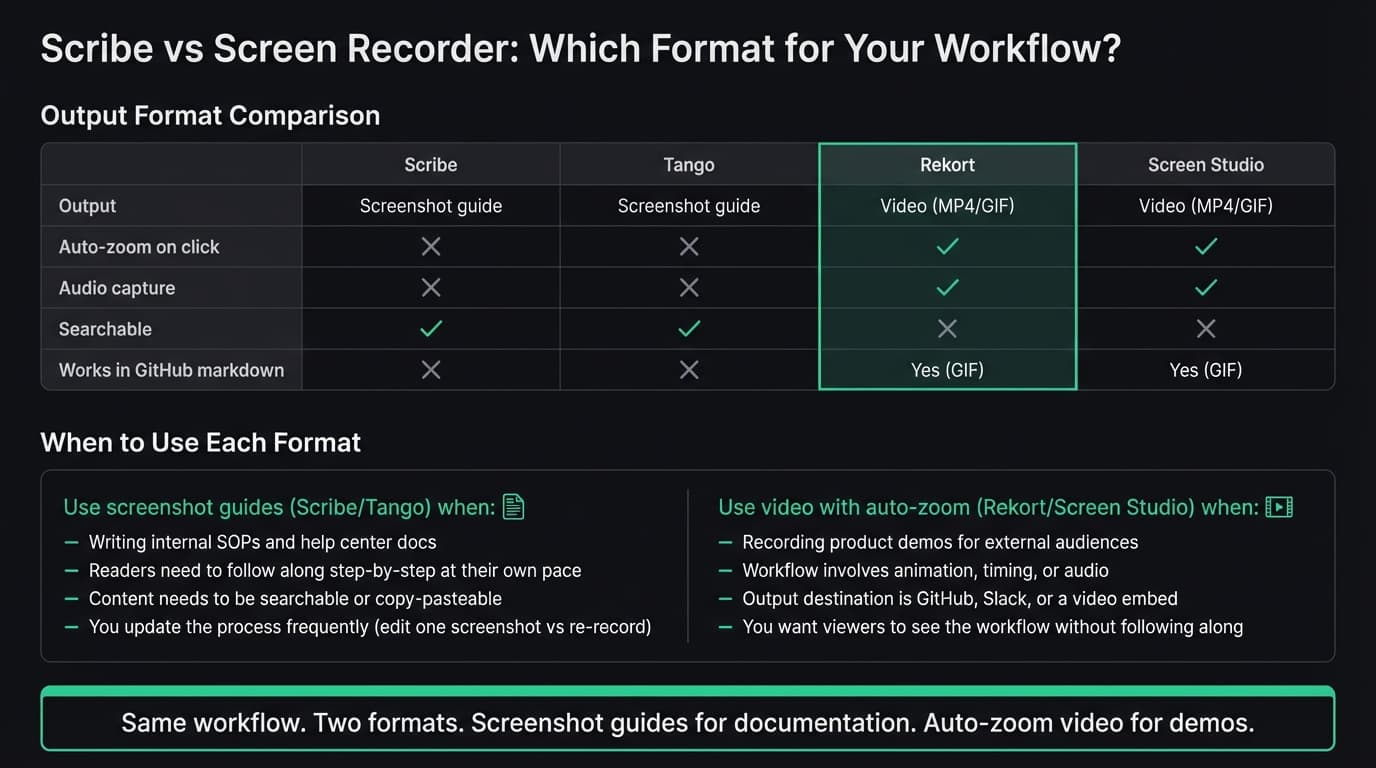
Feature comparison#
| Scribe | Tango | Rekort | Screen Studio | |
|---|---|---|---|---|
| Output format | Screenshot guide | Screenshot guide | Video (MP4/GIF) | Video (MP4/GIF/WebM) |
| Auto-zoom on click | No | No | Yes | Yes |
| Audio capture | No | No | Yes | Yes |
| GIF export | No | No | Yes | Yes |
| Webcam overlay | No | No | No | Yes |
| Free plan | Yes (limited) | Yes | No | No |
| Price | $25/mo (Pro Personal) | $16/mo (Pro) | $79 lifetime | $108/year |
| macOS only | No (cross-platform) | No (browser extension) | Yes | Yes |
| Searchable output | Yes | Yes | No | No |
| Works in GitHub markdown | No | No | Yes (GIF) | Yes (GIF) |
Decision guide#
"I need to write internal SOPs and help center documentation." Use Scribe or Tango. The screenshot-based format is faster to produce, easier to update, and more scannable for step-by-step tasks. Tango has a more generous free tier; Scribe's Pro has more polish.
"I need to show a product demo to prospects or new users." Use Rekort or Screen Studio. Video with auto-zoom on click is more compelling for external audiences than a static screenshot guide. Scribe's format is designed for "follow along," not "be impressed."
"I'm recording a GitHub PR walkthrough or updating project docs." Use Rekort and export as GIF. GIFs render natively in GitHub markdown. Scribe guides require leaving GitHub to view.
"I need both written docs and video." Many teams use both: Scribe or Tango for internal SOPs and onboarding docs, Rekort or Screen Studio for demos and external-facing recordings. They're not competing for the same job.
"I want to replace Scribe's team subscription to save money." Scribe Pro Team starts at $65/month (5-seat minimum at $13/seat/month). Rekort is $79 per user, lifetime. If your team primarily needs video demos and not written step-guides, switching to Rekort cuts the ongoing subscription entirely.
"I need interactive product tours for my website." Neither Scribe nor Rekort are the right tools — look at HowdyGo, Arcade, or Navattic for that use case.
The core distinction: Scribe and Tango produce documents. Rekort and Screen Studio produce video. Both approaches solve "how do I show someone how to do this," but the output format determines what you can do with the result and who it's for.
For related comparisons, see our Loom alternative for Mac and OBS alternative for Mac guides.
Ready to record?
Rekort auto-zooms every click so your screen recordings look professional. No video editing required.
Download for MacmacOS 14+ · $9/month, $49/year, or $79 lifetime
Related Articles
Best Screen Studio Alternatives for Mac: Pick by Workflow (2026)
15 min read
OBS Alternative for Mac: Screen Recording Without the Complexity
10 min read
Cap Alternative for Mac: Auto-Zoom Without the Cloud
8 min read
Cursorful Alternative: Native Mac Auto-Zoom Screen Recording
7 min read
Descript Alternative for Mac: Screen Recording Without the Learning Curve
8 min read