Best Free Screen Recorders for Mac (2026)
The best free screen recorders for Mac: QuickTime, OBS Studio, and Kap compared honestly. What each one does, where it falls short, and which to use.
macOS includes built-in screen recording. For basic captures, you don't need to download anything. But the built-in tools have real limits — no system audio, no zoom on clicks, no GIF export — and the free third-party apps each cover a different gap.
This post covers the three best free screen recorders for Mac, what each one actually does, and when free stops being enough.
The three free options at a glance#
| Tool | Price | System audio | GIF export | Auto-zoom | Best for |
|---|---|---|---|---|---|
| QuickTime Player | Free (built-in) | No | No | No | Quick, no-frills captures |
| OBS Studio | Free | Yes (macOS 13+) | No | No | Multi-source recording, streaming |
| Kap | Free | No | Yes | No | Short clips and GIFs |
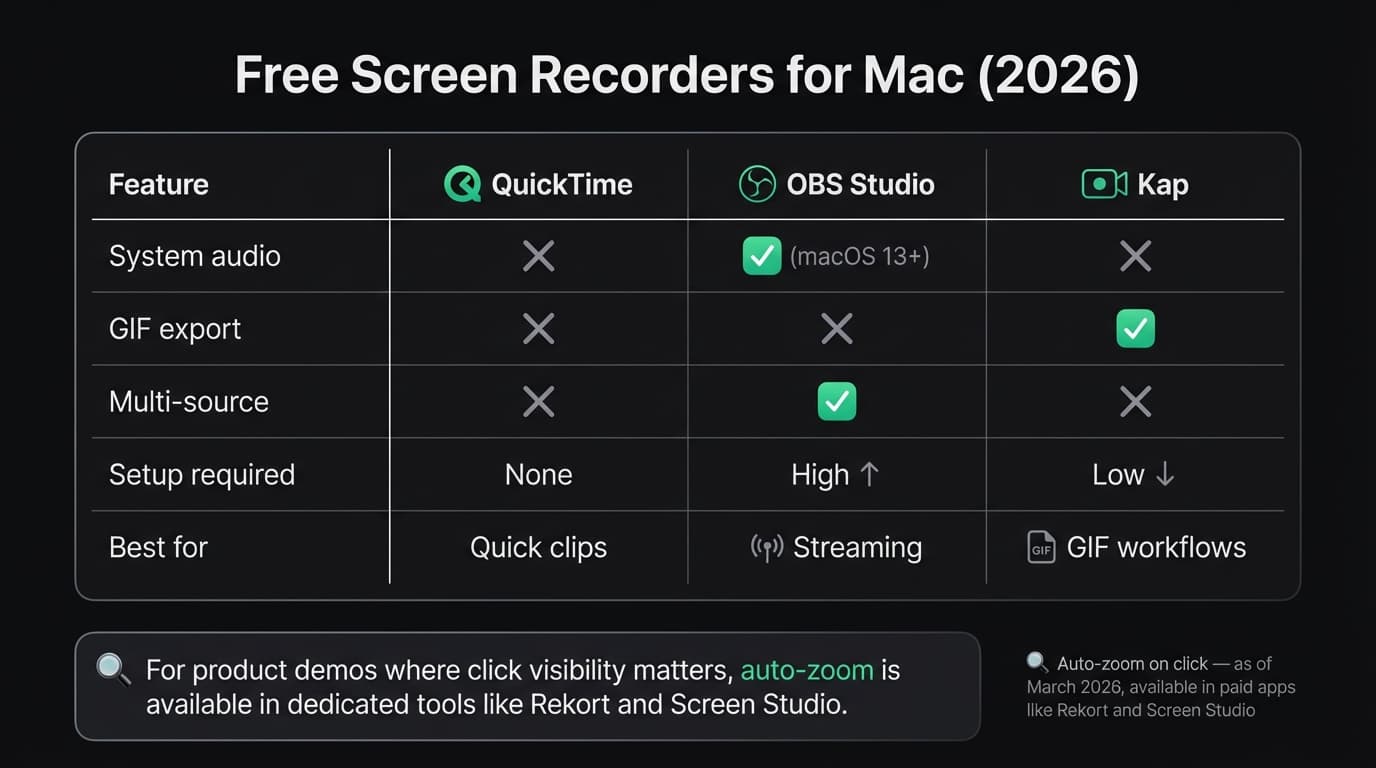
None of the three free options support auto-zoom on click. If that feature matters for your workflow — product demos, tutorials, anything where viewers need to see what you're clicking — you're looking at paid apps. See our full screen recorder comparison for how paid options stack up.
QuickTime Player#
Price: Free (comes with macOS)
QuickTime Player is already on your Mac. Open it, go to File > New Screen Recording, or press Cmd+Shift+5 to access the Screenshot toolbar. Select your recording area and hit record. Zero download, zero setup.
What it does well:
- No installation. Works on any Mac running macOS 10.15 or later.
- Records full screen, a window, or a selected area.
- Microphone audio capture works without configuration.
- Saves as .mov, which is easy to share or convert.
- Fast to launch when you just need to capture something quickly.
Where it falls short:
- No system audio. QuickTime can record your microphone, but it can't record what your Mac is playing without a workaround. The fix involves installing BlackHole (a free audio routing driver), then creating a multi-output device in Audio MIDI Setup so you can route system audio into QuickTime. It works, but it's a setup step most people don't want to do just to record a screen.
- No auto-zoom. Recordings capture your screen as-is. On a 2560x1600 Retina display, that means tiny UI elements that viewers struggle to see.
- Minimal editing. You can trim the start and end. That's it.
- No GIF export.
Who should use it: Anyone who needs a quick informal capture. Bug reports, Slack messages, personal notes. QuickTime is the fastest path from "I need to record this" to a file on your desktop.
Who shouldn't: Anyone making product demos or tutorials. Without zoom, viewers can't see what you're clicking. Without system audio, recordings of anything that involves sound are incomplete.
Continue reading
The Screen Recorder That Zooms for You
Record your screen on Mac — every click auto-zooms to what matters. No manual keyframing.
OBS Studio#
Price: Free and open-source (obsproject.com)
OBS Studio is one of the most powerful recording tools available on any platform. It was built for live streaming, and that shapes everything about it — the capabilities, the complexity, and the use cases.
What it does well:
- Free and open-source with no watermarks, no time limits, and no feature paywalls.
- Records at any resolution and frame rate.
- Native system audio capture on macOS 13 Ventura and later (added in OBS 30). No BlackHole required on modern macOS versions.
- Multi-source recording: webcam, screen, images, browser windows, text overlays — all composited together in one layout.
- Active plugin ecosystem and community.
Where it falls short:
- Steep learning curve. The interface is built around scenes, sources, and transitions — concepts from live streaming that don't translate naturally to "record my screen and share it." Getting your first recording out of OBS takes longer than any other tool here.
- No auto-zoom or click highlighting.
- No built-in editor. You record, then you need a separate app to trim or cut the footage.
- No GIF export.
- The complexity is a real cost. For simple screen recordings, OBS is more tool than you need.
Who should use it: Streamers, educators running live sessions, anyone who needs multi-source layouts with webcam + screen + overlays. People already comfortable with OBS from another context.
Who shouldn't: Anyone who wants to record a product demo and share it in under 5 minutes. OBS is the right tool for broadcast-level recording; it's not designed for quick turnaround. If you're considering OBS for simple recordings, see our OBS alternative for Mac comparison for simpler options.
Kap#
Price: Free and open-source (getkap.co)
Kap is a lightweight screen recorder that lives in your Mac menu bar. It does one thing well: record short screen captures and export them as GIFs.
What it does well:
- Free and open-source, no watermarks.
- Clean, minimal interface. Click the menu bar icon, select your area, hit record.
- Exports directly to GIF, MP4, WebM, and APNG.
- Records full screen, a window, or a selected area.
- Plugin system for uploading to external destinations (Imgur, Giphy, etc.).
- Stays out of the way — it's a menu bar app, not a dock app.
Where it falls short:
- No system audio capture.
- No auto-zoom or click effects.
- Minimal editing beyond basic trim.
- Recording quality can drop at high frame rates on older hardware.
- Development pace has slowed compared to earlier years. The GitHub repository shows less frequent updates recently.
Who should use it: Developers recording short GIFs for documentation, GitHub issues, pull requests, or README files. If your workflow is "record 10 seconds, export as GIF, paste it into a PR description," Kap is the fastest way to do that for free.
Who shouldn't: Anyone recording demos or tutorials that need system audio or zoom. Kap is a GIF specialist. For longer, more polished recordings, it's not the right tool. See our GIF screen recorder for Mac guide for a deeper comparison of GIF-focused tools.
When free is enough#
Free screen recording works for:
- Bug reports. A 30-second screen capture showing what went wrong. No need for zoom or audio.
- Internal notes. Recording a process for your own reference.
- Developer GIFs. Short captures for GitHub READMEs and issue trackers. Kap handles this well.
- Simple clips. Anything where the recording is just a reference, not a polished deliverable.
When you'll hit the wall#
Free recorders don't handle:
- Product demos and tutorials. No free tool on this list zooms into clicks. When you're recording a product for customers or explaining software to learners, viewers need to see what you're interacting with. On a high-resolution display, a flat screen capture is often unreadable.
- System audio without setup. QuickTime and Kap need a workaround to record what your Mac is playing. OBS handles it natively on macOS 13+, but OBS is a complex setup for what should be a simple task.
- Quick turnaround on polished output. If you record often and need clean-looking results without spending time in a video editor, the free tools don't get you there.
For those use cases, the two native Mac apps that add auto-zoom are Screen Studio ($108/year, checked July 2026) and Rekort ($79 lifetime). Both now cover webcam, backgrounds, audio, and editing. Screen Studio adds cursor smoothing, transcripts, and iOS capture; Rekort offers a focused local workflow and lifetime purchase.
A full comparison of all paid and free options is in our best screen recorder for Mac guide.
Which free recorder should you use?#
"I just need to capture something right now." QuickTime. Already on your Mac, no download needed. Cmd+Shift+5 to open the Screenshot toolbar.
"I need GIFs for GitHub or documentation." Kap. Free, clean, exports directly to GIF with no watermark.
"I need system audio and multi-source recording." OBS Studio. It's complex, but it's the only free option that records system audio on modern macOS and composes multiple sources.
"I need auto-zoom on click." No free option covers this. Screen Studio and Rekort are the two paid apps that do.
The free tools are genuinely good at what they do. QuickTime is the fastest path to a basic recording. Kap is the best free GIF recorder on Mac. OBS is unmatched for broadcast-level recording. The gap is auto-zoom and system audio — and that's where paid apps earn their cost.
Ready to record?
Rekort auto-zooms every click so your screen recordings look professional. No video editing required.
Download for MacmacOS 14+ · $9/month, $49/year, or $79 lifetime
Related Articles
Best Screen Recorder for Mac (2026) — Honest Comparison
13 min read
QuickTime Screen Recording: Complete Guide (2026)
9 min read
Best Screen Recorders with Webcam Overlay for Mac (2026)
9 min read
AI Screen Recorder: Which Features Actually Matter (2026)
5 min read
Best Screen Recording Software in 2026
11 min read