How to Make Changelog Videos for Product Updates
A practical guide to recording short changelog videos for product updates — when to make them, what to include, and how to record and share them on Mac.
A text changelog entry describes what changed. A short video shows it. For features with non-obvious workflows, showing takes 30 seconds; explaining takes three paragraphs that most users won't read.
A changelog video is a short screen recording — typically 20-90 seconds — that shows a new feature or update running in the actual product. It answers one question: what does this do and how do I use it?
This guide covers when to make a changelog video, what to put in one, and how to record it on Mac without spending time in a video editor. If you're recording longer walkthroughs or onboarding content, see our guides on making tutorial videos and recording software demos.
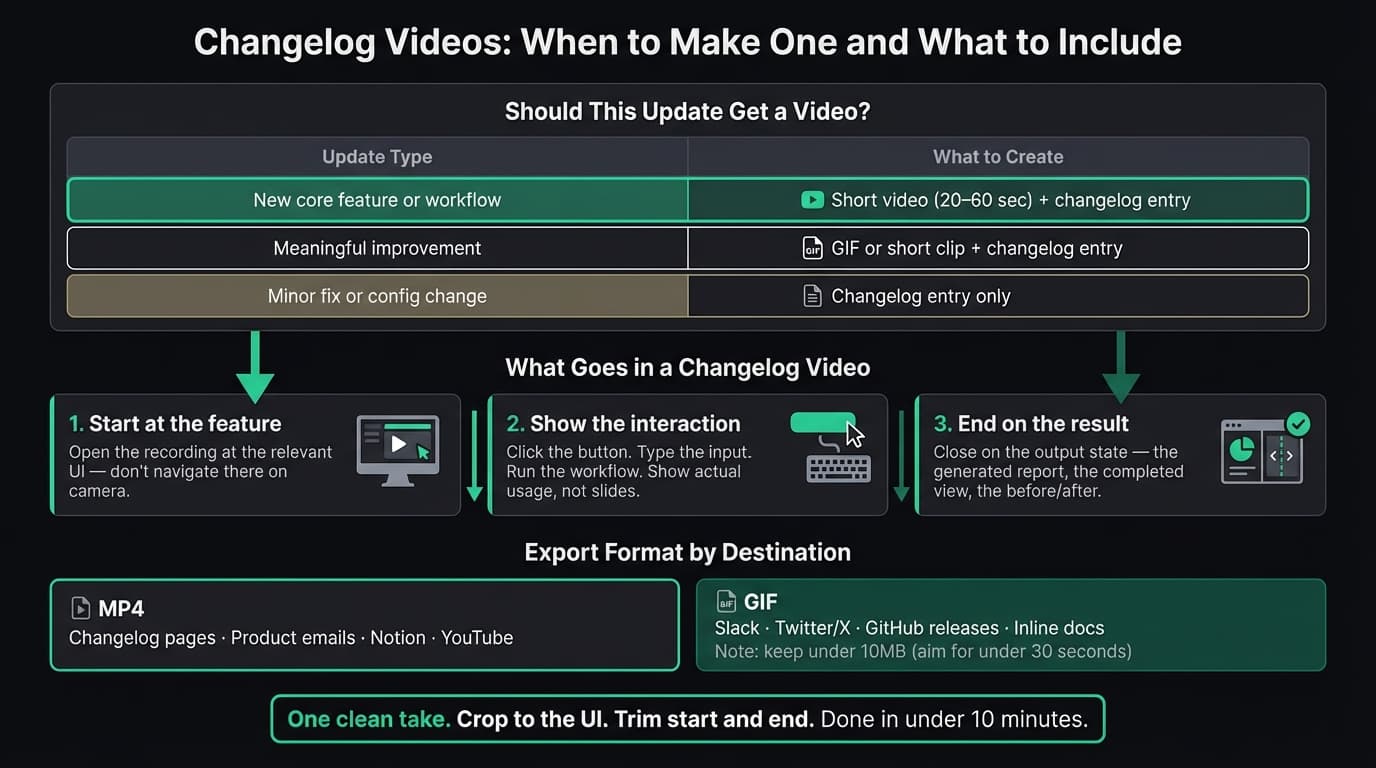
When to make a changelog video#
Not every update needs a video. A minor bug fix doesn't. A new core workflow does.
A simple rule:
| Update type | What to create |
|---|---|
| New core feature or workflow | Short video (20-60 seconds) + changelog entry |
| Meaningful improvement to existing feature | GIF or short clip + changelog entry |
| Minor fix or config change | Changelog entry only |
The test: if a user would read your text description and still ask "but how does it actually work?", make a video. If the text is self-explanatory — "fixed a crash when exporting large files" — a video adds nothing.
What to include#
Keep the structure simple: problem or entry point, the action, the result.
Start at the feature. Don't open the app home screen and navigate to the feature on camera. Start the recording already at the relevant UI. Every second before the feature appears tests the viewer's patience.
Show the interaction. Click the button, type the input, run the workflow. Show the actual usage, not a slide about how it works. Users understand features by watching them, not reading about them.
End on the result. Close the video on the output: the generated report, the completed state, the new view. Viewers need to see the before/after to understand why the update matters.
What to leave out: your company intro, the backstory of why you built it (save that for the blog post), and anything outside this specific update. One feature per video.
Keep most changelog videos under 60 seconds. If the workflow is complex and genuinely needs more time, that's a sign to create a dedicated tutorial and link from the changelog entry instead of making a 3-minute changelog video.
Continue reading
Product Demos Without the Editing
Record a walkthrough and Rekort handles the zoom. Export a polished demo in minutes.
How to record a changelog video on Mac#
Step 1: Set up the screen#
Close everything except the product you're recording. Turn on Do Not Disturb. If the feature requires sample data, set that up in advance rather than creating it on camera.
Use a clean test account or anonymous data if your real account has personal or customer information visible anywhere in the app.
Step 2: Plan the clicks#
Write out the exact steps before hitting record. For a 30-second video, that might be six steps. Walk through it once without recording. You'll catch a forgotten step or an awkward pause before it's captured.
A simple list works:
- Open the project settings panel
- Click "Add integration"
- Select the new option from the list
- Show the result in the sidebar
Step 3: Record a specific area#
The biggest recording mistake is capturing the full screen. On a Mac with a 1440p or higher display, buttons and text become tiny in the output video — viewers can't follow what's happening.
On Mac, use Cmd+Shift+5 to open the Screenshot toolbar and select just the relevant part of the UI. Record the window or panel that matters, not the whole desktop.
If the feature involves clicks that are hard to see at normal size, auto-zoom helps. Rekort and Screen Studio both zoom into each click automatically — viewers see exactly what was clicked without manual editing. For a full comparison of Mac screen recording tools, see our screen recorder guide. QuickTime and Kap work fine for recordings where zoom isn't needed.
Step 4: Record one clean take#
Speak one sentence per step, or skip narration entirely if the recording is under 20 seconds. For narrated recordings: speak clearly, pause between steps rather than during them, and don't rush.
If you make a mistake, say "starting over," pause for two seconds, and redo the relevant section from the beginning of that step. You can trim the mistake in the next step.
Step 5: Check your audio#
If you're narrating, record 10 seconds before the real take and play it back. Crackling, echo, or low volume are easy to catch early and hard to fix after you've recorded the whole thing.
A wired headset mic placed near your mouth picks up less room noise than a built-in laptop mic. A USB condenser mic in the EUR 40-80 range (Blue Snowball, Samson Q2U) is audibly cleaner. For quick internal changelogs, the built-in mic is usually fine.
Step 6: Trim and export#
Trim the few seconds at the start before you moved and at the end after you stopped. Basic trim is built into most screen recorders — no separate video editor needed.
Export format by destination:
- MP4 for changelog pages, product update emails, Notion, Confluence, and YouTube
- GIF for Slack announcements, Twitter/X posts, GitHub release notes, and inline docs
GIF file size grows fast. Keep GIFs to under 30 seconds to stay below the 10MB limit that most platforms and email clients handle without issues. For longer recordings, export as MP4.
Where to share#
Changelog page. Embed the video at the top of the changelog entry, above the written description. Users who have 30 seconds will watch and understand. Users who want the details will read the text below.
Product update email. Embed a GIF or use a static thumbnail that links to the hosted video. Embedding full video in email is unreliable across clients — a thumbnail with a play button that links to a Loom or YouTube page is more consistent. A short clip in the email preview is enough to get the click.
Social posts. Twitter/X and LinkedIn support short video natively. GIFs work on Twitter/X without a play button. A 20-second clip showing the feature runs in context is more shareable than a screenshot of the feature.
In-app notification. If you use an in-app changelog or notification system, GIF is usually the right format. It autoplays inline without requiring a click, which increases the number of people who actually see the feature running.
GitHub release notes. For developer tools, a GIF in the GitHub release shows the feature inline where developers read release notes. Keep it under 10MB.
The same recording covers all of these. Export MP4 and a short GIF from the same take, then distribute both depending on the destination.
Common mistakes#
Recording from the home screen. Start at the feature. Every navigation step on camera is wasted time.
No narration or context. Silence over a screen recording leaves viewers guessing what to focus on. One sentence per step is enough: "Click Save — the report generates in the background." If you're not narrating, consider adding a simple text annotation for the key action.
Running too long. If a changelog video is over 90 seconds for a standard feature, cut it. Trim to the core flow and link to a tutorial for users who want the full walkthrough.
Showing personal or customer data. Review the recording before sharing. Replace real data with sample data before you record, not after.
Changelog videos don't need to be polished. They need to show what changed. One clean take on a specific area of the UI, narrate the key steps, trim the start and end, export as MP4 and GIF. Under 10 minutes once you have a workflow.
For more on recording product content, see our product demo video guide.
Ready to record?
Rekort auto-zooms every click so your screen recordings look professional. No video editing required.
Download for MacmacOS 14+ · $9/month, $49/year, or $79 lifetime
Related Articles
How to Make a Product Demo Video (Without a Video Editor)
16 min read
Product Demo Video Script Template: A Five-Beat Plan You Can Copy
10 min read
SaaS Demo Video: How to Make One That Actually Converts
7 min read
How to Record Training Videos (Without a Video Editor)
7 min read
Best Video Messaging Tools (Beyond Loom) in 2026
8 min read