Best GIF Makers with Text and Captions (2026)
Compare the best GIF makers that let you add text overlays and captions: Ezgif, Canva, Kapwing, Adobe Express, GIPHY Capture, and Rekort. Free and paid options.
A GIF maker with text is a tool that lets you add text overlays, labels, or captions to an animated GIF — either during recording or as a post-processing step. The most common workflows are adding a caption to an existing GIF, annotating a screen recording before exporting it, or building an animated text graphic from scratch.
This guide covers six tools across both categories — with honest assessments of what each does well and where it falls short.
All 6 tools at a glance#
| Tool | Free? | Text on GIF | Animated text | Mac app |
|---|---|---|---|---|
| Ezgif | Yes | Yes | No | No (web) |
| Canva | Free + paid | Yes | Yes (free tier) | No (web) |
| Kapwing | Free + $16/mo | Yes | Yes | No (web) |
| Adobe Express | Yes | Yes | Yes | No (web) |
| GIPHY Capture | Yes | Captions only | Limited | Yes |
| Rekort | $79 or $9/mo | Via screen content | No | Yes |
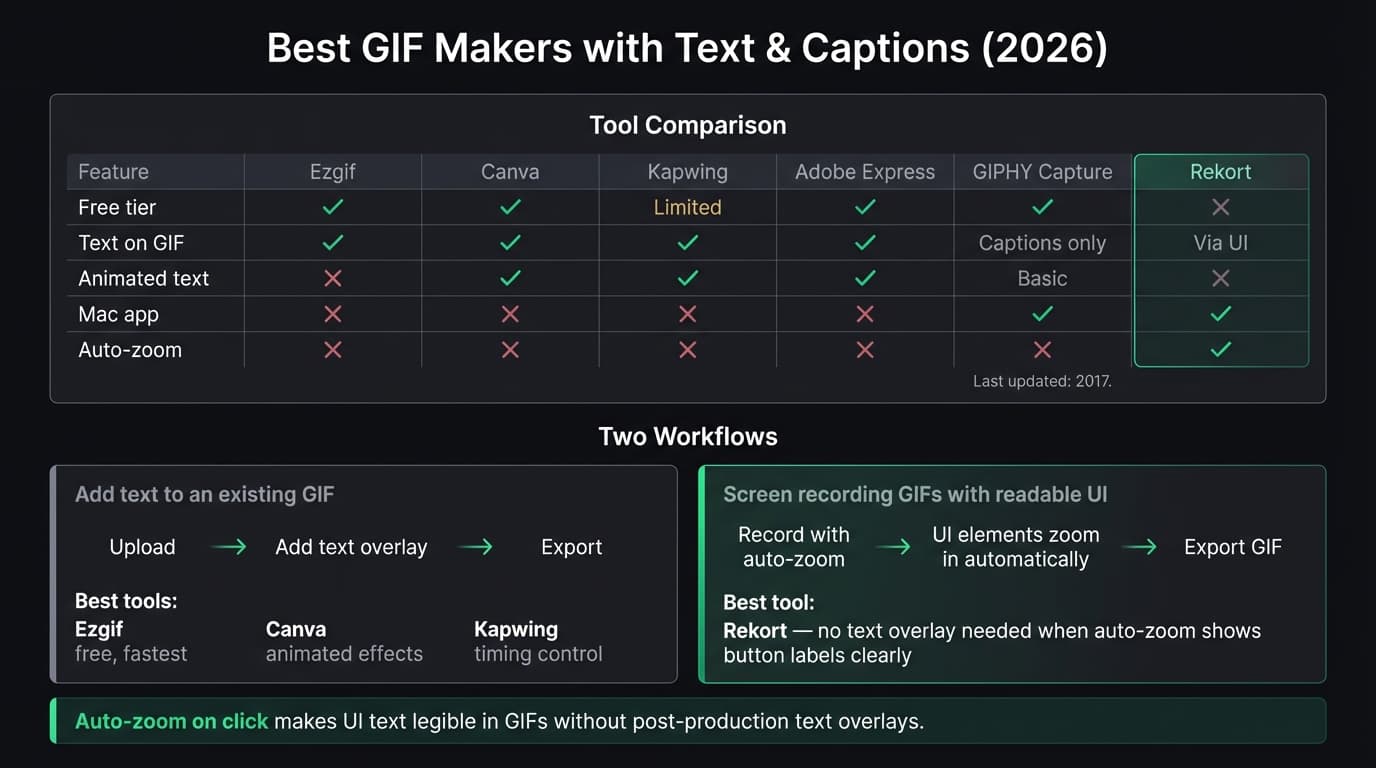
Two things determine which tool you need: whether you're adding text to an existing GIF or creating one from scratch, and whether you want static text or animated effects. Ezgif is the fastest path for the first use case. Canva and Kapwing cover both. Rekort handles screen recording GIFs where the text lives in your app UI rather than as a post-production overlay.
Ezgif#
Price: Free
Ezgif is a browser-based GIF toolkit that handles editing existing GIFs. The add text tool lets you type text, position it anywhere on the frame, and choose font, size, color, and opacity. You can also apply text to a specific frame range rather than the entire GIF.
What it does well:
- Free with no account required
- Text positioning is drag-and-drop
- Supports Unicode characters (including non-Latin scripts)
- Per-frame palette optimization keeps output quality high
- Works on any device with a browser
Where it falls short:
- No animated text effects. Text is static within the GIF frames.
- Interface is functional but not polished — it's a utility tool, not a design tool
- No templates or layout presets
- Processes one GIF at a time; no batch workflow
- Uploads go through their servers — not suitable for sensitive content
Who should use it: Anyone who has an existing GIF and needs to add a quick text label, watermark, or caption. The fastest path from "I have a GIF" to "I have a GIF with text," with zero friction.
Who shouldn't: Anyone who wants animated text, design templates, or anything beyond basic text stamping.
Continue reading
GIFs That Actually Look Good
Record with auto-zoom, export as GIF. Perfect for docs, READMEs, and pull requests.
Canva#
Price: Free tier available; Canva Pro is $15/month or $120/year
Canva's GIF maker supports both creating GIFs from scratch and uploading existing files to add text overlays. On the free tier, you get access to animated text effects (drift, stomp, fade, pop, and several others), a large font library, and export to GIF.
What it does well:
- Animated text effects available on the free tier — text can slide in, pop, fade, or bounce
- Large library of fonts and design templates
- Full layout control: text position, size, color, rotation, opacity
- Can create GIFs from images, video clips, or scratch
- Export directly to GIF or MP4
Where it falls short:
- Some animated effects are Pro-only (the full set of 50+ animations requires a paid plan)
- Export quality is controlled by Canva's encoder — you don't control frame rate, palette, or dithering directly
- The tool is design-focused, not recording-focused. You can't capture your screen directly in Canva.
- GIF file sizes can be larger than tools that optimize specifically for GIF compression
- Free plan has storage limits and watermarks on some Pro elements
Who should use it: Anyone creating GIFs for social media, marketing content, or any use case where design quality and animated text effects matter more than technical GIF optimization. Good for teams already using Canva for other assets.
Who shouldn't: Developers or technical users who want control over GIF compression settings, frame rate, or palette. Also not ideal if you're converting a screen recording — Canva is a design tool, not a recording tool.
Kapwing#
Price: Free tier (1-minute exports, 720p, watermarked); Pro at $16/month annual
Kapwing is an online video and GIF editor with a proper text tool. You can add text to any timeline position, apply text animations (reveal, slide, drop, fade, bounce, glitch), control timing precisely, and export as GIF or video.
What it does well:
- 100+ fonts with custom font upload on Pro
- Per-element timing control — text can appear and disappear at specific moments in the GIF
- Text effects include drop shadow, blur, and stroke
- Upload GIFs, video files, or images as the base
- Clean, modern interface that's faster to use than Canva for video-style editing
Where it falls short:
- Free tier adds a Kapwing watermark and limits exports to 720p and 1 minute
- Pro plan at $16/month is relatively expensive if your only use case is adding text to GIFs
- Processing is cloud-based — longer GIFs take time to render
- No Mac app or offline mode
Who should use it: Teams that regularly add text overlays to short GIFs or video clips and want more precise timing control than Canva offers. The Pro plan is a reasonable value if you're using it for video content generally, not just GIFs.
Who shouldn't: Anyone who needs the free tier without watermarks. Ezgif handles basic text addition for free without limitations.
Adobe Express#
Price: Free
Adobe Express (the simplified version of Adobe's creative tools) includes a GIF creator with animated text. You get thousands of Adobe Fonts, text animation presets, and the ability to export as GIF. The free tier covers the core functionality.
What it does well:
- Large font library with high-quality typefaces via Adobe Fonts
- Text animation presets (fade, scale, slide, typewriter)
- Clean interface, easier to use than full Photoshop or Premiere
- Free tier is genuinely usable — no significant watermarking or export caps on GIF
- Works in the browser, no install required
Where it falls short:
- Primarily designed for single-frame images and short animations — not a GIF editor for existing files
- To add text to an existing GIF, you'd need to upload it as a video source and re-export
- The GIF encoder settings aren't exposed — no control over palette or frame rate
- Some premium elements and templates require a paid Adobe plan
- Less suited for quick utility edits than Ezgif
Who should use it: Designers already in the Adobe ecosystem who want animated text on short GIFs. Better for creating new GIF assets than editing existing ones.
Who shouldn't: Anyone looking to quickly add a text label to an existing screen recording GIF. The workflow is better suited to building designed assets from scratch.
GIPHY Capture#
Price: Free (Mac App Store)
GIPHY Capture is a Mac app that records a portion of your screen and exports directly to GIF. It has a caption tool built in — you can add animated text captions that appear over the GIF and then share via GIPHY or download the file.
What it does well:
- Free Mac app, no browser required
- Records screen directly to GIF without an intermediate step
- Built-in caption tool with animated text options
- Direct upload to GIPHY if you want a shareable link
- Simple workflow: record, add caption, export or share
Where it falls short:
- The app hasn't had a significant update since 2017. The GIPHY Capture GitHub repository shows minimal recent activity.
- Caption options are limited compared to Canva or Kapwing — basic font, color, and position
- No system audio capture
- No auto-zoom or click highlighting
- GIF compression is basic — no per-frame palette optimization or dithering control
- The GIPHY account login requirement may be a friction point for some workflows
Who should use it: Someone who wants to record a short screen GIF with a quick caption on Mac without touching a browser. It's free and gets the job done for casual use.
Who shouldn't: Anyone making GIFs for documentation, product demos, or any content where quality matters. The app's age and limited compression quality show in the output. For better screen-to-GIF quality on Mac, see our GIF screen recorder for Mac comparison.
Rekort#
Price: $9/month, $49/year, or $79 lifetime
Full disclosure: this is our app.
Rekort is a Mac screen recorder with automatic zoom on click. It exports GIFs natively — but it doesn't add text overlays in post-production the way the other tools on this list do. So it needs an honest explanation here.
What Rekort does: You select an area of your screen, record normally, and every click automatically zooms in to show what you're interacting with. You can export the recording as a GIF or MP4 directly.
Where text comes in: If your app or browser has text in the UI — labels, button names, form fields — that text is already part of the recording and will be visible and legible in the GIF thanks to the auto-zoom. For screen recording GIFs where the goal is showing what to click, this removes the need for text overlays entirely: the zoom brings the UI element into frame clearly.
For GIFs with text annotations (callouts, arrows, labels added in post): Rekort doesn't do this. You'd export the GIF from Rekort, then run it through Ezgif or Canva to add any text overlay.
What it does well:
- Auto-zoom on click: every click zooms in automatically, making UI elements legible without manual annotation
- Native Mac app built with Swift and SwiftUI. No Electron, no browser extension.
- System audio and microphone capture without extra configuration
- GIF and MP4 export from the same recording
- Adjustable zoom level, duration, and easing curves in preview
Where it falls short:
- No built-in text overlay or caption tool — you need a second tool for that
- No webcam background removal
- macOS 14+ required; no Windows or Linux version
- No cursor highlight ring or spotlight effects
Who should use it: Developers, DevRel, and product teams recording screen walkthroughs where the UI content itself is the message. Auto-zoom makes button labels and UI elements clearly readable without adding text callouts. For GIFs that need additional text annotation, pair Rekort with Ezgif post-export.
Who shouldn't: Anyone who primarily needs to add text to existing GIFs — the other tools here cover that directly. It is also not suitable if you need cross-platform support or camera-background removal.
How to add text to a GIF: two workflows#
Most "add text to GIF" needs fall into one of two workflows:
Workflow A: You have an existing GIF and want to add text. Upload to Ezgif (ezgif.com/add-text) for a free, fast result with no account required. Use Canva if you want animated text effects or design polish. Use Kapwing if you need per-element timing control.
Workflow B: You're recording a screen walkthrough and want the content to be legible. Record with auto-zoom enabled (Rekort) so every click zooms in on the UI element. For recording-to-GIF without auto-zoom, use Kap or GIPHY Capture. If you still need text callouts after recording, run the exported GIF through Ezgif.
The two workflows rarely overlap. Choosing the wrong starting point — recording when you meant to annotate, or annotating when the recording would show it clearly — adds unnecessary steps.
Decision guide#
"I have a GIF and need to add a text label fast." Use Ezgif. Free, no account, done in two minutes.
"I want animated text effects on my GIF." Use Canva (free tier covers most effects) or Kapwing (better timing control, watermark on free tier).
"I'm recording my screen and want the UI content to be readable without adding text later." Use Rekort for auto-zoom on click. Every click zooms in automatically — the button label fills the frame instead of sitting at 1% of screen width.
"I want to record my screen and add a caption directly." Use GIPHY Capture. Free Mac app, built-in caption tool, outputs GIF directly. Quality is basic, but it covers the workflow.
"I need the best font quality and I'm in the Adobe ecosystem." Use Adobe Express. Free, great fonts, animated text.
Adding text to GIFs is a two-minute task with the right tool. The only way it takes longer is when you use a design tool for a utility task or vice versa. Match the tool to the job, and the text ends up where it needs to be.
For more on making high-quality GIFs from screen recordings, see our GIF screen recorder for Mac guide and our high-quality GIF maker post on compression settings.
Ready to record?
Rekort auto-zooms every click so your screen recordings look professional. No video editing required.
Download for MacmacOS 14+ · $9/month, $49/year, or $79 lifetime