Best Animated GIF Makers (Free & Paid) in 2026
The best animated GIF makers compared: Ezgif, Canva, Gifox, Kap, Rekort, and more. Free and paid options for Mac, web, and screen recordings.
An animated GIF maker is a tool that creates GIF files from video clips, screen recordings, or image sequences. The term covers a wide range of tools — web-based converters, Mac desktop apps, and screen recorders with built-in GIF export.
This guide covers seven options: three web tools and four Mac apps. Each section explains what the tool does, what it costs, and where it falls short.
The short version#
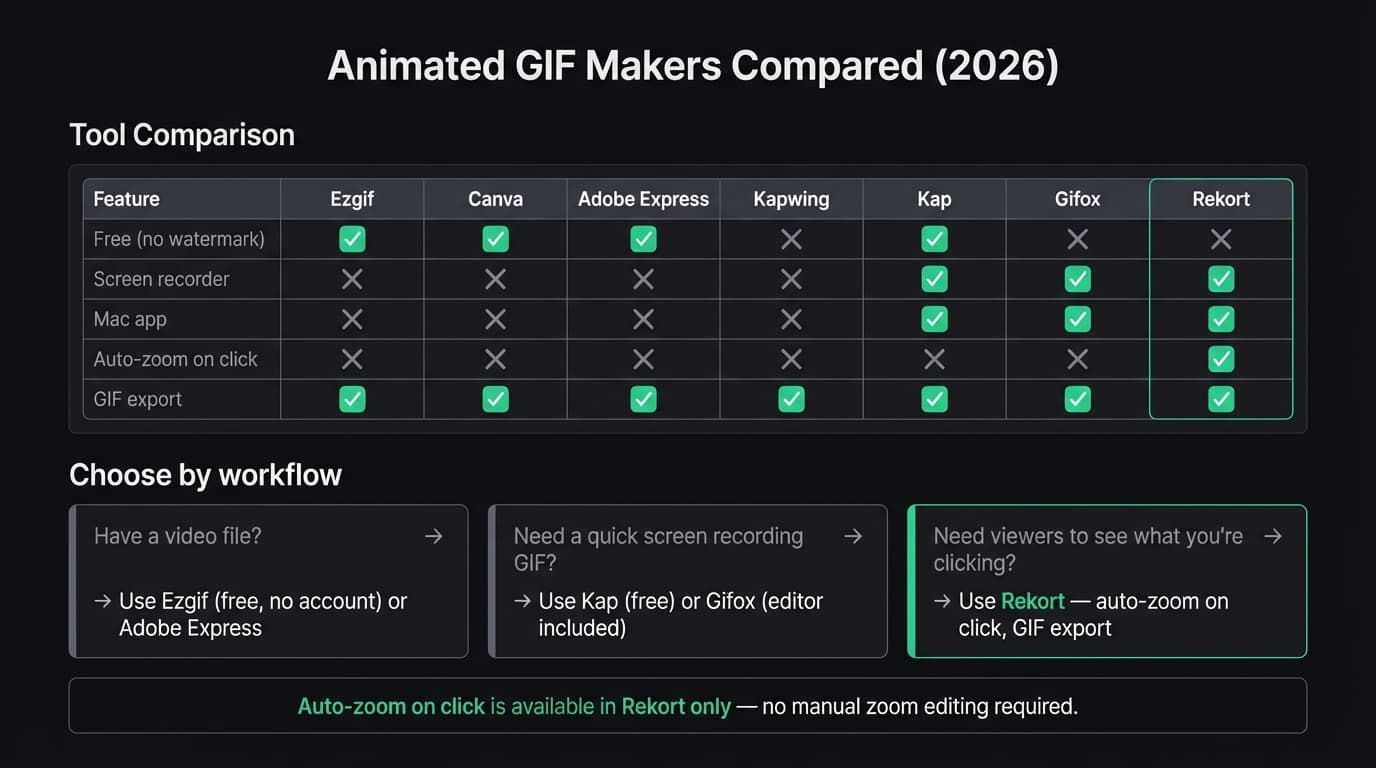
| Tool | Type | Free? | Watermark | Best for |
|---|---|---|---|---|
| Ezgif | Web | Yes | No | Video-to-GIF, frame editing |
| Canva | Web | Free tier | No | Design/marketing GIFs |
| Adobe Express | Web | Free tier | No | Quick video-to-GIF conversion |
| Kapwing | Web | Free tier | Yes (free) | Collaborative video editing |
| Kap | Mac app | Yes | No | Simple screen recording GIFs |
| Gifox | Mac app | Free tier | Yes (free) | Dedicated Mac GIF recorder |
| Rekort | Mac app | No | No | Screen recording with auto-zoom |
Web-based GIF makers#
Ezgif#
Price: Free. No account required.
Ezgif is the most capable free web tool for GIF creation and editing. It handles video-to-GIF conversion, frame-by-frame editing, optimization, crop, resize, reverse, and more — all without signing up or paying anything.
What it does well:
- Converts video (MP4, WebM, MOV, AVI) to GIF with frame rate and crop controls
- Accepts files up to around 100MB
- Optimizes GIF file size without visible quality loss using its built-in Optimize tool
- Supports animated WebP, APNG, and AVIF conversion
- No watermarks, no time limits, no subscription
Where it falls short:
- Web-only, no desktop app
- UI hasn't been redesigned in years — functional but dated
- Files are deleted after one hour
- Processes one file at a time
Who should use it: Anyone who has an existing video and needs a GIF. Ezgif is the fastest path from .mp4 to .gif when you don't have a Mac app installed. For browser extensions, documentation screenshots, and social clips, it's the default choice. See our video to GIF on Mac guide for a full walkthrough.
Canva#
Price: Free plan available. Canva Pro is $15/month.
Canva's GIF maker is a design tool, not a screen recorder. It's useful when you're building marketing GIFs — animated social posts, banner ads, product announcement visuals — not when you're trying to capture a screen workflow.
What it does well:
- Large template library with animated presets for social formats
- Animated text, stickers, transitions, and filters
- Transparent background support
- Real-time collaboration on shared designs
- Free plan covers most GIF creation features
Where it falls short:
- Can't record your screen — you'd need to bring in a video first
- Not designed for developer or product documentation workflows
- Advanced AI features and brand kits require the $15/month Pro plan
- Export times can feel slow for animated designs
Who should use it: Marketing teams producing animated social content, slide-based product announcements, or visual assets with text and brand elements. Not useful for screen recording GIFs.
Adobe Express#
Price: Free plan available. Premium is $9.99/month (billed monthly, as of March 2026).
Adobe Express includes a video-to-GIF converter as part of its broader design toolset. The free plan handles basic conversions; the 1-minute source video cap is the main limitation.
What it does well:
- Converts video to GIF with quality presets (small, medium, large)
- Integrated trim and crop before conversion
- Free tier requires an Adobe account but has no watermark
- Works inside a browser, no install needed
Where it falls short:
- Source video capped at 1 minute for GIF conversion on the free plan
- GIF tools are a subset of a general design platform — the interface isn't optimized for fast conversions
- Premium ($9.99/month) is a separate purchase from Creative Cloud
Who should use it: Creative Cloud subscribers who need occasional GIF conversion and don't want a separate tool. For video-heavy workflows, Ezgif is simpler and has no time cap.
Kapwing#
Price: Free plan with watermark. Pro is $16/month per user (billed annually, as of March 2026).
Kapwing is a collaborative video editor with GIF conversion among its features. The free plan forces a watermark on every export, which makes it a limited option for sharing output professionally.
What it does well:
- Browser-based, no install required
- Collaboration-focused — shared team workspaces and commenting
- AI-powered tools: auto-subtitling, translation, content generation
- Handles video to GIF with captions and filters
Where it falls short:
- Free plan always exports with a watermark
- $16/month per user is expensive if you only need GIF creation
- The feature set is broad but the core GIF workflow isn't faster than Ezgif
- Not a screen recorder
Who should use it: Teams that already use Kapwing for video editing and need GIF creation as part of that workflow. The $16/month Pro tier is justified when you use the AI and collaboration features — not for GIF-only use.
Continue reading
GIFs That Actually Look Good
Record with auto-zoom, export as GIF. Perfect for docs, READMEs, and pull requests.
Mac apps#
Kap#
Price: Free and open-source.
Kap is a menu bar app that records your screen and exports directly as GIF. It's the simplest path from "I need a GIF of this screen interaction" to a shareable file.
What it does well:
- Free with no watermark
- Menu bar app — start recording in two clicks
- GIF, MP4, WebM, and APNG export
- Frame rate and quality controls
- Records a selected area or window
Where it falls short:
- No auto-zoom on click — tiny UI elements stay tiny in the output
- No system audio capture
- The GitHub repository shows infrequent updates in recent years
- Recording quality can drop at high frame rates on older hardware
Who should use it: Developers recording short GIFs for GitHub issues, pull requests, or documentation. If you need a quick 5-15 second GIF of a UI interaction, Kap is the fastest free option on Mac. See our GIF screen recorder for Mac comparison for a deeper look.
Gifox#
Price: Free tier with watermark. Pro is a one-time purchase (approximately $14.99, also available on Setapp at ~$9.99/month for the full catalog, as of March 2026).
Gifox is a dedicated GIF recorder for Mac, similar to Kap but with a paid tier that removes the watermark and adds a built-in editor.
What it does well:
- Menu bar app with fast access
- Built-in editor: trim, crop, annotations
- Customizable FPS, quality, and loop count
- Apple Silicon native, actively maintained
- One-time purchase model is appealing for occasional use
Where it falls short:
- Free tier adds a watermark
- Focused on recording to GIF — can't convert arbitrary existing video files easily
- No auto-zoom on click
- No system audio capture
Who should use it: Anyone who wants a dedicated Mac GIF recorder with an editor and no subscription. The one-time price is fair for the feature set. If you're already on Setapp, it's included. See our Kap alternative guide for how it compares to other Mac GIF tools.
Rekort#
Price: $9/month, $49/year, or $79 lifetime.
Full disclosure: this is our app.
Rekort is a Mac screen recorder with automatic zoom on click. You select an area, record, and every click zooms in automatically so viewers can see exactly what you're interacting with. After recording, you preview with zoom applied and export as MP4 or GIF.
GIF export is a key part of the workflow: after recording a product walkthrough, you can export a GIF of the entire recording, or trim to a specific section. The auto-zoom carries through to the GIF export, so the output shows zoomed-in click targets without any post-production.
What it does well:
- Auto-zoom on click — viewers can see button labels and small UI elements even on high-resolution displays
- GIF and MP4 export from the same recording
- System audio and microphone capture without extra setup
- Native Mac app built with Swift; no Electron
- $9/month, $49/year, or $79 lifetime
Where it falls short:
- Not a video-to-GIF converter for existing files — it only works with recordings made inside the app
- No webcam background removal or text annotation
- No conversion of an existing video file into a GIF
- macOS 14 or later required
Who should use it: Developers, product managers, and DevRel who make screen recording GIFs for documentation, GitHub READMEs, Notion pages, or customer demos and want auto-zoom without manual editing. If you're creating a GIF from an existing video file or a screen recording made in another app, use Ezgif or Kap instead.
For more detail on converting existing videos to GIF, see our screen recording to GIF guide.
Choosing the right tool#
"I have a video file and need a GIF." Use Ezgif. Free, no watermark, handles most formats up to around 100MB.
"I need marketing GIFs with animated text and brand assets." Use Canva. The free plan covers most use cases; Pro adds brand kits and advanced AI features.
"I need a quick Mac screen recording GIF." Use Kap (free) or Gifox (one-time purchase if you want a built-in editor). Both are menu bar apps with fast access.
"I need a screen recording GIF where viewers can clearly see what I'm clicking." Use Rekort. Auto-zoom on click makes small UI elements legible without adding text overlays or zooming in post-production.
"I need GIF creation as part of a broader team video workflow." Use Kapwing — if your team already uses it, the GIF tools are there. The $16/month Pro tier is only worth it if you use the broader feature set.
The right animated GIF maker depends on whether you're converting existing video, recording your screen, or building design assets. For pure screen recording GIFs on Mac, the choice comes down to whether you need free (Kap), a dedicated editor (Gifox), or auto-zoom on click (Rekort).
Ready to record?
Rekort auto-zooms every click so your screen recordings look professional. No video editing required.
Download for MacmacOS 14+ · $9/month, $49/year, or $79 lifetime