Screen Recording Black Screen? Here's How to Fix It
Screen recording showing a black screen on Mac? Here are the five most common causes and exactly how to fix each one — permissions, DRM, hardware acceleration, and more.
A screen recording black screen is when your recording captures nothing — just a solid black frame — even though your screen looked normal while you were recording. The video file exists, the duration looks right, but all you see is black.
This happens most often on Mac because macOS treats screen capture as a sensitive permission that can silently fail in several specific ways. The good news: almost every case has a straightforward fix.
Here are the five most common causes and what to do about each.
The causes at a glance#
| Cause | Who it affects | Fix |
|---|---|---|
| Missing or stale Screen Recording permission | Anyone using any recording tool | Toggle permission off/on, restart app |
| DRM-protected content (Netflix, streaming) | Anyone recording video from streaming sites | Disable browser hardware acceleration |
| Browser hardware acceleration | Anyone recording video playing in a browser | Disable hardware acceleration in browser settings |
| Insufficient disk space | Anyone recording long sessions | Free up space before recording |
| DisplayLink / external display adapter | Anyone using USB-based display adapters | Record from built-in display |
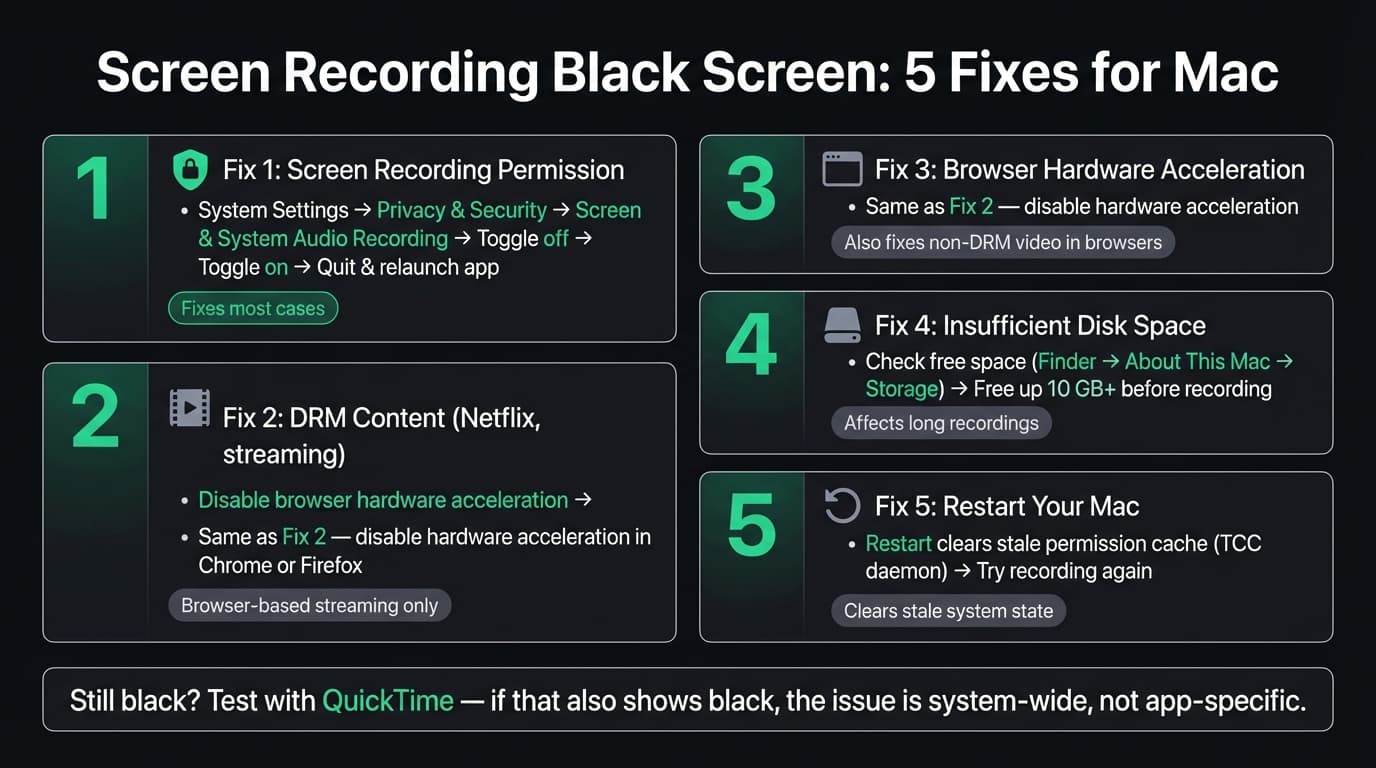
Fix 1: Screen Recording permission (most common cause)#
macOS introduced mandatory Screen Recording permission in Catalina (macOS 10.15) in 2019. Before that, any app could capture your screen. Now, every screen recording tool — including QuickTime — must appear in the allow list and have the permission explicitly toggled on.
There are two specific failure modes here that both produce a black screen:
The permission was never granted. The app opened, started recording, but silently got empty frames because it was never authorized to capture.
The permission was granted, but the app wasn't restarted. macOS doesn't apply new permissions to running processes. If you grant permission while the app is already open, it won't take effect until you quit and relaunch.
How to fix it#
- Open System Settings > Privacy & Security > Screen & System Audio Recording
- Find your recording app in the list. If it's not there, click the + button and add it manually.
- Toggle the switch off, then back on
- Fully quit the recording app — right-click the Dock icon and choose Quit, or use Cmd+Q. Do not just close the window.
- Relaunch the app and try recording again
If the app still doesn't appear in the list after adding it, restart your Mac and check again. A restart clears the TCC (Transparency, Consent, and Control) daemon state that sometimes caches stale entries.
QuickTime specifically: You can also reset QuickTime's permission entry from Terminal if toggling doesn't work:
tccutil reset ScreenCapture com.apple.QuickTimePlayerX
After running this, reopen QuickTime. It will prompt you for permission again. Grant it, quit QuickTime, and relaunch it.
For a full walkthrough of enabling screen recording permissions on Mac, see our how to enable screen recording on Mac guide.
Continue reading
Screen Recording Made Simple
Rekort captures your screen with system audio and auto-zooms every click automatically.
Fix 2: DRM-protected content (Netflix, streaming apps)#
If your screen looks normal while you're watching — but the recording shows a black rectangle exactly where the video was playing — you're hitting DRM content protection.
Why this happens: Netflix, Apple TV+, Disney+, and most streaming services use DRM (Digital Rights Management) to protect their content from being copied. The technical mechanism routes the video frames through a GPU-level pipeline that deliberately excludes the screen capture API. macOS's ScreenCaptureKit and QuickTime's capture path both read from the standard compositing layer — DRM content is intentionally excluded from that layer. The result is a black rectangle where the video was, with everything else in the recording visible normally.
This isn't a bug — it's the system working as designed.
How to fix it (browser-based streaming only)#
Disable hardware acceleration in your browser. When hardware acceleration is off, the browser decodes video in software, and the output goes through the normal display pipeline that screen capture can read.
In Chrome:
- Open Chrome menu > Settings > System
- Toggle off "Use hardware acceleration when available"
- Click Relaunch
In Firefox:
- Open Firefox menu > Settings > General > Performance
- Uncheck "Use recommended performance settings"
- Uncheck "Use hardware acceleration when available"
- Restart Firefox
This fix doesn't work for: Native apps like the Apple TV app or the Netflix Mac app. Those use FairPlay DRM at the OS level, which can't be bypassed by changing a software rendering setting.
Legal note: Whether this workaround is allowed depends on the service's terms of use. Recording DRM-protected content may violate those terms regardless of personal use intent.
Fix 3: Browser hardware acceleration (non-DRM video)#
The same hardware acceleration issue that causes black screens with DRM content can also cause black screens with non-DRM video — browser-based video players, embedded videos, HTML5 video elements, video in web apps.
When a browser uses GPU-accelerated compositing, the rendered video frame may exist only in GPU memory in a format the CPU-based capture API can't read. This is separate from DRM; it's a rendering path issue.
The same fix applies: disable hardware acceleration in Chrome or Firefox (see the steps above under Fix 2).
If you need hardware acceleration to remain on for other browser tasks, an alternative is to use a screen recorder that captures at a lower level of the display stack — but this is hardware- and tool-dependent, and there's no universal solution.
Fix 4: Insufficient disk space#
A recording with insufficient storage will silently write blank or black frames instead of failing with an error. macOS pre-allocates disk space for video files and fills it with null data; if space runs out mid-recording, the remaining frames are black or the file is truncated.
How to check#
- Open Finder > About This Mac > More Info > Storage
- If available space is under 5–10 GB, recordings of any significant length are at risk
What to do: Empty the trash, clear large old downloads and screenshots, and make sure you have at least 10 GB free before recording longer sessions. For reference, a 10-minute 1080p screen recording at typical quality uses roughly 1–3 GB.
Fix 5: Restart your Mac#
Some black screen issues are caused by stale TCC daemon state — the background system process that manages privacy permissions. This can happen after a macOS update, after an app update changes the app's code signature, or after toggling permissions multiple times in a short period.
A simple restart clears the TCC daemon cache and forces it to reload the current permission state from disk. This fixes cases where the permission toggle appears to be on, but the system is still serving stale blocked state to the app.
If you've already tried toggling permissions and the problem persists, restart your Mac before anything else. It's the fastest path to ruling out TCC daemon issues.
Hardware causes: external displays and DisplayLink adapters#
If you're using a USB-based display adapter — especially DisplayLink adapters, which are common with USB-C docking stations and multi-monitor setups — your screen recording may show a black screen for that display specifically.
Why: DisplayLink drivers create a virtual display that is composited separately from the main display pipeline. Standard screen capture APIs see the virtual display as a black or absent source.
Fix options:
- Record from the built-in Mac display instead of the DisplayLink display
- Temporarily disable the DisplayLink login item (System Settings > General > Login Items), then reconnect the display and try recording
- Switch to a display adapter that uses the native macOS display driver (like Thunderbolt-based adapters) rather than DisplayLink
Rekort and black screen issues#
If you're seeing a black screen in Rekort, it's almost always the Screen Recording permission (Fix 1). Rekort uses ScreenCaptureKit — the same macOS framework as QuickTime and the Screenshot toolbar — and requires the same Screen & System Audio Recording permission to function.
If you recently updated Rekort and the black screen issue appeared after the update: app updates can change the code signature, which sometimes causes macOS to require re-authorization. Toggle the permission off and on in System Settings, quit and relaunch Rekort, and it should work again.
For setup help, the how to enable screen recording on Mac guide has a detailed walkthrough.
When to use each fix#
Run through these in order if you're not sure what's causing the issue:
- Toggle Screen Recording permission off/on, restart the app — fixes most cases
- Restart your Mac — fixes stale TCC state that toggling alone doesn't clear
- Disable browser hardware acceleration — fixes black screen when recording video in Chrome or Firefox
- Check disk space — if the recording is partially black or cuts off early
- Check for DisplayLink — if the black screen is only on an external monitor
The Screen Recording permission is the root cause in the majority of cases. Everything else is narrower — DRM is specific to streaming video, hardware acceleration affects browser video, disk space affects long recordings, and DisplayLink affects USB-based external monitors.
If all five fixes fail and the black screen persists, try recording with a different tool (like QuickTime, which is the simplest test case for the permission) to confirm whether the issue is app-specific or system-wide. A system-wide black screen across all recording tools typically points to a macOS bug or corrupted TCC database, and a full macOS reinstall (preserving data via Migration Assistant) is the most reliable path.
For more screen recording troubleshooting on Mac, see our tips & workflows pillar.
Ready to record?
Rekort auto-zooms every click so your screen recordings look professional. No video editing required.
Download for MacmacOS 14+ · $9/month, $49/year, or $79 lifetime
Related Articles
How to Record Screen with Audio on Mac (2026 Guide)
10 min read
Where Do Screen Recordings Go on Mac?
6 min read
Screen Recording for Instagram: Reels & Stories from Your Mac
7 min read
How to Screen Record a Zoom Meeting on Mac (2026)
7 min read
Screen Record on Mac with Sound: System Audio + Mic (2026)
7 min read